
Visual Expert server configuration guide
For teams working with Visual Expert and analyzing large volumes of code.
Is this tutorial for you?
Visual Expert can be installed in various configurations to meet your needs.
Depending on your volume of code and the size of your team, you will fall into one of the following cases:
Standalone - Trial
Single user & small projects
✓ Automated setup (follow the wizard)Steps for Client/Server Configuration
- Prepare a Server machine
- Install SQL Server or use an existing instance
- Download and install Visual Expert
- Create a VE Repository and get a key
- Create a VE Project to analyze your code
- Install Visual Expert Web.
- Manage VE User accounts
- Grant Access Rights to VE Projects.
- Automate recurring tasks
- Configure VE Notifications
- Configure VE AI Services (optional)
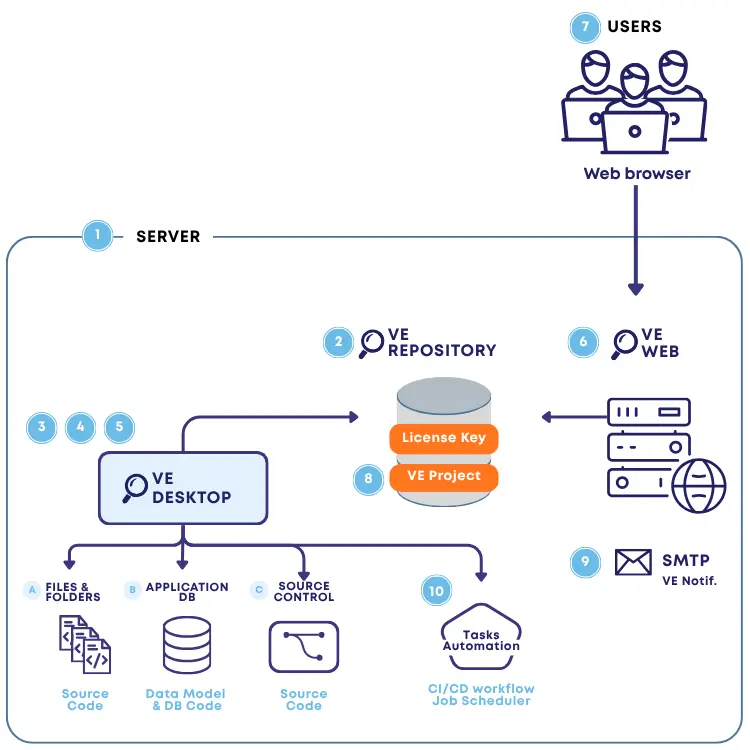
Step 1 – Prepare a Server machine
Prepare the Server (Virtual or Physical machine) where the Visual Expert components will be installed.
It is essential to allocate enough hardware resources, especially for analyzing large volumes of code.
Please follow the system requirements, and contact us if you have any questions.
Step 2 – Install a new SQL Server instance, or use an existing one
This instance will host the Visual Expert Repository.
Any version of SQL Server could be used, except for Express Edition or Local DB, which do not use all the RAM and CPU available on the machine.
If you don't have a SQL Server instance available, you can install SQL Server Developer Edition. It's free of charge since it will be used for your development activities.
For detailed instructions, refer our SQL Server Developer Edition Installation Guide
Step 3 – Download and install Visual Expert
- Download the SERVER components from the VE Server download page.
If you haven't received a link to this page yet, please contact us. - Install Visual Expert, using the Visual Expert Advanced Setup.
Step 4 – Create a Repository and get a License Key
After the Visual Expert installation, a wizard will guide you to:
- Connect to the SQL Server instance prepared in [Step 2].
- Create a Visual Expert Repository, following this tutorial.
- Request a License Key, following this tutorial.
When your key is available, you will receive an email notification.
Follow the instructions in this email to install your key.
Step 5 – Create a Visual Expert project
This consists in selecting the code & database(s) you wish to analyze.
Several options are available. You can combine them in a single project:
Once this step is completed, the code analysis will start. A window will show the analysis progress.
Please refer to the dedicated guide:
- Oracle projects: Analyze PL/SQL Code
- SQL Server projects: Analyze T-SQL code
- All tutorials (Multi-application analysis, source control integration, and more... )
Step 6 – Install and configure Visual Expert Web
Visual Expert Web allows your team to access code analysis results through a standard web browser, without installing any software on their workstations.
- Install Internet Information Services (IIS) on the server.
- Deploy and configure VE Web.
- Publish your VE Projects to make them accessible via the web interface.
For detailed instructions, refer to the dedicated guide:
Step 7 – Define the user management policy
Each VE user will have a dedicated account. You can choose between several options:
- Using existing Windows accounts or creating new email/password accounts.
- Whether or not to require an administrator's approval when creating new user accounts.
- etc.
For detailed instructions, refer to the dedicated guide:
Step 8 – Manage access rights to VE projects
Access to VE projects is restricted by default.
VE Administrators can :
- Grant users access to the relevant VE projects.
- Assign permissions such as viewing analysis results, running code inspections, or exporting data.
For detailed instructions, refer to the dedicated guide:
Step 9 – Configure VE Notifications
- Administrators can follow the instructions in this article to configure the SMTP settings for sending email notifications.
- Each VE user will then be able to choose which notifications they wish to receive.
Step 10 – Automate Recurring Tasks
Schedule code analysis
We highly recommend scheduling a periodic code analysis, to ensure it reflects the latest changes to the code.
This will also save you from performing manual operations every time you want to update your code analysis.
- You can use the Visual Expert built-in scheduler to automatically trigger analysis on a regular basis.
- Any other system can call Visual Expert by command lines to trigger analysis, for example when a new build is available.
- If you use Jenkins, you can use the Visual Expert plugin for Jenkins.
Automate tasks before analysis
You can also automate certain preliminary actions, for example to copy your code to a location that is accessible by Visual Expert.
Other tasks
You can also export code inspection results. In particular, this fits well with continuous integration and continuous delivery processes.
Step 11 (optional) – Visual Expert AI services
Configure VE AI
Visual Expert provides AI-powered features that enhance code analysis and documentation.
If you plan to use these features, additional network configuration may be required to allow secure communication between your Visual Expert server and the AI services.
AI Credits & Administrative Controls
- Visual Expert AI features require AI credits.