
Shared Docs Overview
Related Articles for VE Shared Documents
- How to Share a Document – Step-by-step instructions for sharing pages and results from VE Web.
- How to Manage Shared Documents – Browse, filter, organize, and delete shared documents.
- Use Cases for Shared Documents – Practical examples of how teams use Shared Docs.
Introduction
Shared Docs allows users to share Visual Expert views and results as shared documents in VE Web.
A shared document can be opened later, accessed from the VE Web "Shared" module, and shared with project users for collaborative purposes.
Shared Docs allows teams to leverage useful analysis results directly from Visual Expert, within pages they can navigate, rather than copying them into static documents.
Shared Docs are centralized and easily accessible from any web browser.
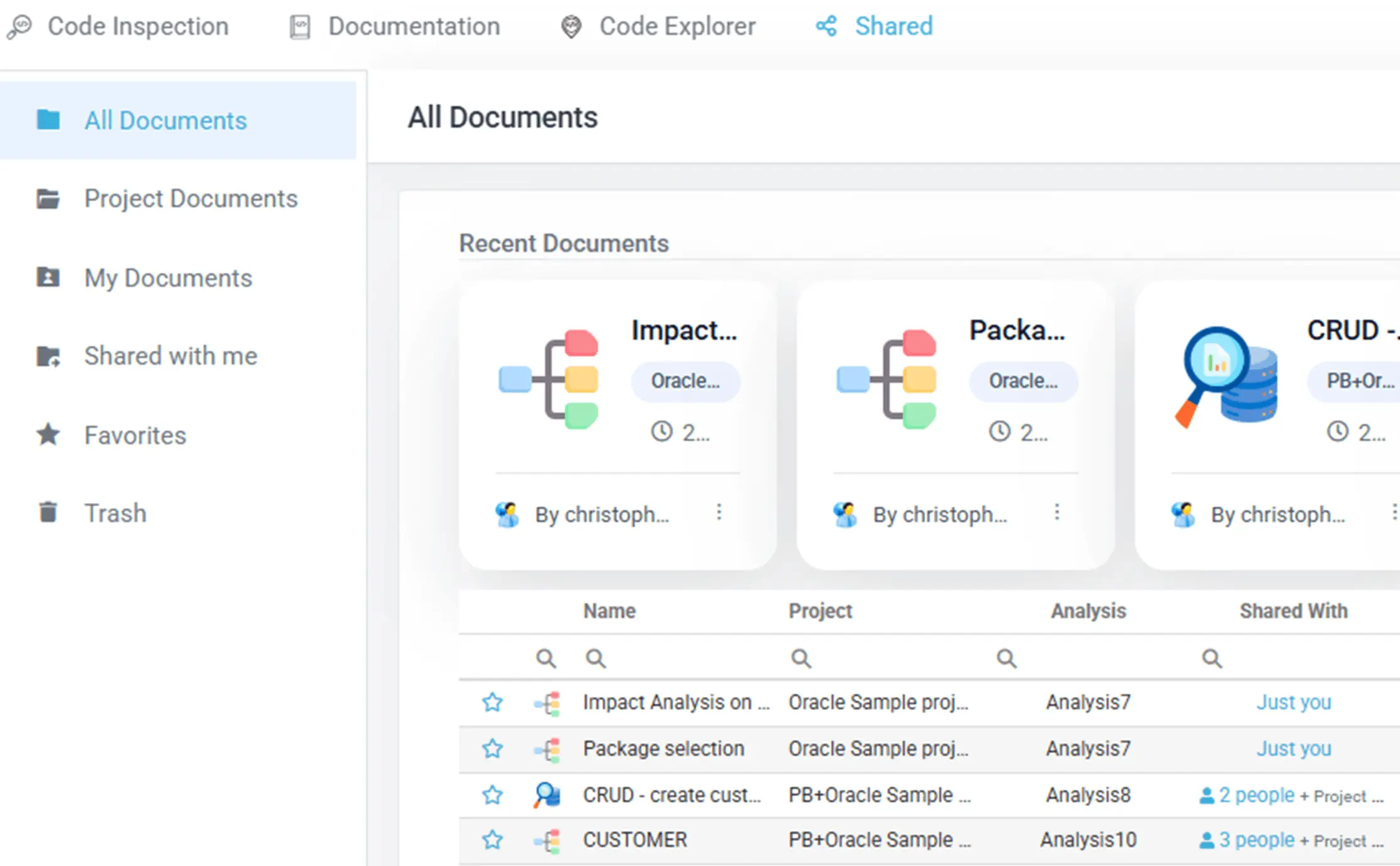
What are Shared Docs
Shared Docs are documents created from the VE Web UI.
A shared document preserves the current Visual Expert context so that authorized users can open the same content later and continue navigating it in VE Web.
Shared documents are not generic file uploads. They are always created from Visual Expert views and results already displayed in the web interface.
Why use Shared Docs
Shared Docs can be used to:
- save a useful result for later
- share the same result with teammates
- give other users direct access to a result, without asking them to recreate the same steps.
They are especially useful for sharing results with other users while maintaining or reviewing code.
How to access Shared Docs
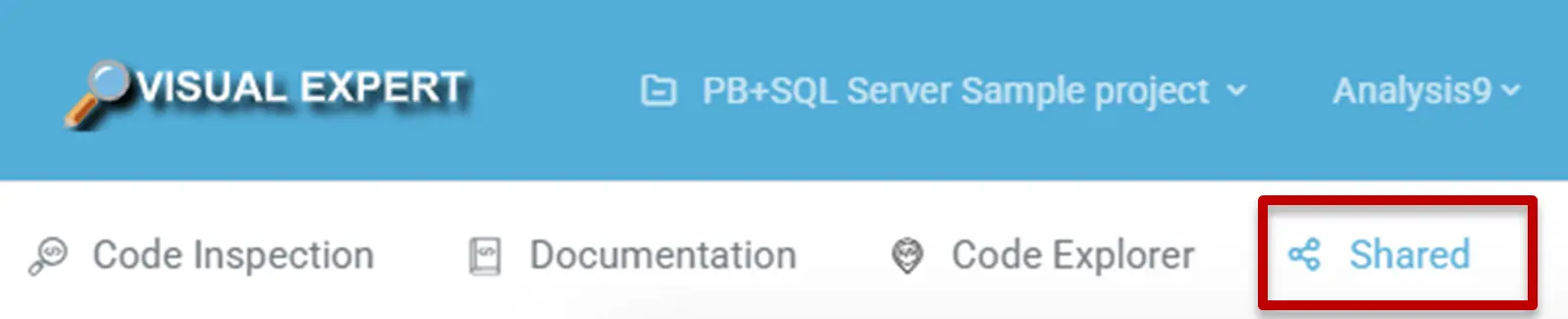
Accessing the Shared Documents in VE Web
From VE Web, the menu "Shared" opens a dedicated page to browse shared documents.
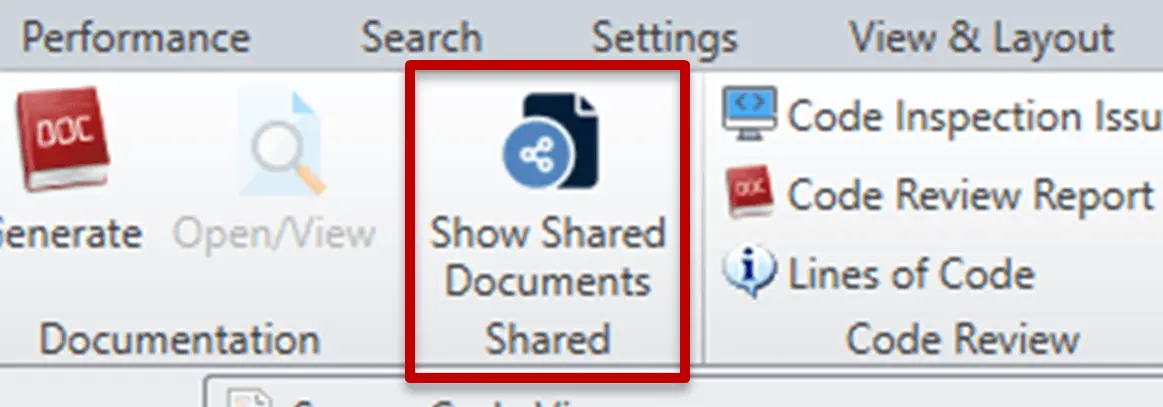
Accessing the Shared Documents from VE Desktop
From VE Desktop, the menu "Shared Docs" opens your browser on the Shared page in VE Web. VE Desktop itself does not allow users to create or view Shared Docs directly.
What can be shared
Users can share supported views and results currently displayed in VE Web.
Typical examples include:
- Code Inspection pages and results
- Documentation pages
- Views (tabs) or results displayed in Code Explorer.
In Code Explorer, users can share the Main view, or share a subset of the Main view after creating a separate view from the relevant part of the Tree View (right-click on a treeview node > "Create View from Selection").
For example, a user can run an impact analysis, detach it in a dedicated tab, and share it with others as a shared document. For more information, read "Detach and share a subset of the Main view" in the article "How to Share a Document".
Who can access a shared document
A document can be shared with all project users, or just a selection of users.
This makes it possible to share a result with the right audience, while keeping the process simple.
Notifications
When a document is shared, Visual Expert can send notifications to the users it is shared with, if they have enabled the corresponding notifications. See Notifications for more details.