How to Manage Shared Documents
Open the Shared module
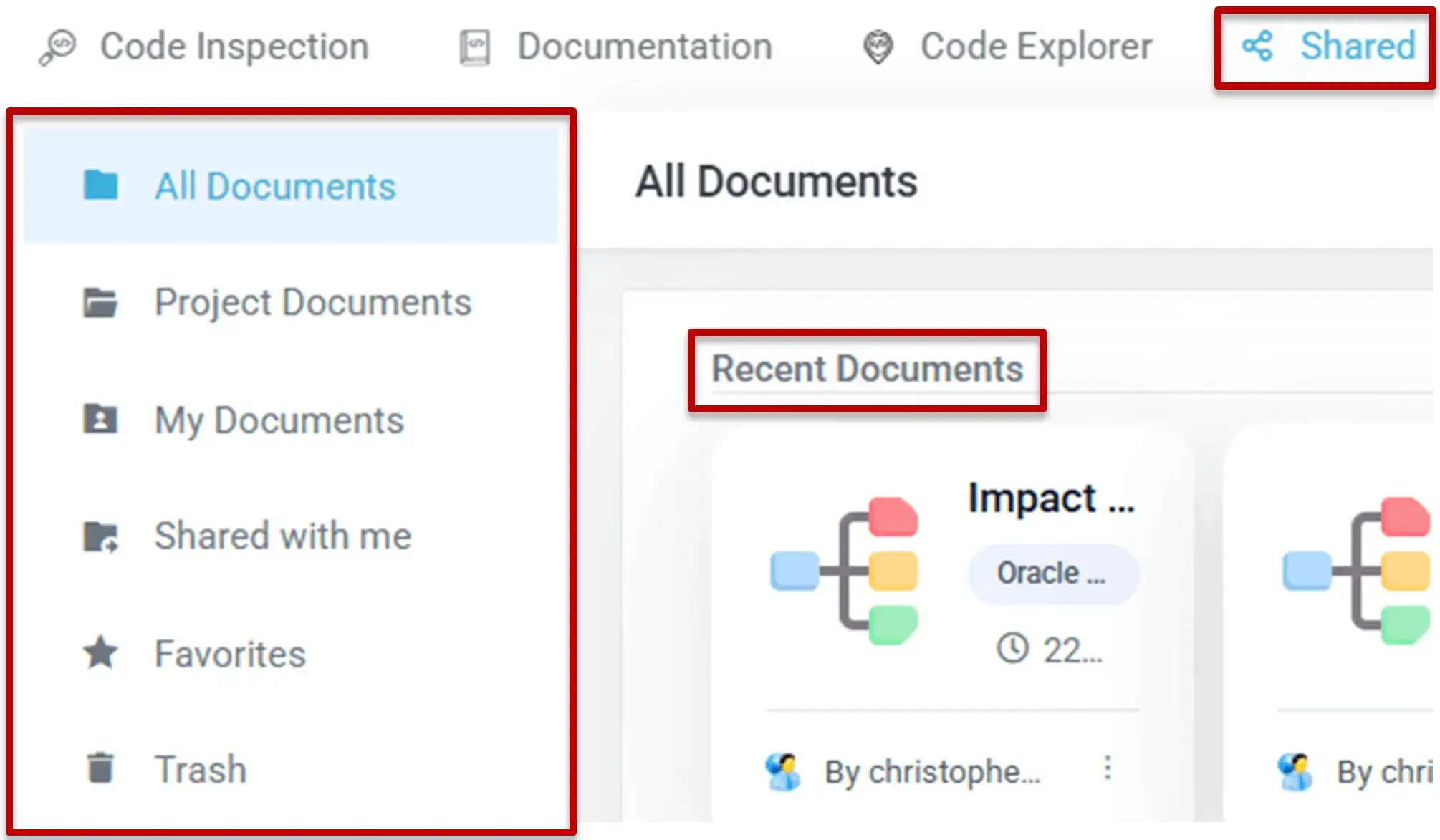
Open the Shared module in VE Web to browse all the shared documents you can access.
Understand the Shared categories
The Shared module organizes documents into the following categories:
| Category | Description |
|---|---|
| All Documents | Shows all accessible shared documents. |
| Project Documents | Shows documents related to the current project. |
| My Documents | Shows documents you shared and own. |
| Shared with Me | Shows documents shared with you by other users. |
| Favorites | Shows documents marked as favorites. |
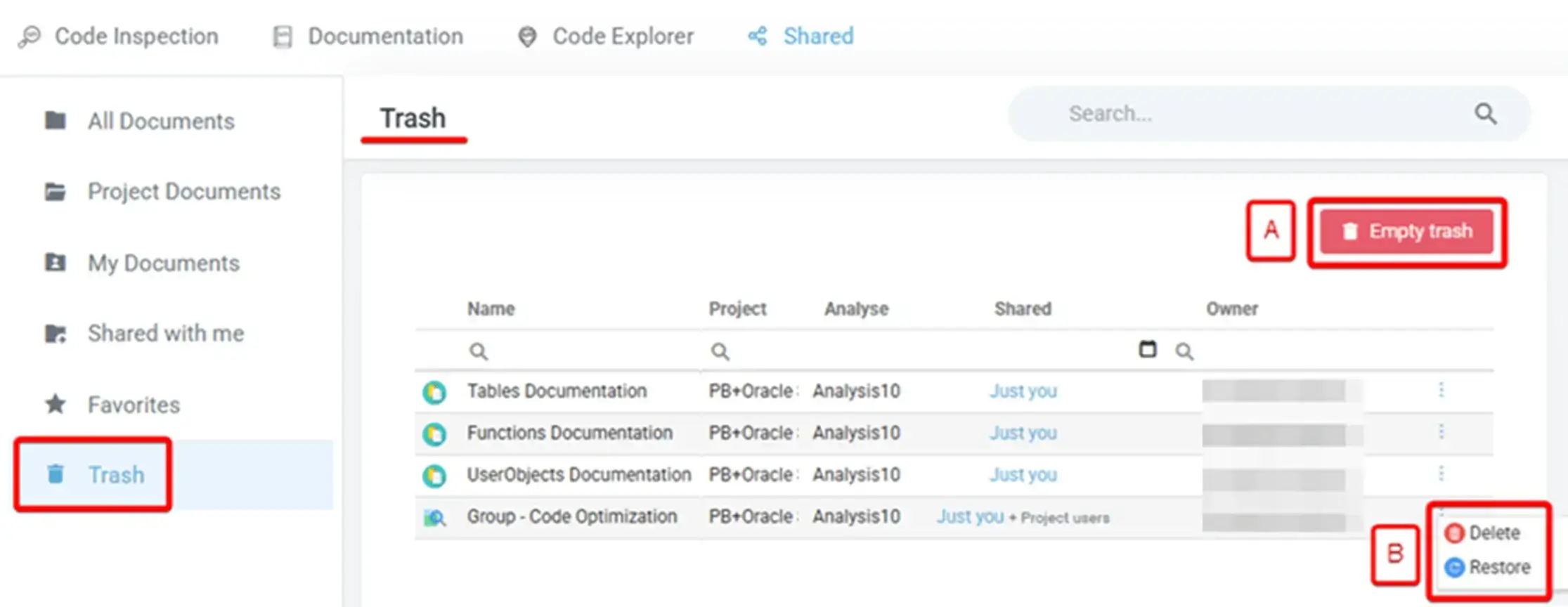
| Trash | Shows deleted documents that can still be restored or permanently deleted. |
Recent Documents
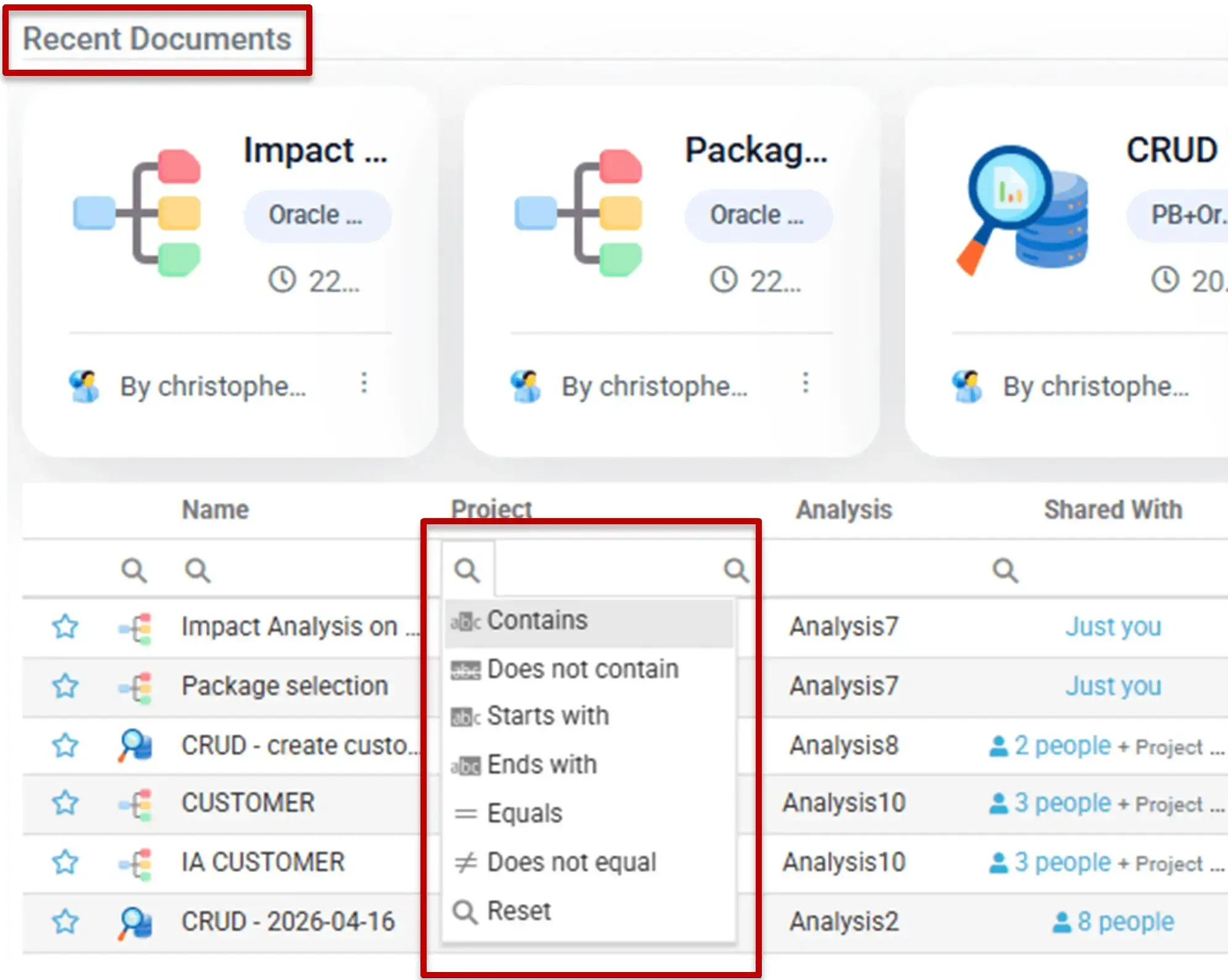
The Shared module can display recent documents so users can quickly reopen recently accessed or recently shared content.
Understand the document list
The document list provides key information such as name, project, analysis, sharing information, last opened date, creation date, and owner.
Search and filter documents
Users can search and filter documents directly from the list to find the exact document they need.
Available actions
From the document list, users can perform standard actions on shared documents, such as:
- Open
- Copy Link
- Favorite
- Share
- Move to Trash
Favorites
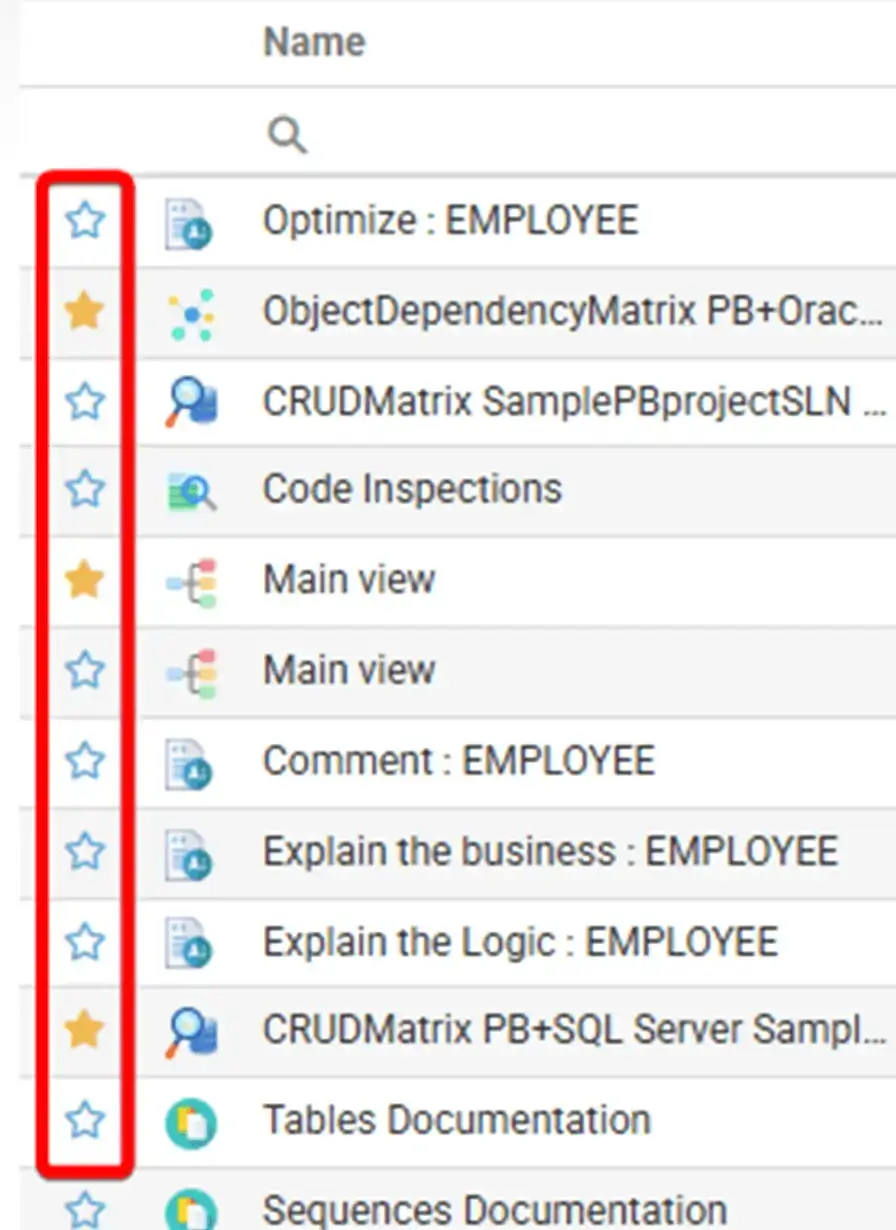
Users can mark frequently used documents as favorites to find them more easily later.
Trash
The Trash category can be used to review deleted documents, restore them, delete them individually, or empty the whole Trash when needed.
View sharing details
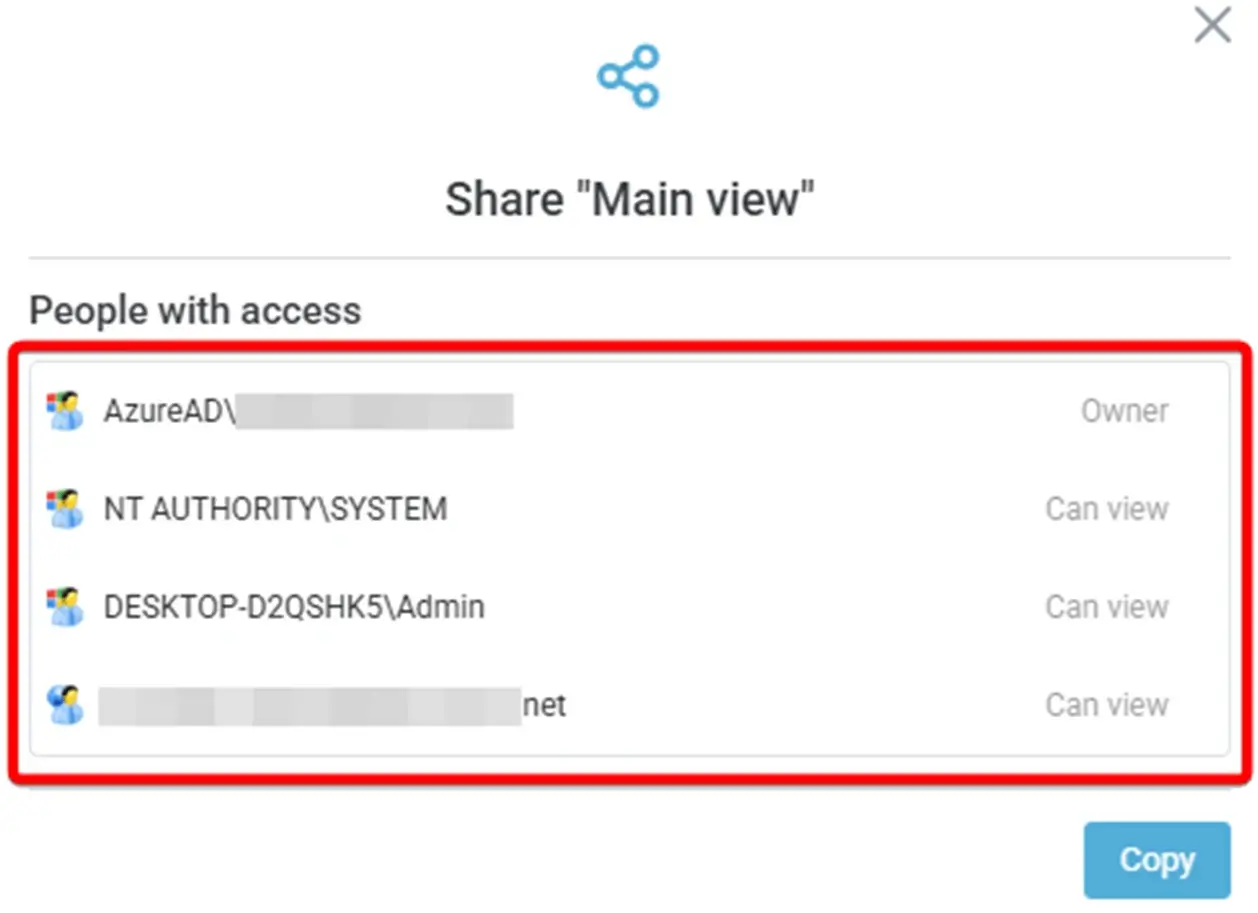
Users can open the sharing details of a document to see who has access to it and what level of access is available.