
User Guide: Manage Notifications in Visual Expert
Use the notification bell and the My Notifications page to review alerts and control how Visual Expert informs you about events across the system.
Open the Notifications Settings in VE Web
- Open VE Web and sign in with your account.
- On the right side of the blue ribbon, click your username to open the menu and select [Settings].
- In the left navigation pane, click [My Notifications].
- Review the list of event types and the available delivery channels.
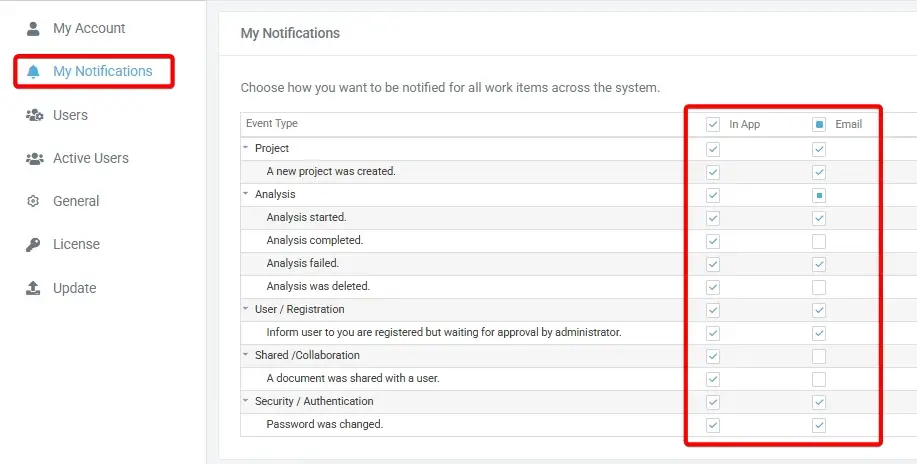
Open the Notifications Settings in VE Desktop
- Open VE Desktop.
- In the Ribbon menu, go to Settings → More Settings.
- In the left navigation pane, select [My Notifications].
- Review the list of event types and the available delivery channels.
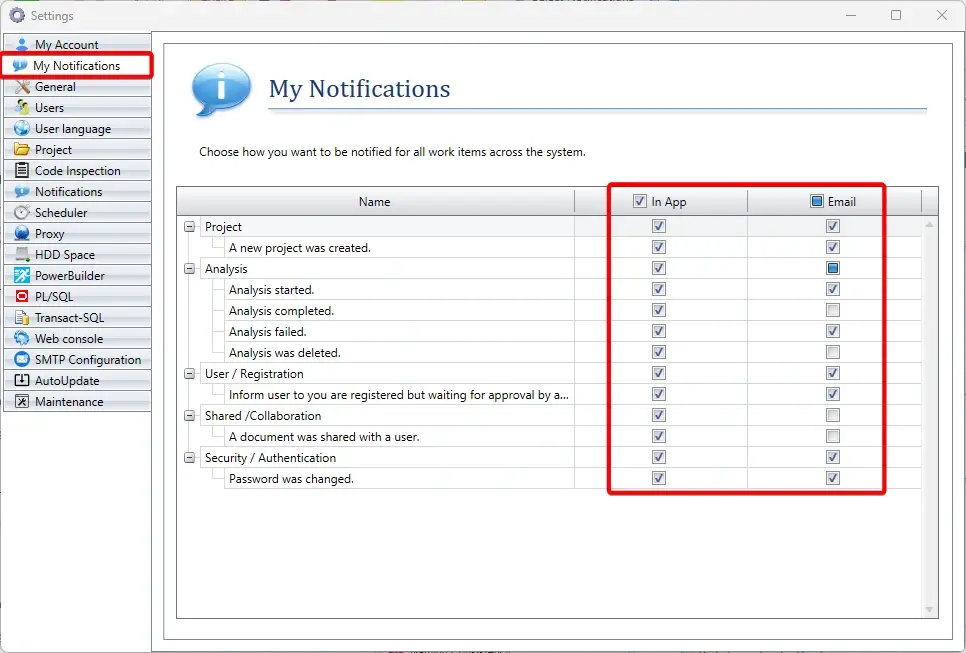
Open the Notification Center
- Click the bell icon in the blue top bar to open the notification panel.
- The unread counter displayed on the bell shows how many notifications are currently unread.
- Use the panel for day-to-day review of recent notifications without leaving the current page.
VE Desktop Notification bell
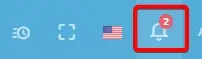
VE Web Notification bell
Use the In-App Notification Panel
- At the top of the panel, the 'Only show unread' toggle filters the list so you can focus on pending items only.
- Unread notifications are marked with a blue dot in the list.
- Use this view to review recent events across the system from a single location.
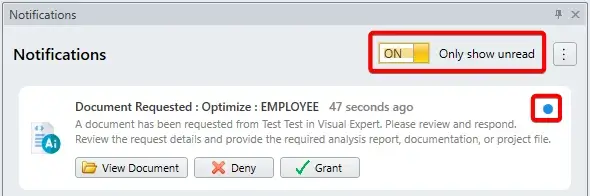
VE Desktop Notification Panel
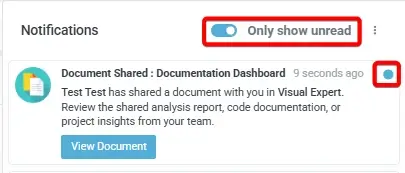
VE Web Notification Panel
Dock the Notification Panel in VE Desktop
The notification panel can be docked in the VE Desktop workspace for easier access.
- Drag the title bar of the notification panel to any side of the workspace and drop it in the desired location.
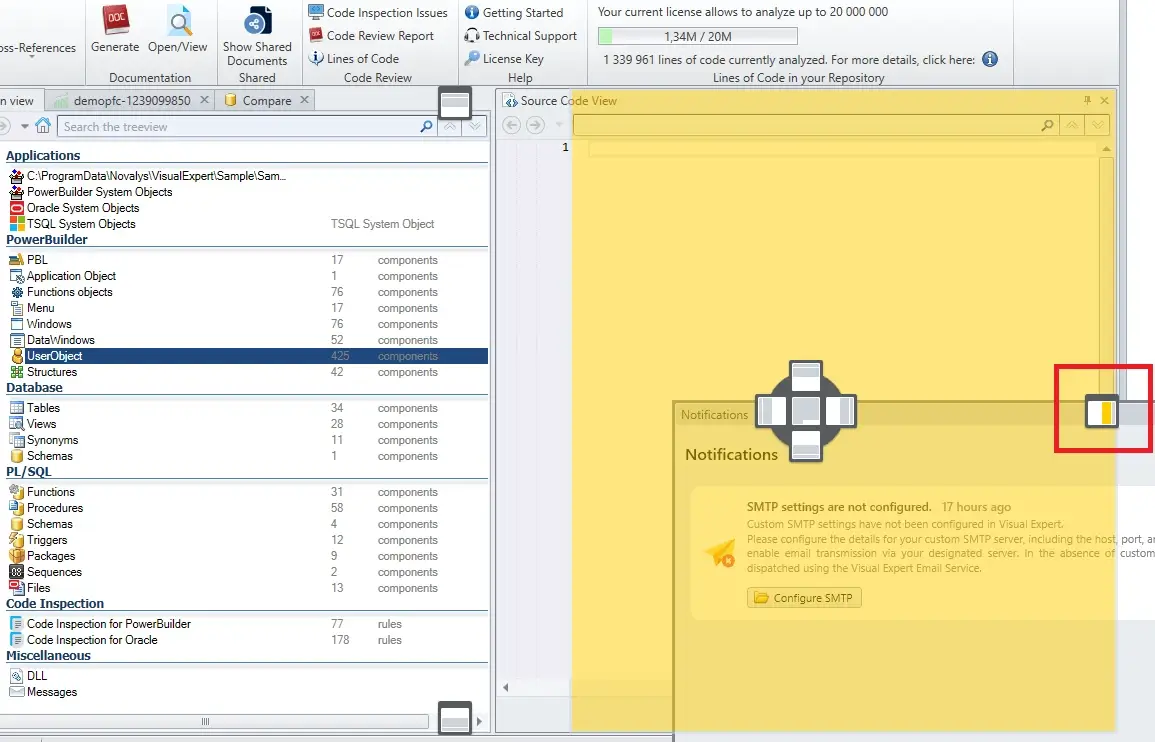
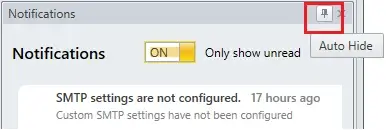
- Once docked, click the [Auto Hide] pin to collapse the panel by default.
- When you click the notification icon, the panel automatically expands to display notifications.
Use the Panel Options Menu
- Click the three-dot menu in the panel header to access additional commands.
- Mark all as read – Updates all notifications in the current list to read status in a single action.
- Settings – Opens the My Notifications page, where you choose the event types and delivery channels you want to use.
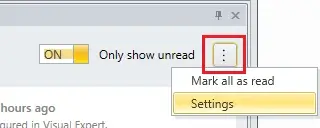
VE Desktop Notification Options
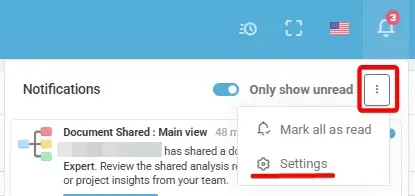
VE Web Notification Options
Choose How You Want to Be Notified
From the My Notifications page, you can enable or disable notifications by event type and by delivery channel.
- In App – Enables or disables in-application notifications for that event type or category.
- Email – Enables or disables email delivery for that event type or category, when email notifications are available.
Your settings apply across all work items covered by the Notifications module.
Understand the Event Categories
- Project – Notifications related to project creation.
- Analysis – Notifications related to analysis execution and lifecycle.
- User / Registration – Notifications related to account registration and approval.
- Shared / Collaboration – Notifications related to document sharing.
- Security / Authentication – Notifications related to account security actions.
Open or Act on a Notification
When supported by the event type, a notification provides a direct action, such as
Open Analysis, View Document, or an approval action.
Use these actions to respond immediately without manually navigating to the related page
or searching for the related work item.
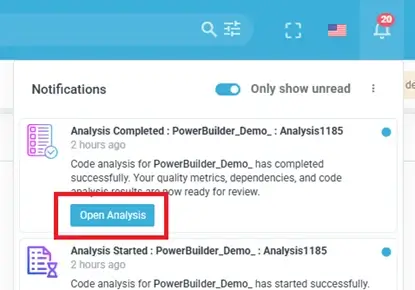
Read and Unread Notifications
Unread notifications are displayed with a visual marker and are included in the counter on the bell icon in the VE Web top bar. In VE Web, this visual marker is a blue dot.
A notification becomes read when you open the related item or explicitly mark it as read. Use Mark all as read from the panel menu to clear a reviewed batch of notifications in a single action.
Best Practices
- Review your settings when a new project or workflow is introduced.
- Enable only the event types that are relevant to your role.
- Use email notifications for important events that should not be missed when you are not connected to Visual Expert.
- Regularly review unread items so collaboration and approval requests are not delayed.