
Administrator Guide: Configure Email Notifications
Administrators can configure SMTP settings to allow Visual Expert to send email notifications for the event types selected by users. Once SMTP is configured and a user enables email delivery for a supported event type, Visual Expert can deliver notification emails such as shared-document alerts.
Before You Start
- Confirm that you have the required administration rights.
- Prepare the email settings that match your company policy.
- Decide whether to use the built-in mail server or a custom SMTP server.
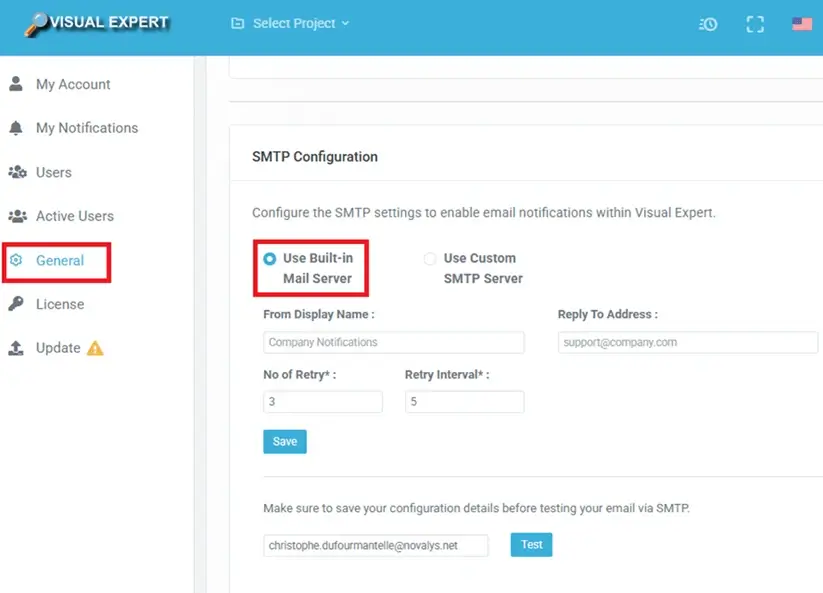
Open the SMTP Configuration Page in VE Web
- Open VE Web and sign in with an administrator account.
- In the left navigation pane, click [General].
- Locate the SMTP Configuration section.
Open the SMTP Configuration Page in VE Desktop
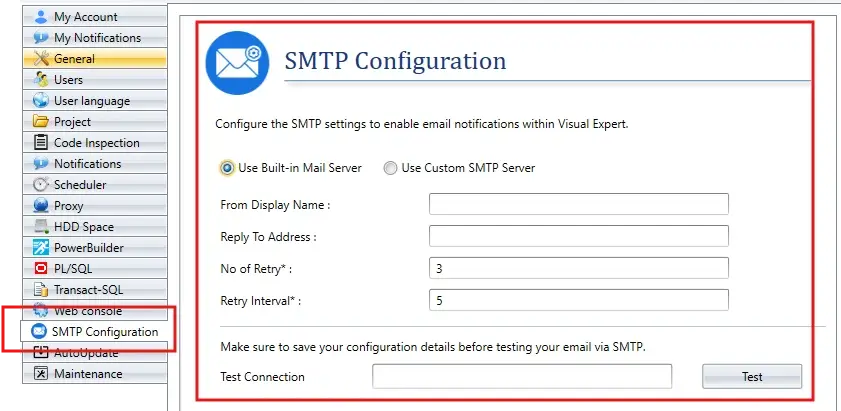
- Open VE Desktop with an administrator account.
- In the Ribbon menu, go to Settings → More Settings.
- In the left navigation pane, select [SMTP Configuration].
Use the Built-in Mail Server
The built-in mail server option is designed for quick, simple configuration. It requires fewer settings and is suitable when the default Visual Expert email service meets your requirements.
- Select Use Built-in Mail Server.
- Enter the From Display Name shown to recipients.
- Enter the Reply To Address to be used when recipients reply to the message.
- Configure No of Retry and Retry Interval based on your operational requirements.
- Click [Save].
Use a Custom SMTP Server
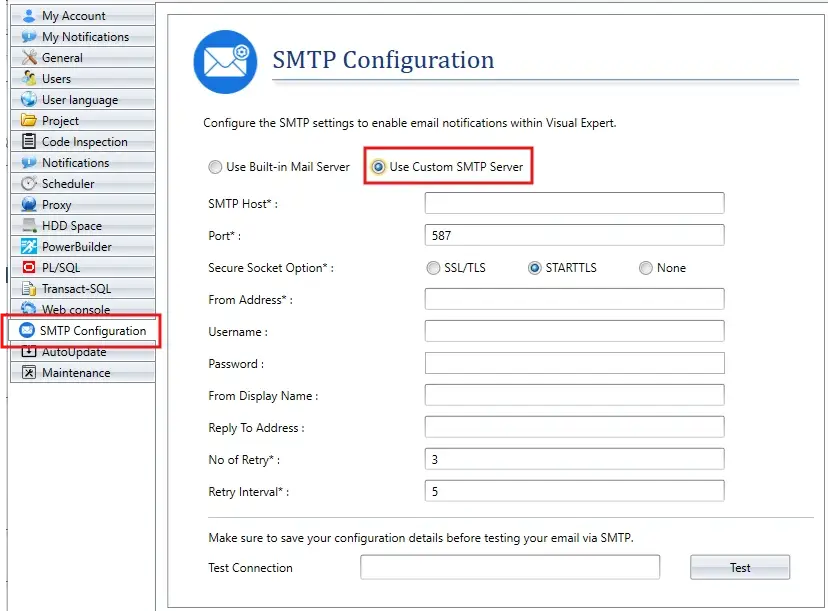
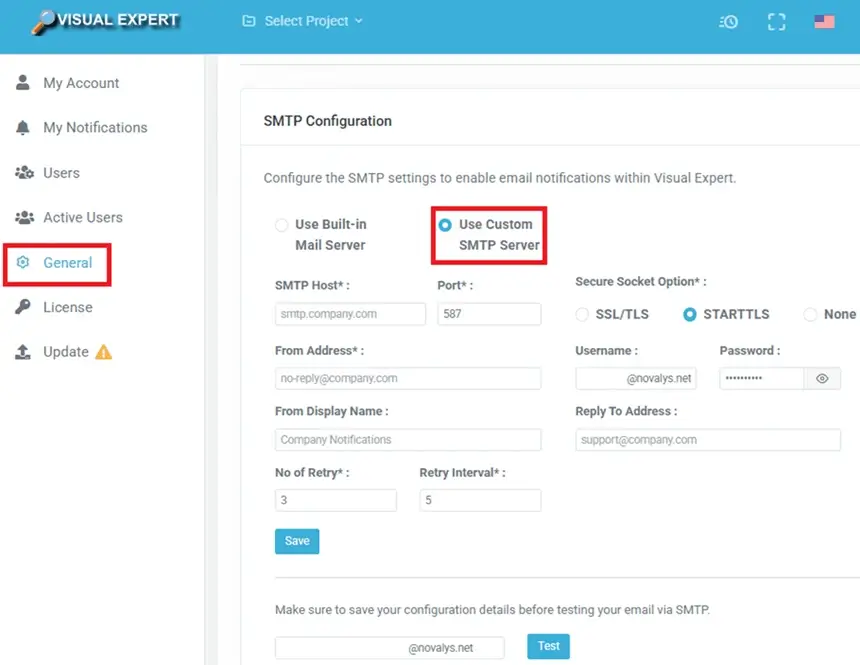
The custom SMTP server option provides greater flexibility and is the preferred choice for production and enterprise environments. It allows administrators to use the organization's own mail server, authentication method, and security settings.
- Select Use Custom SMTP Server.
- Enter the SMTP Host and Port.
- Choose the Secure Socket Option that matches your mail server configuration: SSL/TLS, STARTTLS, or None.
- Enter the Username and Password required by the SMTP server.
- Enter the From Address, From Display Name, and Reply To Address.
- Configure No of Retry and Retry Interval based on your operational requirements.
- Click [Save].
SMTP Fields Reference
| Field | Description | Applies to |
|---|---|---|
| From Display Name | Display name shown in outgoing email messages. | Built-in and Custom |
| Reply To Address | Reply address used when recipients reply to the message. | Built-in and Custom |
| No of Retry | Number of delivery attempts when delivery fails temporarily. | Built-in and Custom |
| Retry Interval | Delay between retry attempts. | Built-in and Custom |
| SMTP Host | Hostname of the SMTP server. | Custom |
| Port | SMTP listening port. | Custom |
| Secure Socket Option | Transport security option used to connect to the SMTP server. | Custom |
| Username | Account used to authenticate to the SMTP server. | Custom |
| Password | Password associated with the SMTP account. VE Web provides a visibility toggle to show or hide the entered password. |
Custom |
| From Address | Sender address used for outgoing email messages. | Custom |
Save and Test the Configuration
After saving the SMTP settings, enter a recipient email address in the test field and click Test to send a validation message. Confirm that the message is received and that the sender information is displayed as expected.
Review a Sample Notification Email
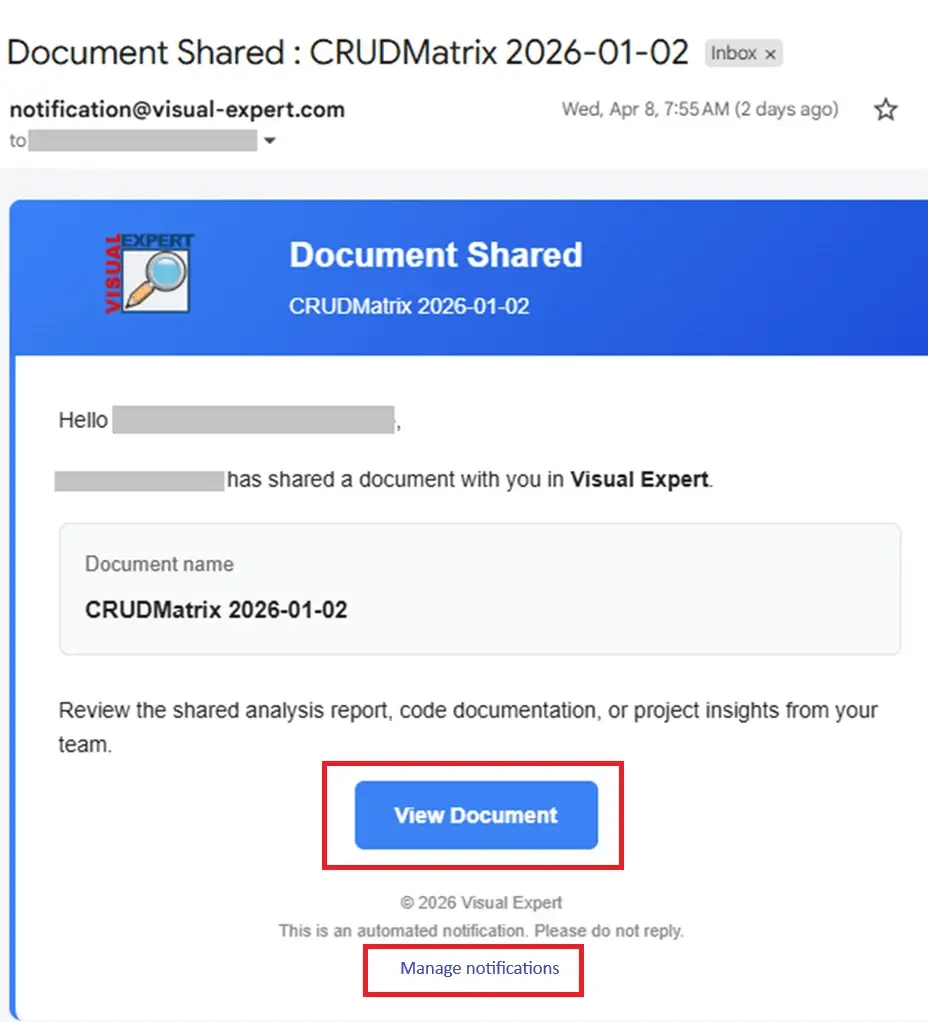
Once SMTP is configured and a user enables email for a supported event type, Visual Expert can send notification emails. The example below shows a shared-document email, which includes the document name and a View Document action button.
Recipients can click the Manage notifications link in the email to edit
their preferences and select the notification types and delivery channels they want.
Note
The exact wording of email templates may evolve in future releases, but the message structure is designed to reflect a clear and actionable user experience.
Operational Recommendations
- Use sender names and addresses that your users will immediately recognize.
- Validate security options and port numbers with your mail administrator before testing.
- Test the configuration after each change.
- Review user notification settings after SMTP is enabled to confirm that the intended event types can be delivered by email.