
Steps to Set MessageBox Exceptions
Purpose
When Visual Expert analyses your code, some references to dataobjects may be missing. This article explains how to declare MessageBox Exceptions to help Visual Expert identify such references when they are created indirectly.
Why some references are missing
Missing references typically occur in cases of indirect usage, for example:
- When dataobjects are passed as parameters
- When variables store dataobject names as strings
- When objects are created dynamically based on parameter values
In these situations, Visual Expert cannot automatically determine that:
- A parameter represents a dataobject, or
- A string value corresponds to a dataobject name
As a result, the related references are not detected during analysis.
What is a MessageBox Exception?
A MessageBox Exception allows you to explicitly declare how Visual Expert should interpret certain parameters or values. By defining an exception, you instruct Visual Expert to treat specific parameters as meaningful references so that missing links can be identified during code analysis.
Prerequisites
- Use testapp.pbl as the source code reference
- Create a new Visual Expert project using this PBL
- Analyse the project once to enable selection of components and controls
Procedure
Step 1: Open Exception settings
- Open More Settings from the Settings tab

- Go to Project → Exceptions
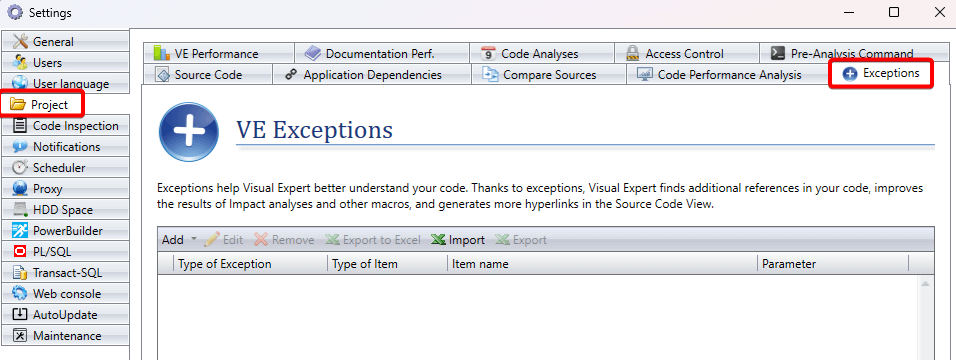
Step 2: Create a new MessageBox Exception
- Click [Add], then select Messagebox Exception
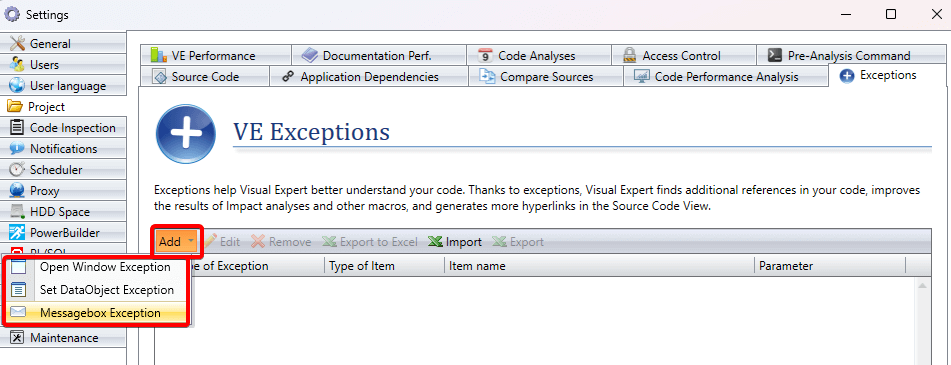
- Select Custom Function from the dropdown list to detect the user-defined function and its parameters
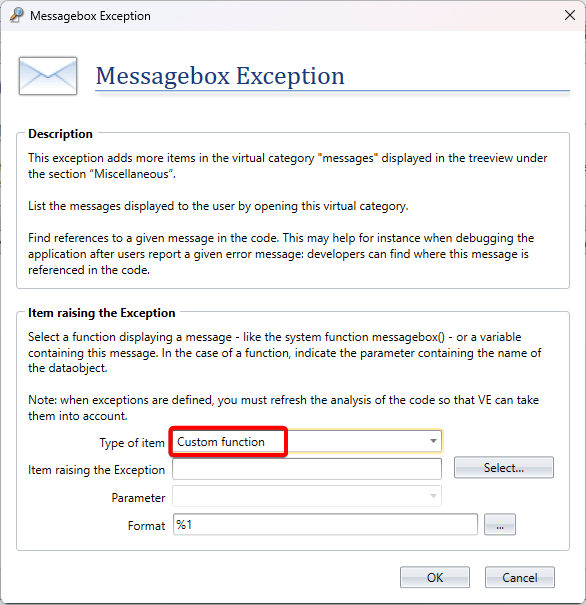
- Click [Select] for the item raising the exception.
Step 3: Select the exception target
- Explore components and controls to locate the exception target
- Select the parameter for which values are passed that should be detected as useful information
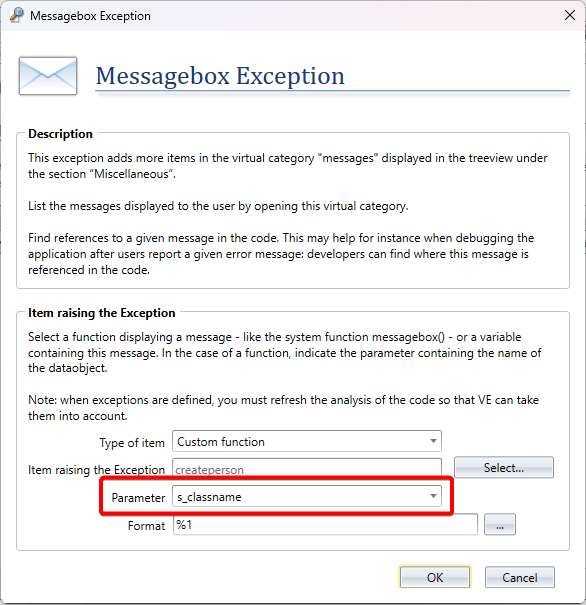
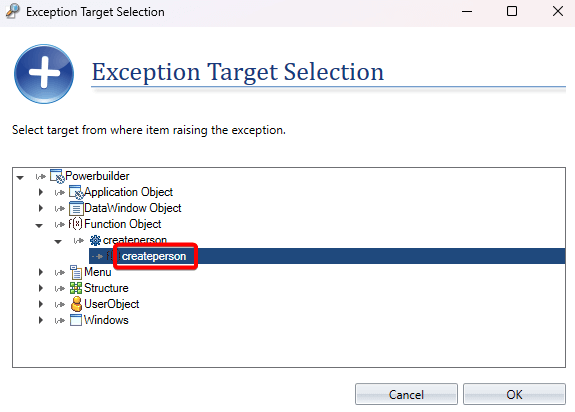
Example: Objects created dynamically based on names passed as strings to a function parameter.
In this case, the createperson function has a parameter named s_className,
where the user passes the object or type name to be created dynamically.
Step 4: Refresh the analysis
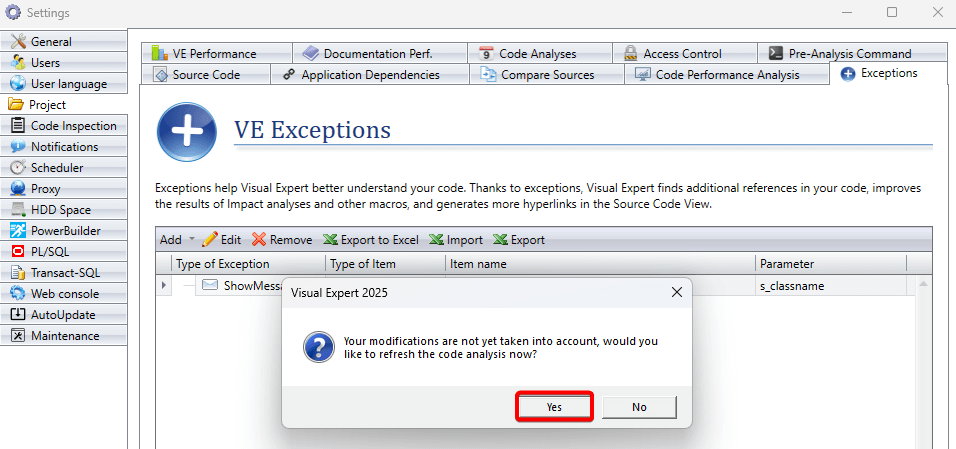
- When prompted to refresh the code analysis, click [Yes]
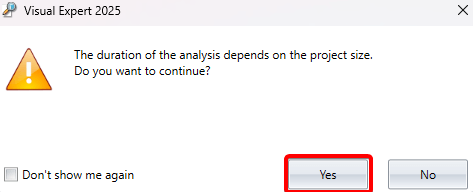
- Acknowledge the warning regarding the analysis duration.
The analysis will start.
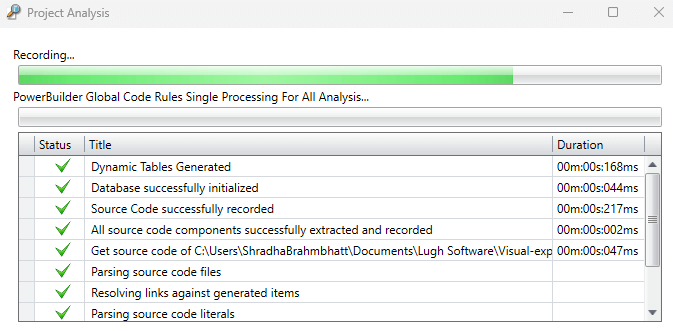
Result: References detected after analysis
Review detected items
After the analysis is completed, Visual Expert displays the items found from the
s_className parameter values passed to the createperson function.

Perform impact analysis
Select any individual item and click Impact Analysis to find its references.
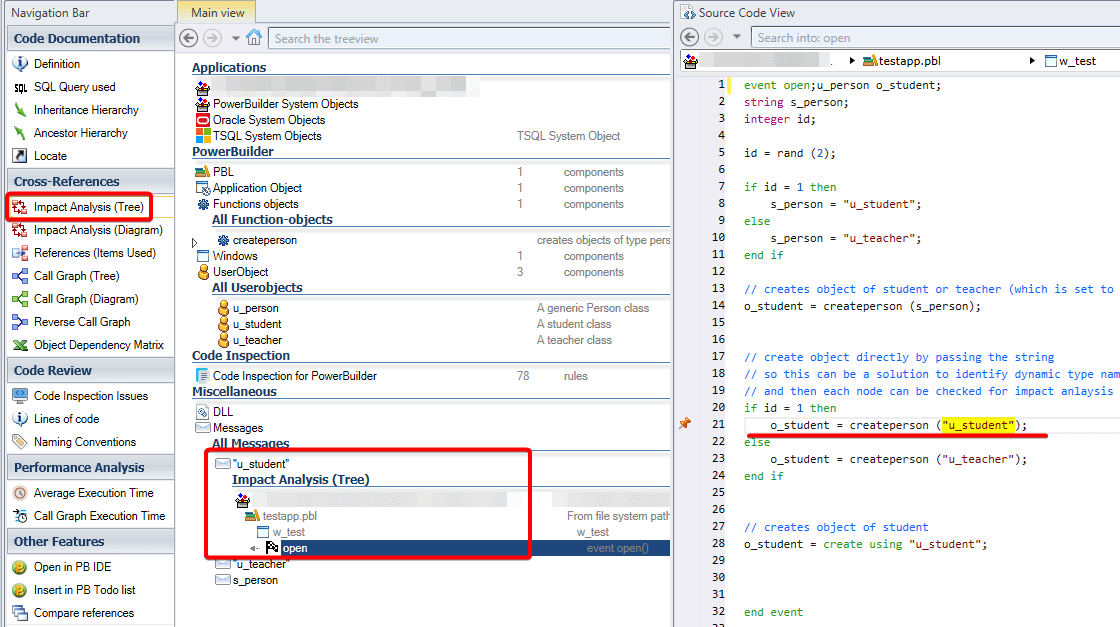
Example scenario
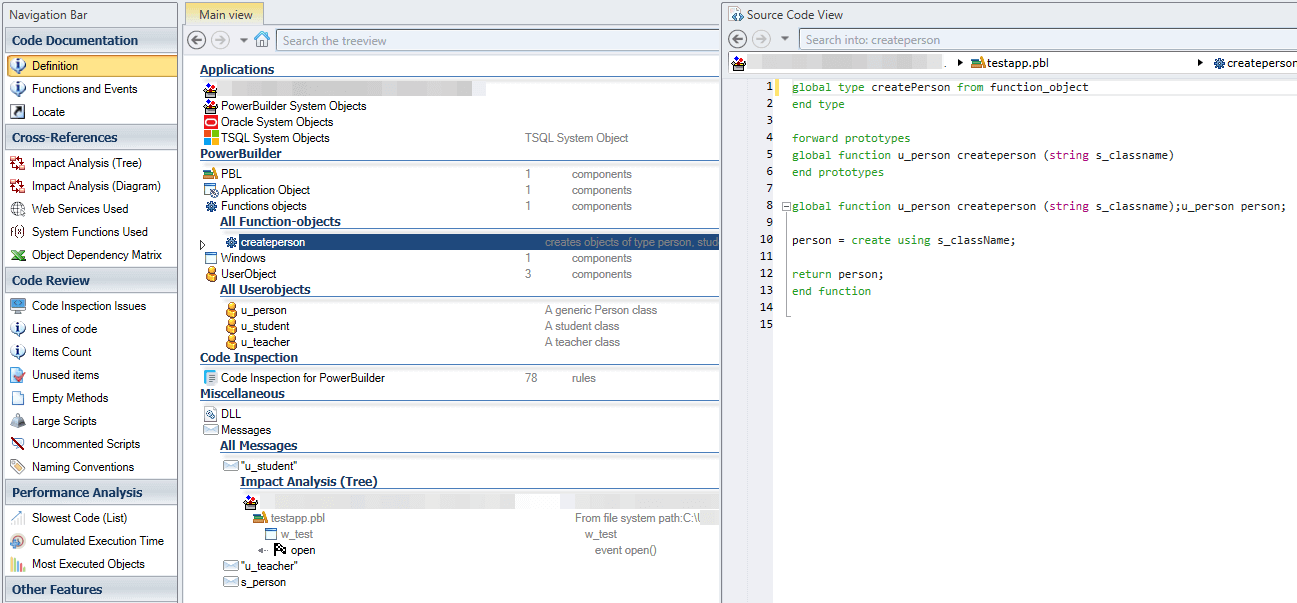
The above example shows the createperson function using a classname as a parameter,
creating an instance of s_className, and returning the same type or an ancestor type.
Supported syntax for MessageBox Exceptions
- Creating an object directly by passing the string
- Identifying dynamic type names under the Messages node in the tree view
- Performing impact analysis on each detected node
This approach helps identify dynamic type names and ensures their references are included during analysis.
EXAMPLE:

u_person o_student;
if id = 1 then
    o_student = createperson ("u_student");
else
    o_student = createperson ("u_teacher");
end if