
Configure Proxy Settings in Visual Expert Desktop
Proxy servers are commonly used in enterprise networks to enhance security, control user access, optimize network traffic, and filter web content. In Visual Expert Desktop, proxy configuration is required when direct internet access is restricted, ensuring reliable connectivity for updates and online features.
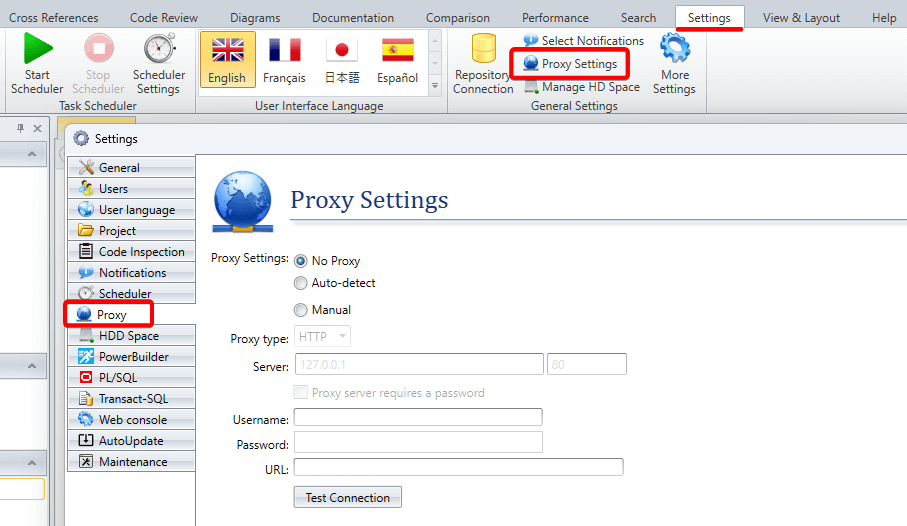
Access Proxy Settings
To configure proxy settings in Visual Expert Desktop:
- Go to Settings → Proxy Settings from the application bar
- Or open More Settings and select Proxy Settings from the sidebar
Proxy Configuration Options
Visual Expert provides three proxy configuration modes.
1. No Proxy
Select this option if Visual Expert should connect directly to the internet without using a proxy server.
Recommended when:
- Internet access is unrestricted
- You are working from a home or standalone network
2. Auto-detect
Automatically detects proxy settings configured by your organization, for example through Windows Internet Options or network policies.
Recommended when:
- You are connected to a corporate network
- Proxy settings are centrally managed by your IT department
3. Manual Configuration
Use this option to define proxy settings explicitly.
Required fields:
- Proxy Type – Select the proxy protocol - usually HTTP or SOCKS (HTTP is shown in the interface)
- Server – Enter the proxy server IP address or hostname.
- Port – Enter the port number used by the proxy server (default for HTTP is 80).
- Username & Password – If the proxy server requires authentication, enable the appropriate checkbox and enter the credentials provided by your IT department.
- URL (optional) – Specify a URL to test the proxy connection.
Test the Proxy Configuration
After entering the proxy details, click Test Connection to verify that Visual Expert can access the internet using the configured settings.
Best practice: Always test the configuration to avoid update or service access issues.
When to Update Proxy Settings
- Network changes – Switching between office and home networks
- Connectivity issues – If Visual Expert cannot check for updates or access online help
- Security policies – New IT or compliance requirements with organization's security policies
Troubleshooting Tips
- Authentication errors – Double-check username and password if authentication fails.
- Server or port issues – Confirm the proxy server address and port with your IT support.
- No internet access – Switch between No Proxy and Auto-detect to isolate the issue.