
How to Zip Visual Expert Log Files for Support
Visual Expert log files capture important information about application behaviour, background services, and any errors encountered during analysis or runtime.
When troubleshooting issues or contacting the Visual Expert support team, these logs help identify the root cause more quickly. This guide explains how to compress the Visual Expert log files into a ZIP archive so they can be easily shared with support while ensuring all relevant diagnostic information is included.
Prerequisites
Before starting, ensure that:
- 7-Zip is installed on your computer
- You have access to the Visual Expert log directory
Log File Location
Visual Expert log files are stored in the following folder:
C:\ProgramData\Novalys\VisualExpert\Log
Compress the Log Files
Follow these steps to create a ZIP archive containing the Visual Expert log files.
Step 1 — Install 7-Zip
Download and install 7-Zip if it is not already installed on your system.
Step 2 — Open the Log Folder
Navigate to the following directory:
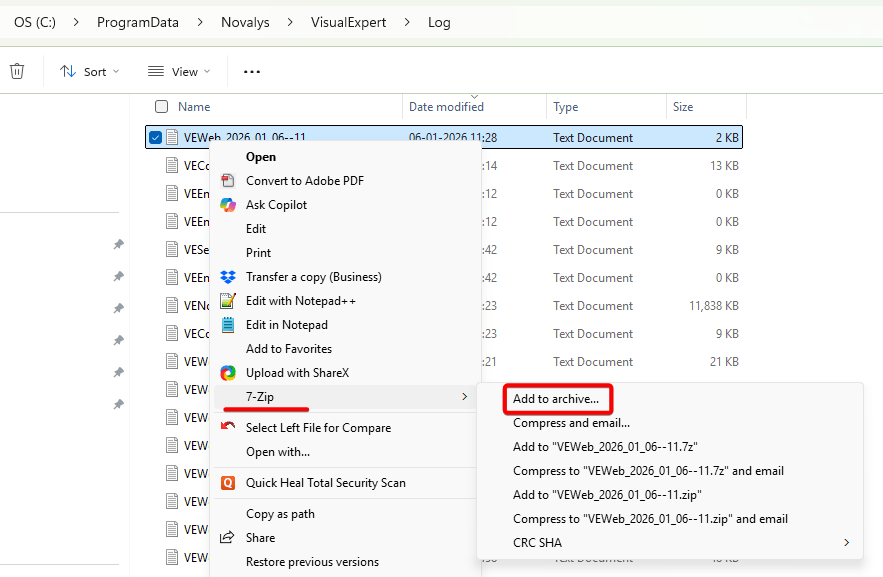
C:\ProgramData\Novalys\VisualExpert\Log
Step 3 — Create the Archive
- Right-click the Log folder, select 7-Zip. Click [Add to archive].
Step 4 — Split the Archive (Optional)
If the log files are large, you can split the archive into smaller files:
- Locate Split to volumes, bytes. Select 25M. Click [OK].
Splitting the archive helps when sending files by email or uploading them to support systems that have file size limits.

Step 5 — Locate the Generated Archive
7-Zip creates one or more archive files in the same directory.
Share the Logs with Support
Attach the generated archive files to your support request or send them by email to the Visual Expert support team.