
Task Details
The Task Details page shows one task: its description, status, assignment, linked items, history and comments.
Click a task ID in the Task List, or click View Task on a defect.
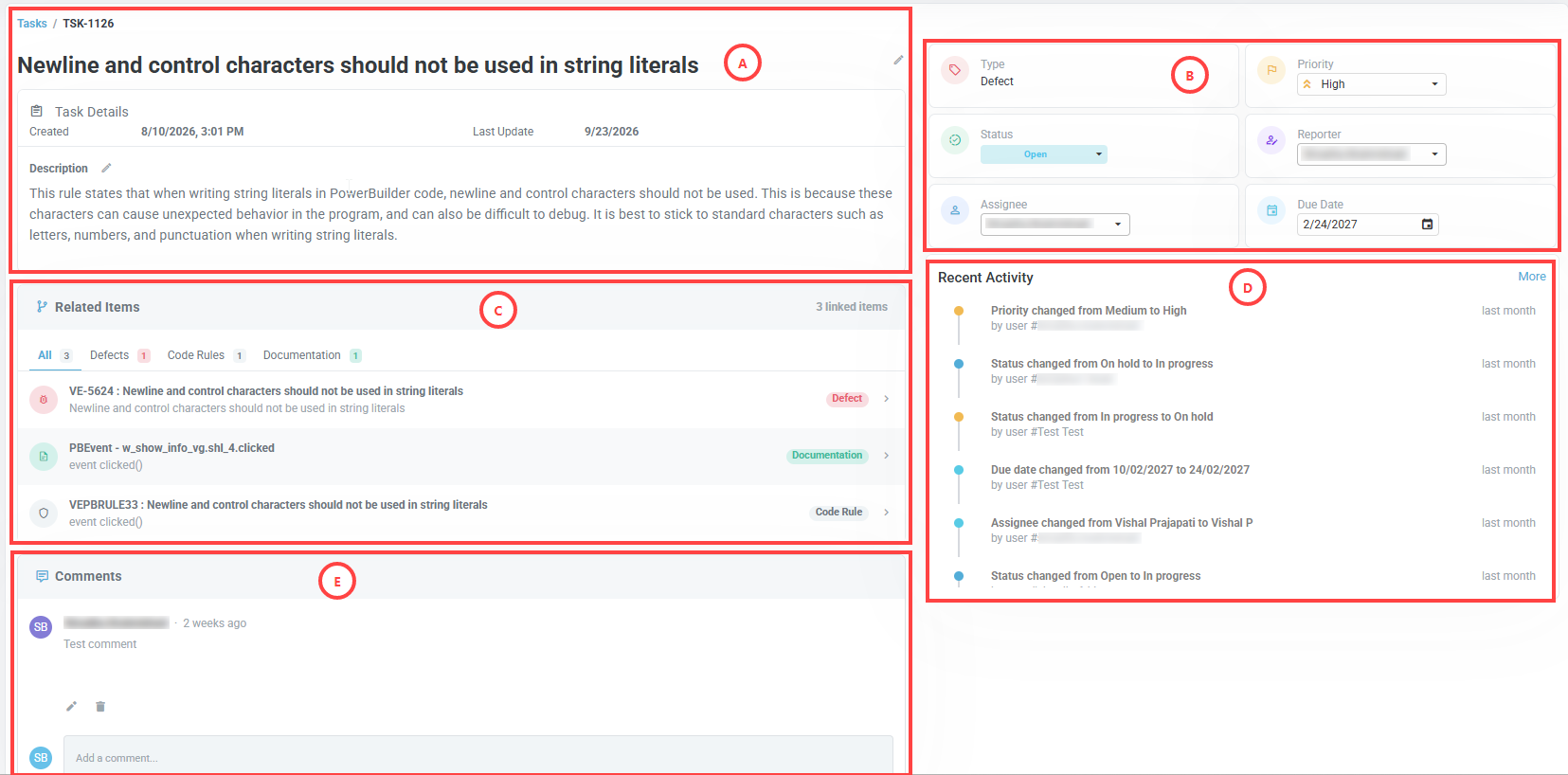
Task information (A)
- Task Title – A short descriptive summary of the work, at the top of the page. To edit it, click the pencil icon beside it.
- Task ID – The task identifier, such as TSK-1126, shown in the breadcrumb.
- Created – The date and time the task was created.
- Last Update – The most recent date the task was modified.
- Description – What has to be done. It is prefilled from the rule description when the task is created. You can edit it afterwards.
Status and assignment (B)
The panel on the right holds the fields that change during the life of the task.
- Type – The type of task, such as Defect. You cannot change it, either when the task is created or afterwards.
- Status – Open, In Progress, On Hold, Completed or Cancelled.
- Priority – Urgent, High, Medium, Low or Lowest. It is prefilled from the rule when the task is created. You can change it at any time.
- Reporter – The user who created the task.
- Assignee – The team member responsible for the work.
- Due Date – The date by which the task is expected to be completed. It is prefilled to seven days after the assignment. You can change it.
Related Items (C)
A task is linked to the defect it was created from, and to the items that explain it. The All, Defects, Code Rules and Documentation tabs filter the entries. Each tab shows its count. Click an entry to open it.
- Defect – The defect the task was created from.
- Code Rule – The rule that found the defect, with what it requires and why.
- Documentation – The documentation page of the object, such as a window, an event or a procedure.
Recent Activity (D)
The history of the task, such as priority, status, due date and assignee changes. Each entry shows its author and how long ago it happened. Click More to see the full history.
Comments (E)
Comments on the task, each with its author and when it was written. To edit or delete a comment, click the pencil or bin icon. To add a comment, type in the Add a comment… field.
The task form
The same eight fields appear when a task is created from a defect and when it is updated.
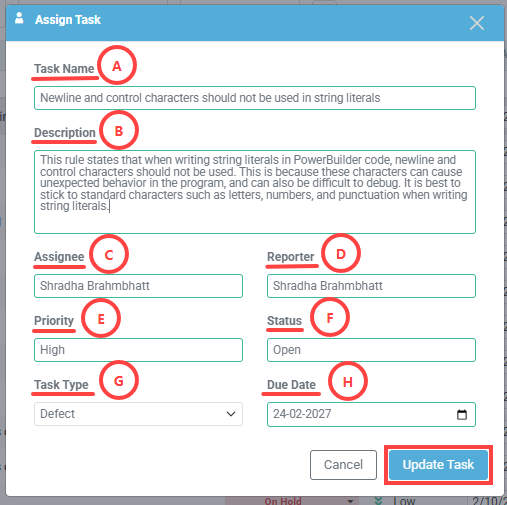
- Task Name (A) – Prefilled with the defect identifier and the rule title, for example VE-1: Conditionals should start on new lines.
- Description (B) – Prefilled from the rule description. You can replace it with instructions for the assignee.
- Assignee (C) – The team member responsible for addressing the defect.
- Reporter (D) – The user creating the task, prefilled with the current user.
- Priority (E) – Prefilled from the rule, and adjustable.
- Status (F) – Open by default.
- Task Type (G) – Defect. Only defect-related tasks exist at present. The type cannot be changed.
- Due Date (H) – The date by which the task is expected to be completed. Prefilled to seven days after the assignment.
Related procedures
- Assign a defect to a developer – Triaging defects
- Start work on a task – Fixing defects
- Close the task – Fixing defects
- Reschedule a task – Following remediation progress
- Cancel or delete a task – Following remediation progress