
Following remediation progress
Once defects are assigned, you follow the remediation work from the Tasks tab. This page describes what to check on the task dashboard, and how to update tasks as a result.
For the description of each counter and widget, see Task Dashboard and Task List.
On this page
- Open the task dashboard
- Find overdue tasks
- Check the workload of each assignee
- Check progress by priority
- Compare successive analyses
- Reschedule a task
- Cancel or delete a task
- Update several tasks at once
Open the task dashboard
- Click the Tasks tab. The Task Dashboard opens.
- In the left menu, click Task List to see all the tasks, or My Tasks to see only yours.
Find overdue tasks
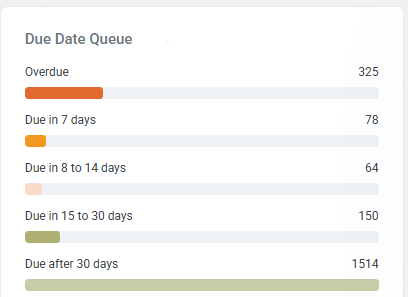
- On the task dashboard, read Overdue.

Due In 30 Days counts the tasks that become overdue next.
- Read Due Date Queue. It splits the tasks into five ranges, from overdue to due after 30 days.
- Open the task list.
- Click the Due Date column header. The earliest dates come first, so the most overdue tasks are at the top.
- Act on each task: reschedule it, reassign it or cancel it.
See Reschedule a task, Check the workload of each assignee (to reassign) and Cancel or delete a task.
Check the workload of each assignee
- On the task dashboard, read Assignee Workload. Each row is one assignee, with the number of tasks Open, In Progress, Completed and Overdue.
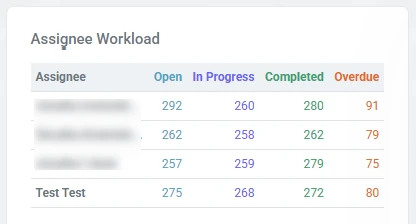
- Compare the Open and Overdue columns between assignees.
To move work to someone else:
- Open the task list.
- Select the tasks with their checkboxes.
- Click Assign in the action bar.
- Select the new assignee.
Check progress by priority
- On the task dashboard, read Status × Priority. The table crosses the five statuses with the five priority levels.
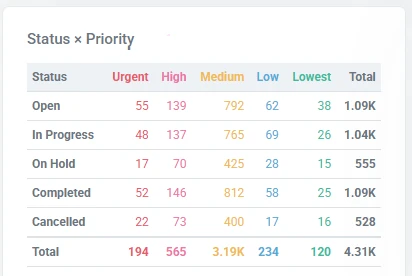
- Read the Urgent and High columns on the Open row. These tasks have not been started.
- Read the same columns on the In Progress row, then on the Completed row.
Compare successive analyses
The task dashboard shows the current state. To see changes over time, use the Code Inspection dashboard.
- Click the Code Inspection tab.
- Read Defect Trend. One point is added per analysis.
- Click a series in the legend to show or hide it, for example new defects against resolved defects.
- Read Most Defective Containers By Score after each analysis. The containers that stay at the top hold most of the remaining work.
Reschedule a task
- In the task list, select the task with its checkbox.
- Click Due Date in the action bar. The Change Task Due Date window opens.
- Select the new date in the calendar.
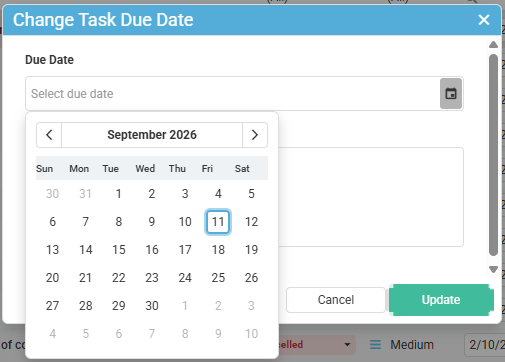
- Add a comment explaining the change.
- Click Update.
Cancel or delete a task
Cancelling keeps the task and its history. Deleting removes both.
To cancel a task:
- Open the task.
- Click Status, then select Cancelled.
- Add a comment explaining why.
To delete a task:
- Open the task.
- Click Delete. A confirmation window opens.
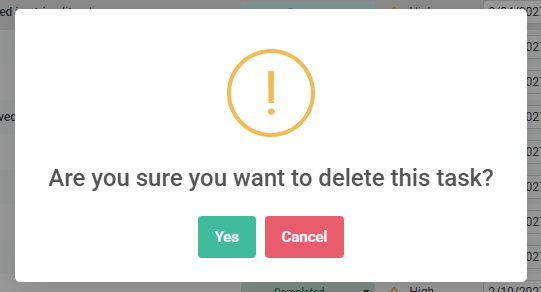
- Click Yes.
Deleting a task is permanent. The task and its details cannot be restored.
Update several tasks at once
- In the task list, filter the list so that it holds only the tasks you want to change the same way.

- Select them with the checkboxes at the left of each row.
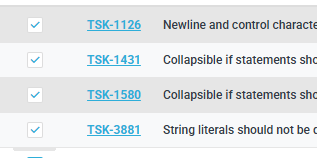
- Click Assign, Status, Priority, Due Date or Delete in the action bar at the bottom of the list.

The action applies to every selected task.