
Task List
The Task List shows the tasks created from defects, one per row.
In Visual Expert Web, click the Tasks tab, then click Task List in the left menu.
In Visual Expert Desktop, click Show Task List in the Code Review group of the ribbon.
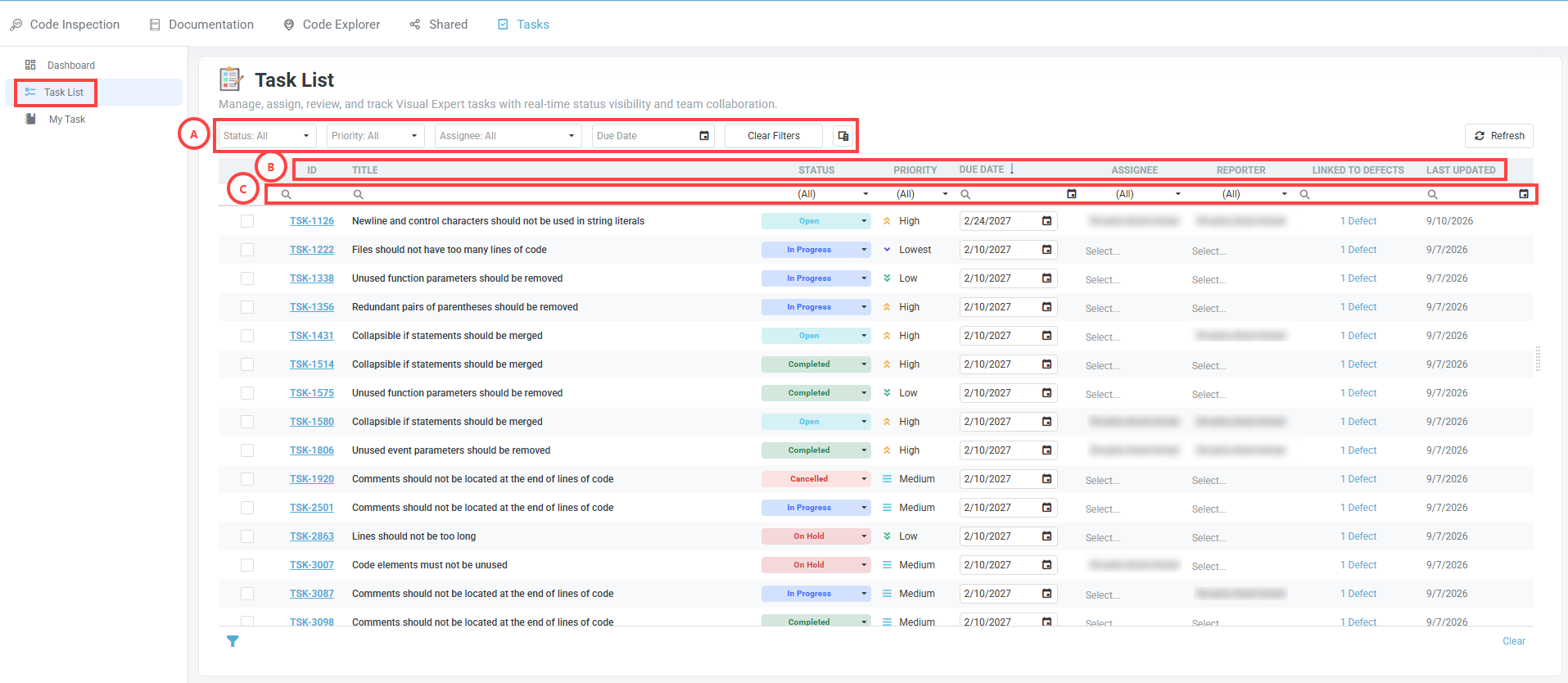
Filters (A)
Filter the list by Status, Priority, Assignee or Due Date. Clear Filters removes all filters. The icon next to it opens the Column Chooser.
Refresh, at the top right, updates the list with the latest available information.
Columns (B)
- ID – The unique identifier of the task, such as TSK-1126.
- Title – The title of the task. It is prefilled from the defect and the rule when the task is created.
- Status – Open, In Progress, On Hold, Completed or Cancelled. You can change it directly from the list.
- Priority – Urgent, High, Medium, Low or Lowest. You can change it directly from the list.
- Due Date – The date by which the task is expected to be completed. You can change it directly from the list.
- Assignee – The team member responsible for the task.
- Reporter – The user who created the task.
- Linked to Defects – The defect the task was created from. Click the link to open the defect.
- Last Updated – The date on which the task was most recently modified.
Column filters (C)
The row under the column headers filters each column on its own. The filters currently applied are listed at the bottom left of the list.
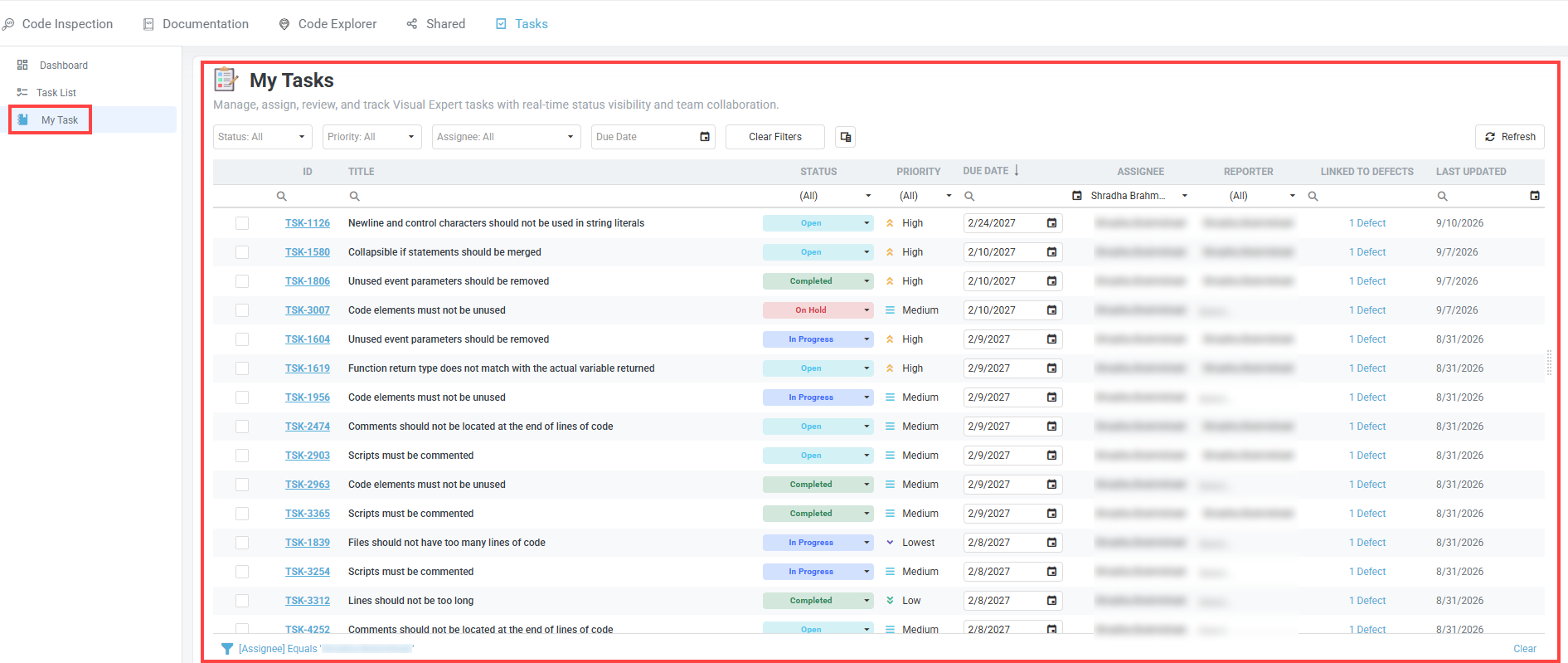
My Tasks
Click My Tasks in the left menu. The My Tasks page shows only the tasks assigned to you, with the same columns and controls. The list is filtered on your name in the Assignee column.
Opening and selecting tasks
- Click a task ID – The task details open. See Task Details.
- Select the checkbox of a row – The action bar appears at the bottom of the list. See Update several tasks at once.
Related procedures
- Open a task assigned to you – Fixing defects
- Reschedule a task – Following remediation progress
- Cancel or delete a task – Following remediation progress
- Update several tasks at once – Following remediation progress