
Finding defects from Code Explorer
You can list defects from the code itself. Start from an object, a code rule, or one rule in one object.
The Code Review commands are in the left menu. They are also in the right-click menu.
To start from the dashboard, see Triaging defects.
These procedures use Visual Expert Web. For Visual Expert Desktop, see In Visual Expert Desktop.
On this page
- List the defects of an object
- List the defects of a code rule
- List the defects of a rule in one object
- Open a defect
- In Visual Expert Desktop
List the defects of an object
- Click the Code Explorer tab.
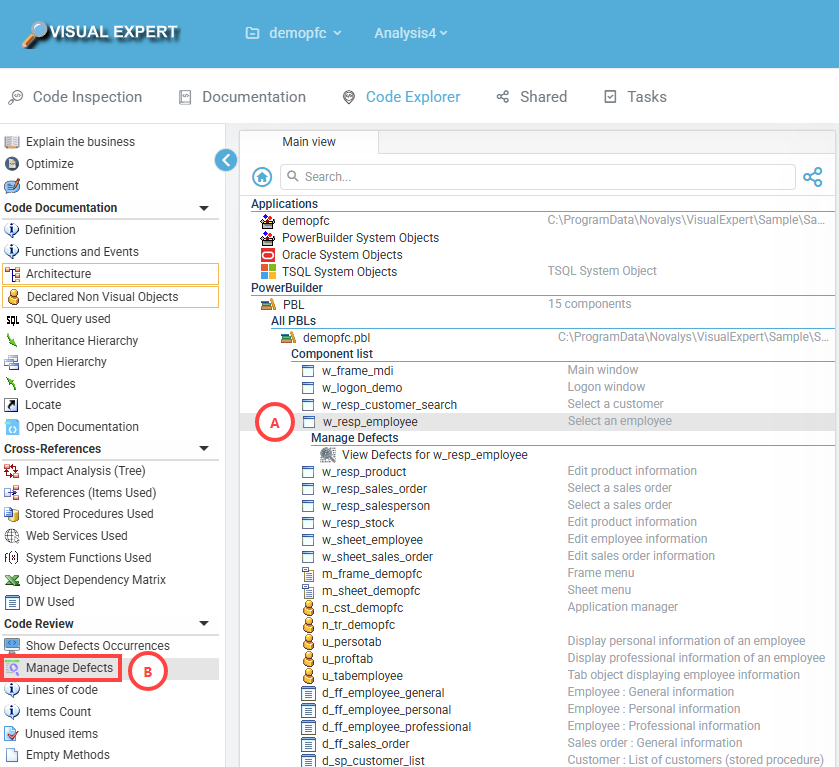
- In the Main view, click an object, such as a window or a procedure (A).
- In the left menu, click Manage Defects (B). A View Defects for node appears under the object.
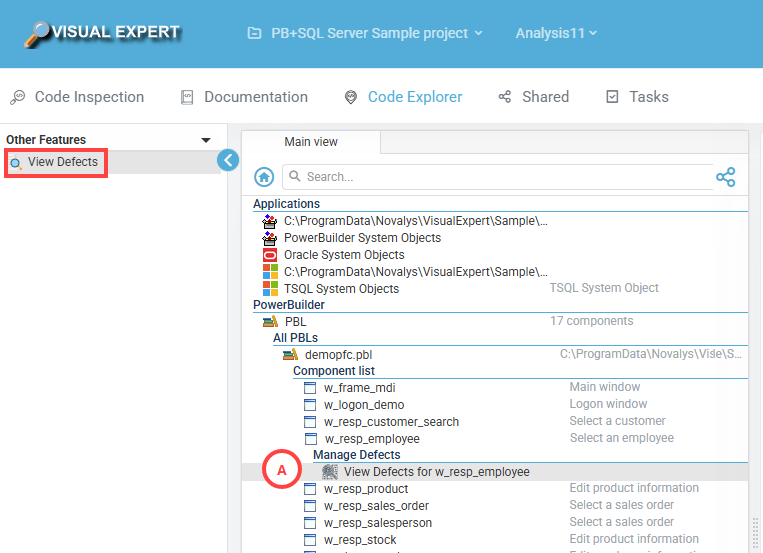
- Click View Defects for object name (A).
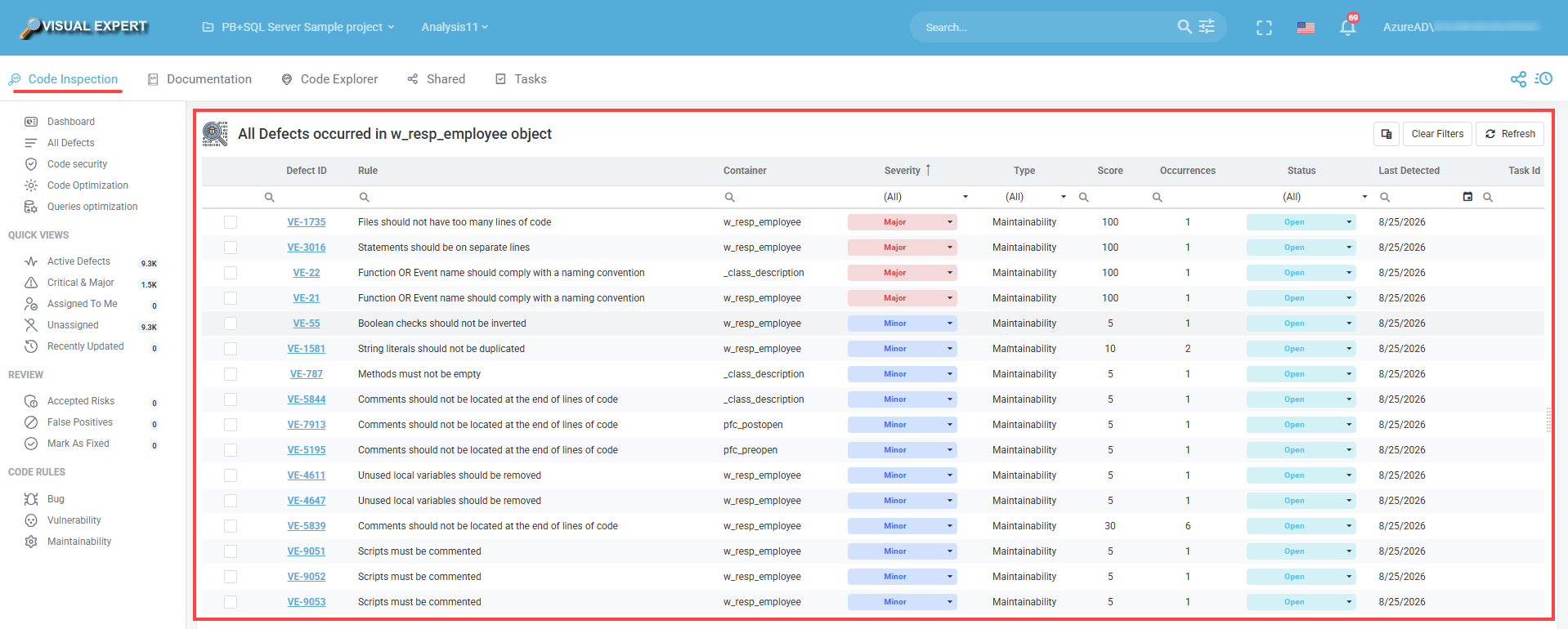
- In the left menu, click View Defects. The defect list opens in the Code Inspection tab.
The object name is in the list title.
List the defects of a code rule
- Click the Code Explorer tab.
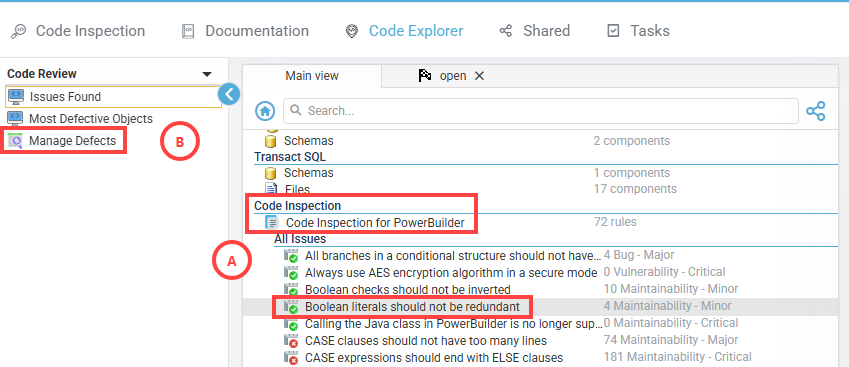
- In the Main view, under Code Inspection, expand the node for your language, such as Code Inspection for PowerBuilder.
- Under All Issues, click a rule (A).
- In the left menu, click Manage Defects (B). The defect list opens in the Code Inspection tab.
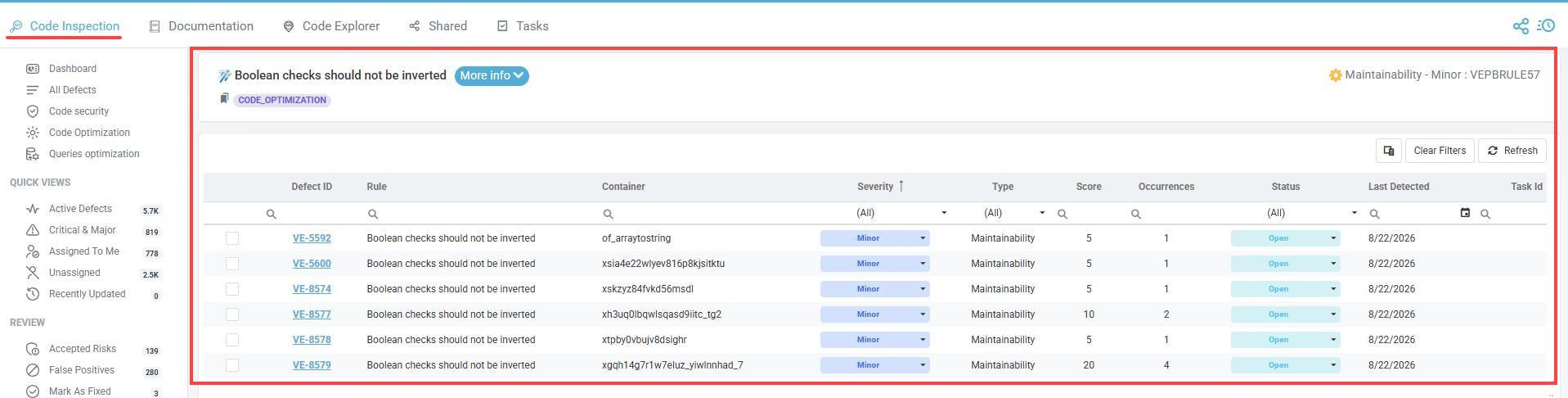
The rule name is at the top of the list. Click More info to read about the rule.
List the defects of a rule in one object
- Click the Code Explorer tab.
- In the Main view, click an object (A).
- In the left menu, click Show Defects Occurrences (B). The rules that the object breaks appear under it (C).
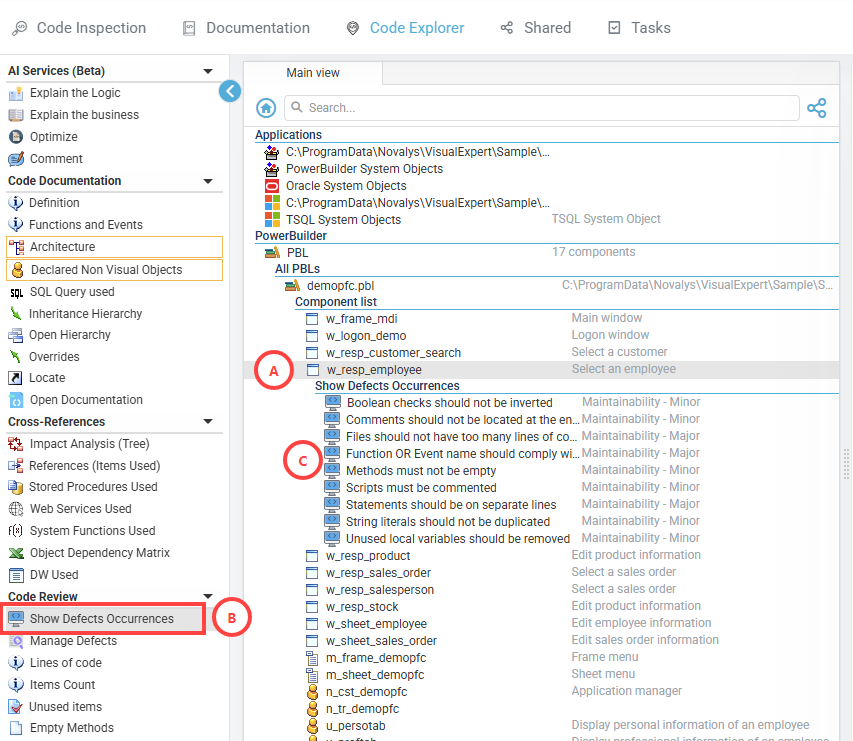
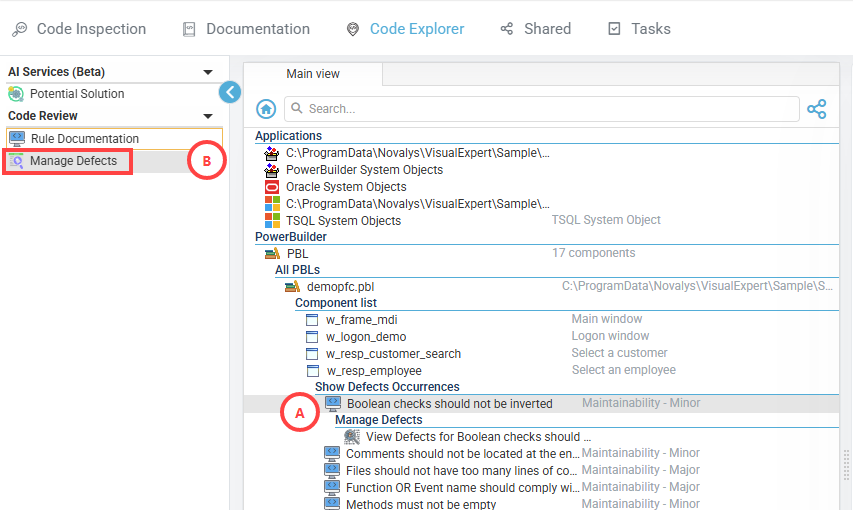
- Click a rule (A).
- In the left menu, click Manage Defects (B). A View Defects for node appears under the rule.
- Click View Defects for rule name.
- In the left menu, click View Defects. The defect list opens in the Code Inspection tab.
The list shows only the defects of this rule in this object. The object path is above the list.

Open a defect
- In the defect list, click a defect ID. The defect opens.
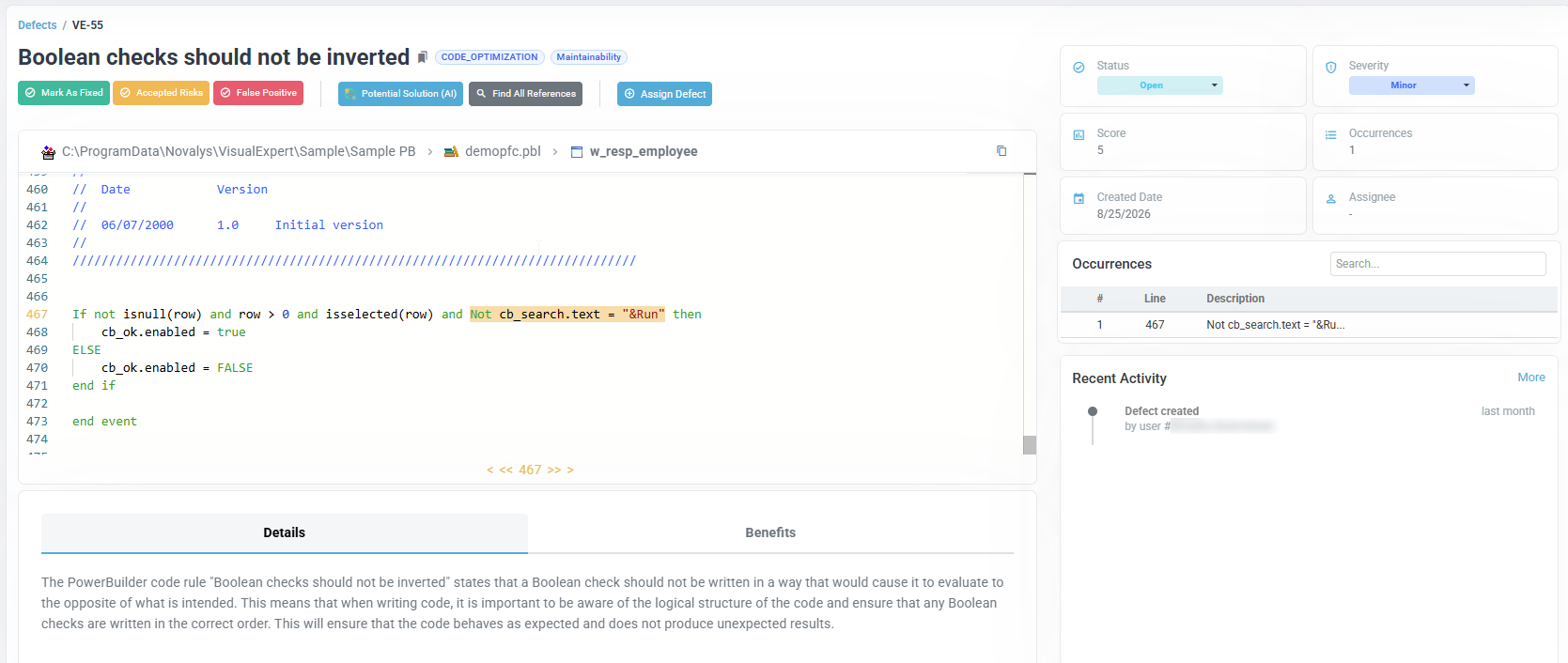
For each area of this window, see Defect Details.
In Visual Expert Desktop
The same commands are in the Code Review section of the navigation bar. They are also in the right-click menu.
The defect list opens in the right-hand panel, in place of the source code view.
For other differences in Desktop, see Defect & Task Management in Visual Expert Desktop.
Related procedures
- Find the defects of an object from its documentation page – Triaging defects
- Manage defects from a list – Triaging defects
- Examine a defect – Fixing defects