
Defect Details
The defect view shows everything you need to understand and resolve one defect. It shows the status and owner, the occurrences, the affected source code, the rule, and the history of the defect.
Click a defect ID in the list. The defect opens in the right-hand panel.
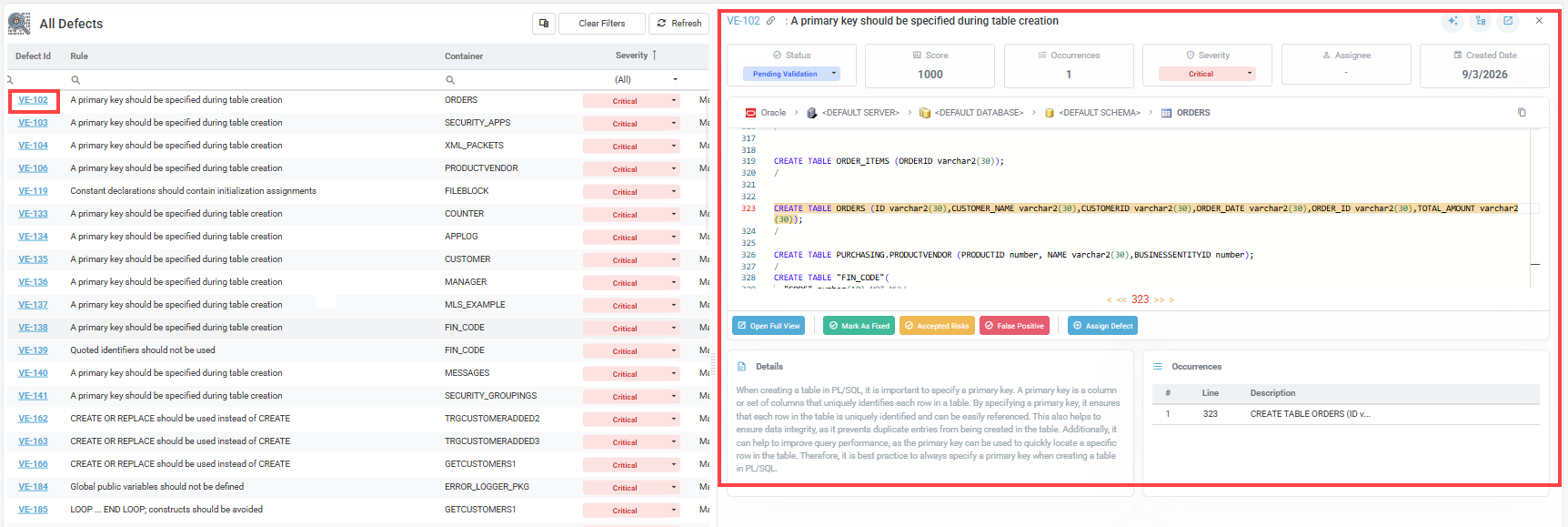
Click Open Full View to show the defect on its own page. The full view has more room for the source code. It also adds the Recent Activity of the defect and the Benefits tab of the rule description.
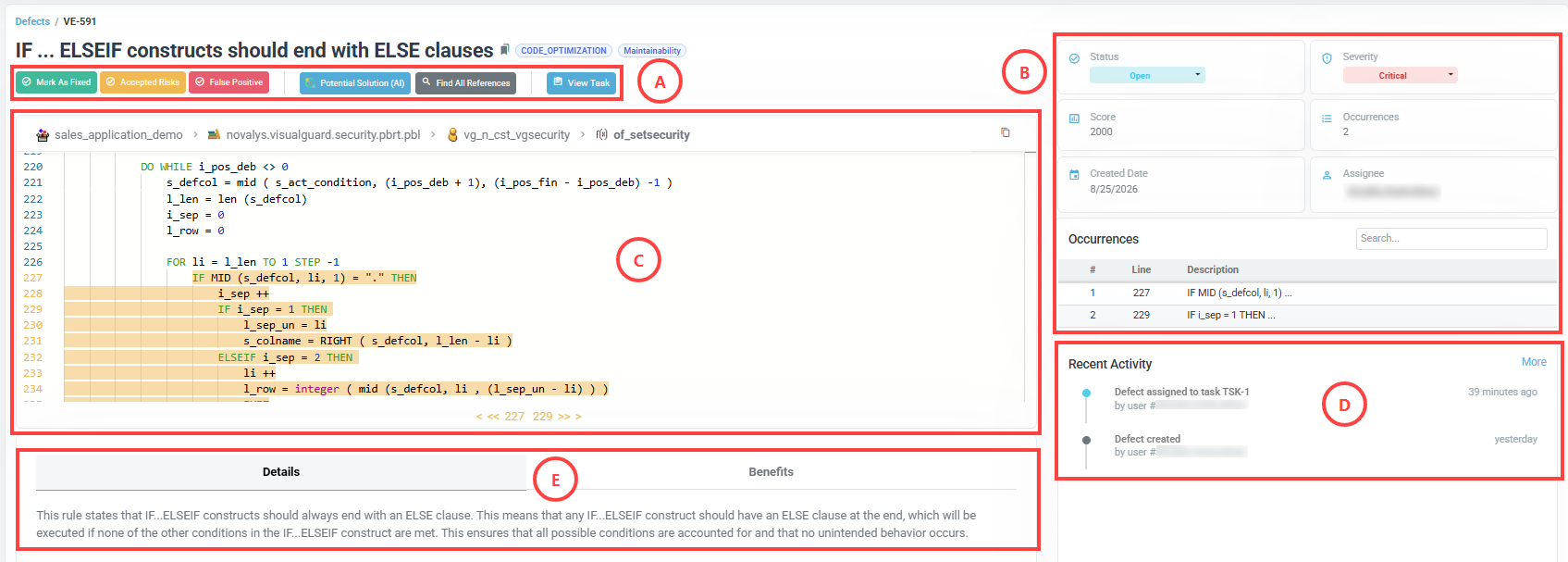
Actions (A)
- Mark As Fixed – Marks the defect as fixed once the code is changed. The defect moves to Pending Validation.
- Accepted Risks – Records the defect as an accepted risk. The team has reviewed it and decided that no fix is needed.
- False Positive – Records the defect as not being a real problem, or as not applicable to this application.
- Potential Solution (AI) – Analyses the defect and proposes a fix. The developer can use it as a guide when changing the code.
- Find All References – Lists the references to the affected object in the application, to assess dependencies before making a change.
- Assign Defect – Creates a task and assigns the defect to a team member. Once a task exists, this button is replaced by View Task.
- View Task – Opens the task created from this defect.
Status, key fields and occurrences (B)
- Status – The current status, shown as a dropdown. You can change it here or from the list.
- Severity – The severity of the defect, also a dropdown.
- Score – The impact score of the defect, calculated from its severity and its number of occurrences. See Defect List.
- Occurrences – How many times the rule is broken in this container. The Occurrences table lists each one with its line number. Click an occurrence to move the source code viewer to that line.
- Created Date – The date the defect was created. It shows the age of the defect.
- Assignee – The team member responsible for the defect. The field is filled when a task is created.
Source code viewer (C)
The source code, with the affected lines highlighted. The developer can read the problem in its context. A breadcrumb above the code gives the full path of the container, from the application down to the object.
When a defect has several occurrences, the line numbers under the code let you move between them: first, previous, a given line, next or last.
Recent Activity (D)
The history of the defect, such as its creation, assignment and status changes. Each entry shows its author and how long ago it happened. Click More to see the full history.
This section appears in the full view only.
Rule description (E)
Why the rule exists and what it asks for, under two tabs.
- Details – Why the defect was detected, its potential impact, and the recommended corrective actions.
- Benefits – How the suggested changes improve the code.
Related procedures
- Examine the defect – Fixing defects
- Measure the impact of a correction before making it – Fixing defects
- Get a suggested correction – Fixing defects
- Mark the defect as fixed – Fixing defects
- Change the severity of a defect – Triaging defects
- Record a false positive, an accepted risk, or put a defect on hold – Triaging defects