Defect & Task Management in Visual Expert Desktop
Visual Expert Desktop offers the same defect management as Visual Expert Web: the same dashboard indicators, the same defect list and the same defect details.
Only two things differ: how you reach each screen, and where some results open. This page covers those differences. For everything else, see the other Defect & Task Management pages.
On this page
Reaching the dashboard
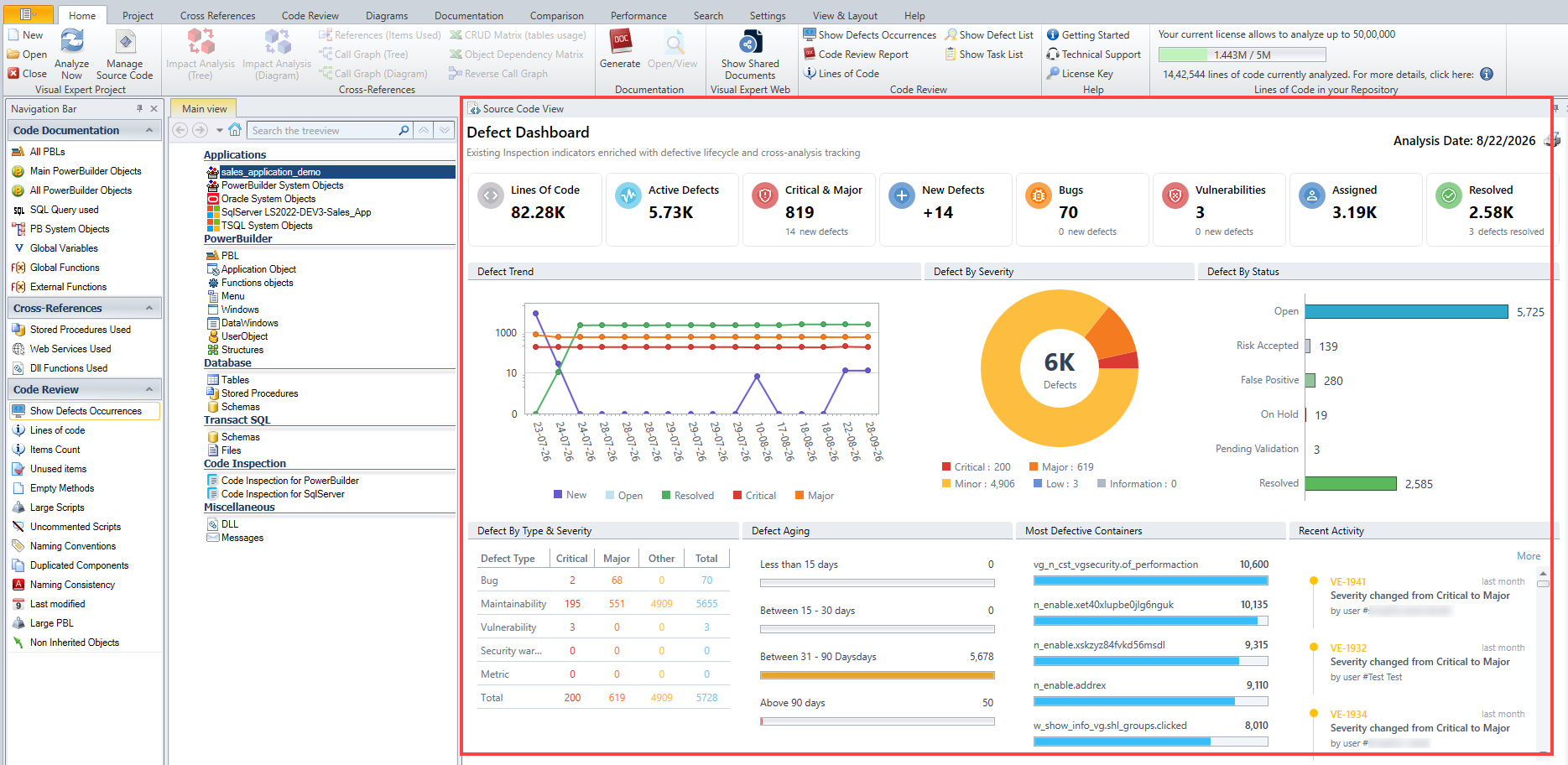
In Visual Expert Desktop, the dashboard opens in the Source Code View window when you:
- open the project
- click the home icon in the Main view
- click the project node, on the first line of the tree
The indicators are the same as in Visual Expert Web. See Defect Dashboard.
The defect list
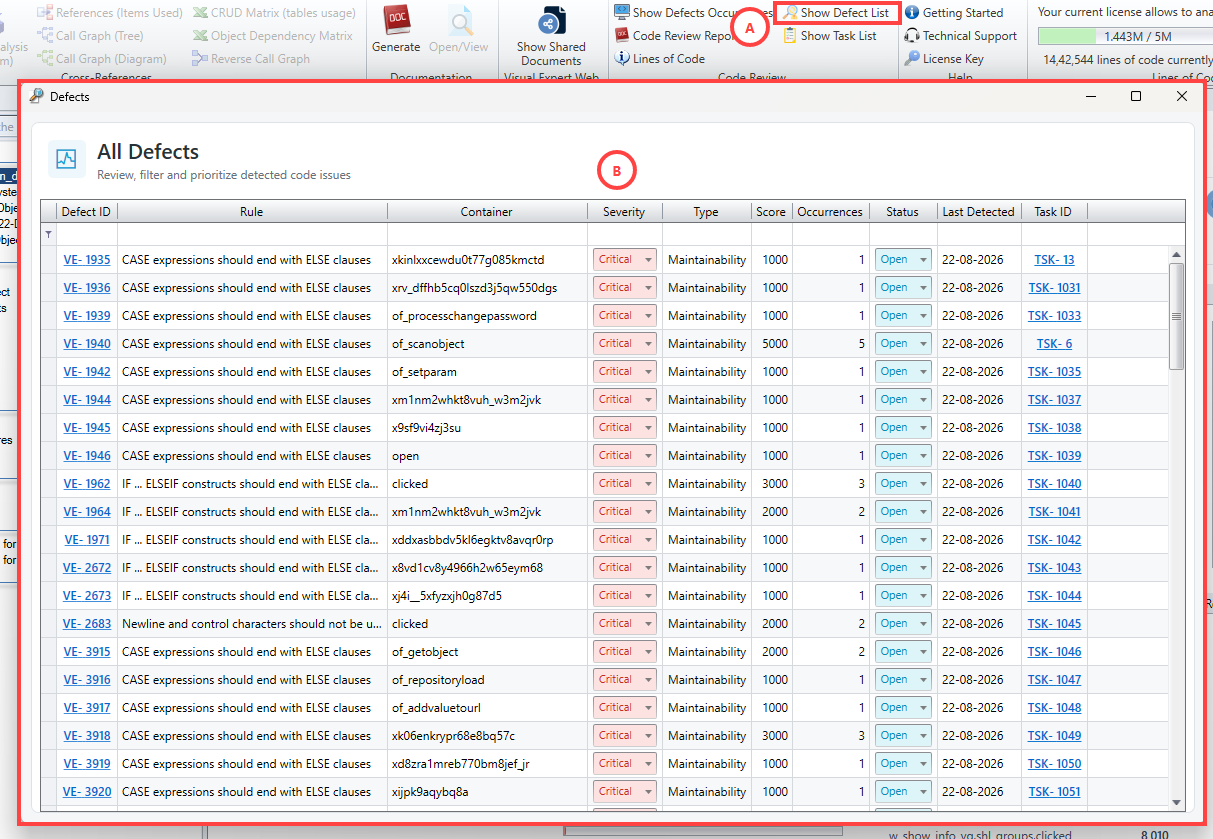
The defect list has the same columns as in Visual Expert Web. You can open it in two ways:
- On the dashboard, click the Active Defects tab.
- In the Code Review group of the ribbon, click Show Defect List (A). The Defects window opens on All Defects (B).
To filter the list, type in the first row under the column headers, or select a value in a column's dropdown.
Defect details
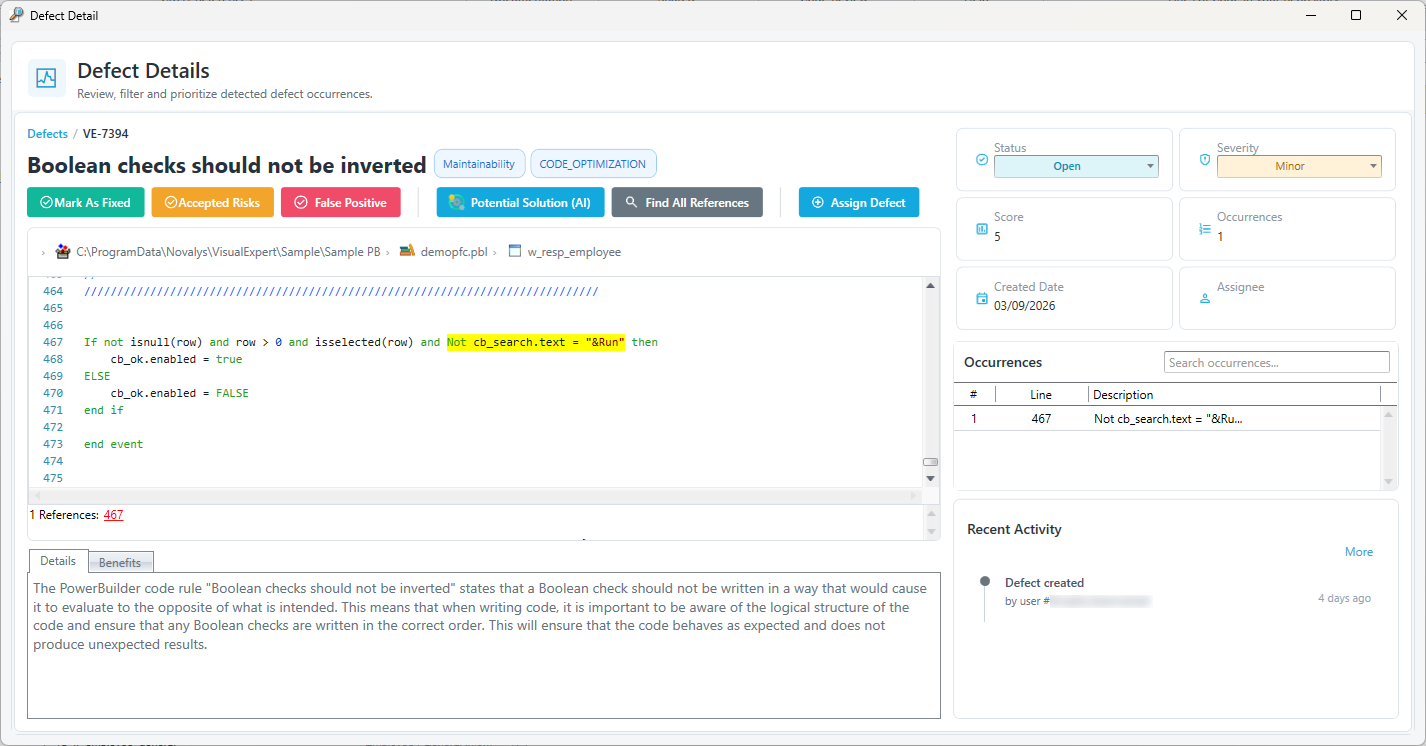
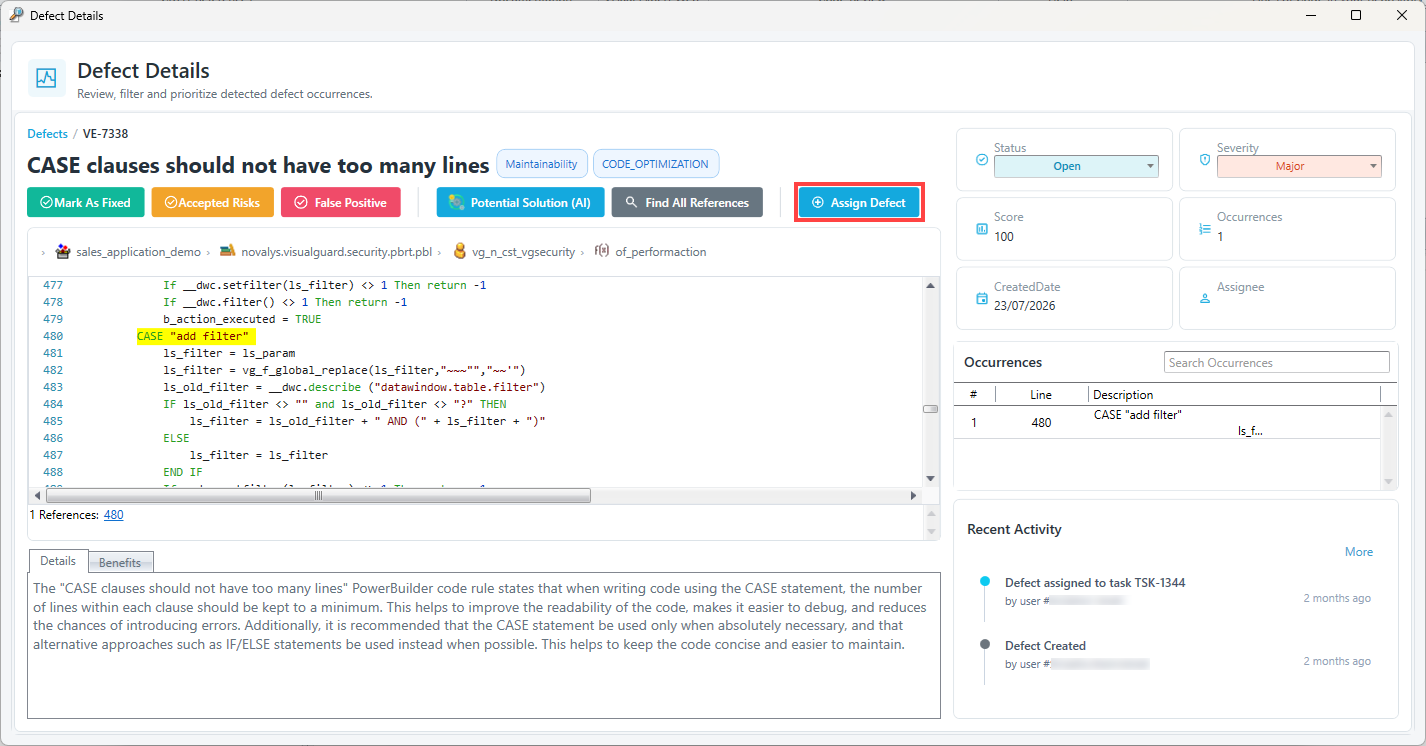
Click a defect ID to open the defect in a separate Defect Details window. In Visual Expert Web, the defect opens beside the list instead.
The window has the same areas as in Visual Expert Web: the source code with the affected lines highlighted, the Occurrences, the rule description in the Details and Benefits tabs, and the Recent Activity. See Defect Details.
Assign a defect
- Open the defect.
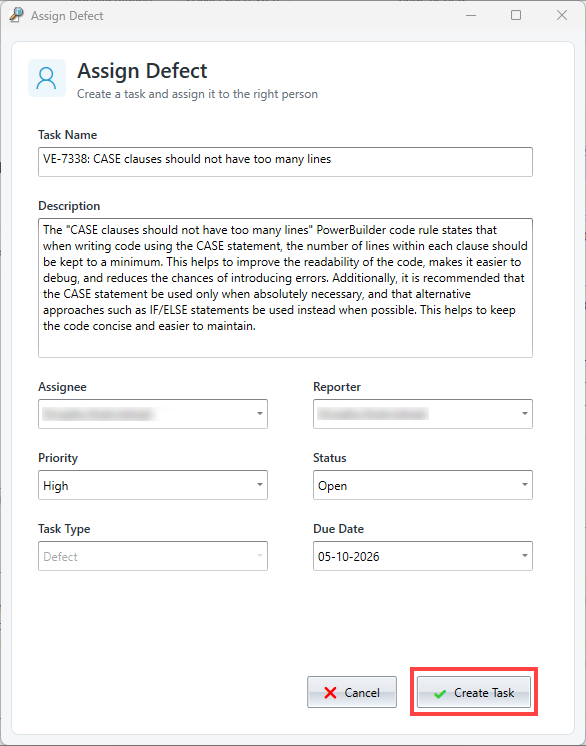
- Click [Assign Defect]. The Assign Defect window opens, with the task name and description already filled in.
- Check the details and change them if needed.
- Click [Create Task].
Code Review commands
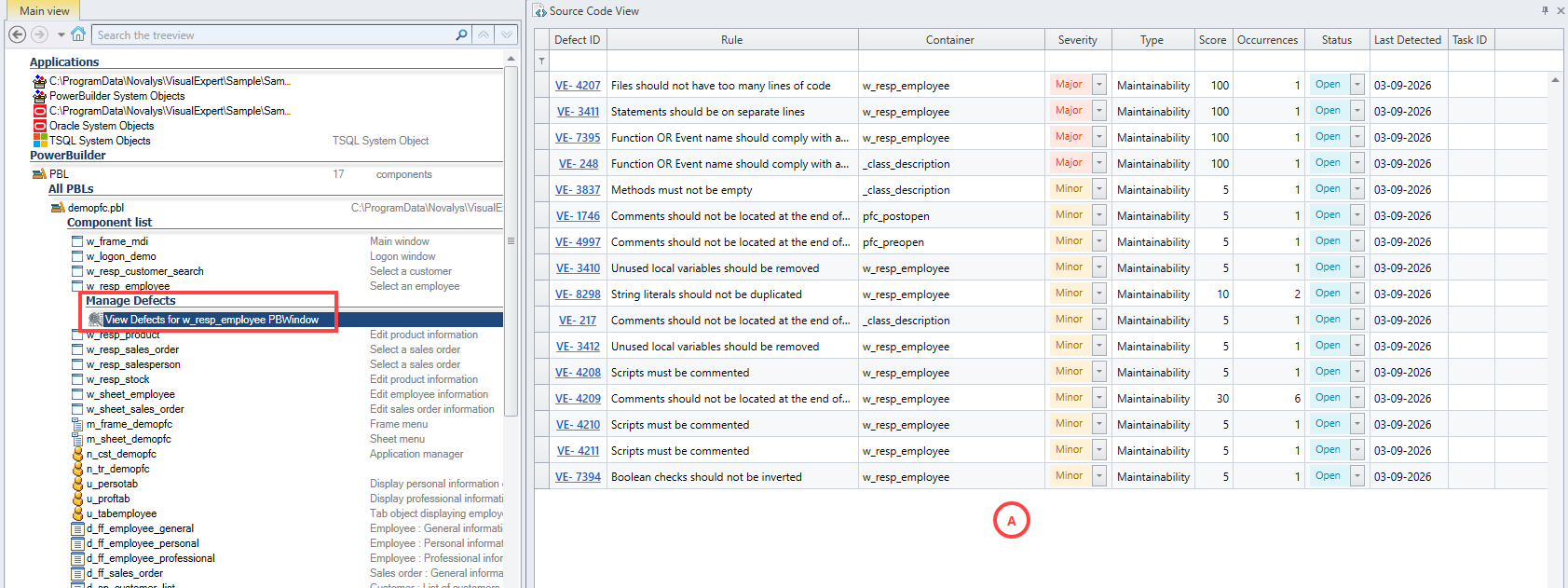
The Code Review commands of Code Explorer, Manage Defects and Show Defects Occurrences, work as in Visual Expert Web. They are in the Code Review section of the navigation bar. They are also in the right-click menu. See Finding defects from Code Explorer.
The defect list opens in the right-hand panel, in place of the source code view.
Tasks
Task management in Visual Expert Desktop requires Visual Expert Web. Defect management does not.
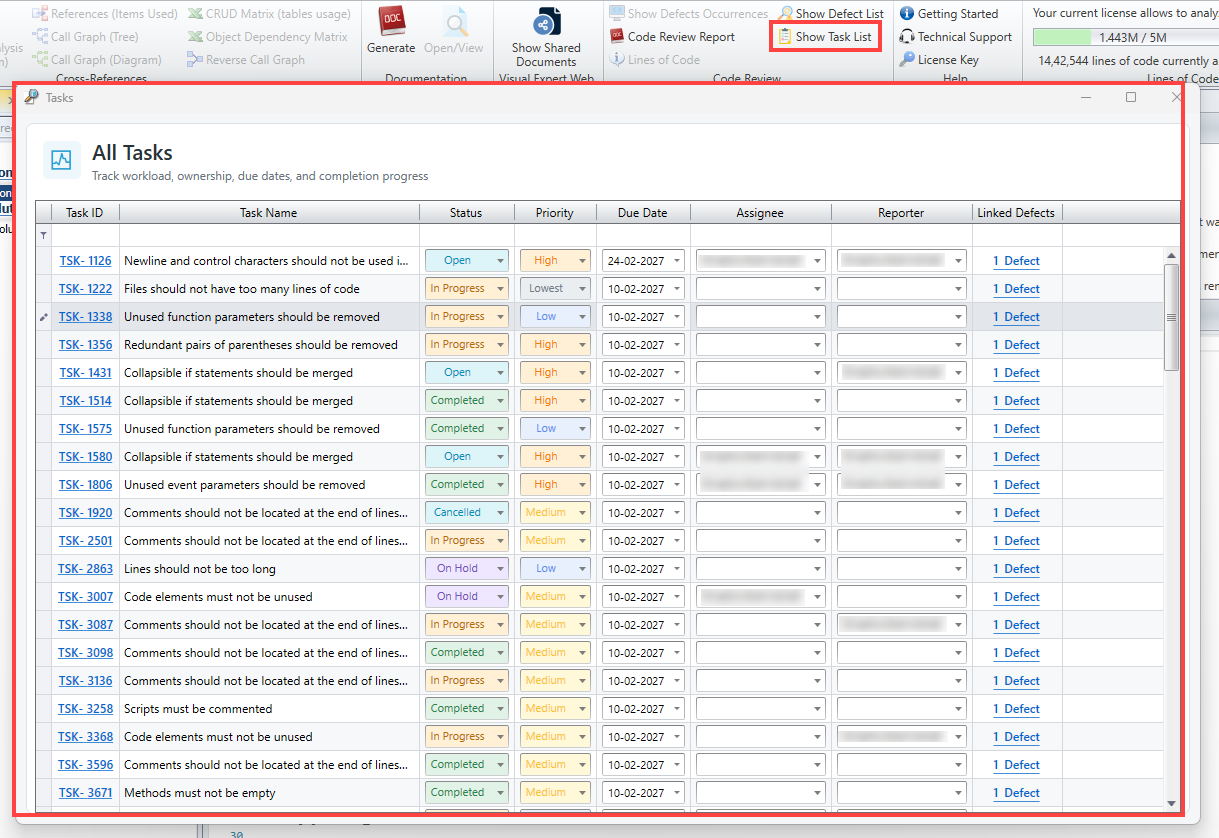
In the Code Review group of the ribbon, click Show Task List. The Tasks window opens on All Tasks. It shows the status, priority, due date and assignee of each task.
To filter the list, type in the first row under the column headers, or select a value in a column's dropdown.
Click a task ID to open the task in Visual Expert Web. The task details and task commands are available there only.