User Management in Visual Expert Web
This article explains how to create users, assign roles and configure permissions at user and project level in Visual Expert Web.
Access User Management
- Open Visual Expert, go to Account → Settings → Users
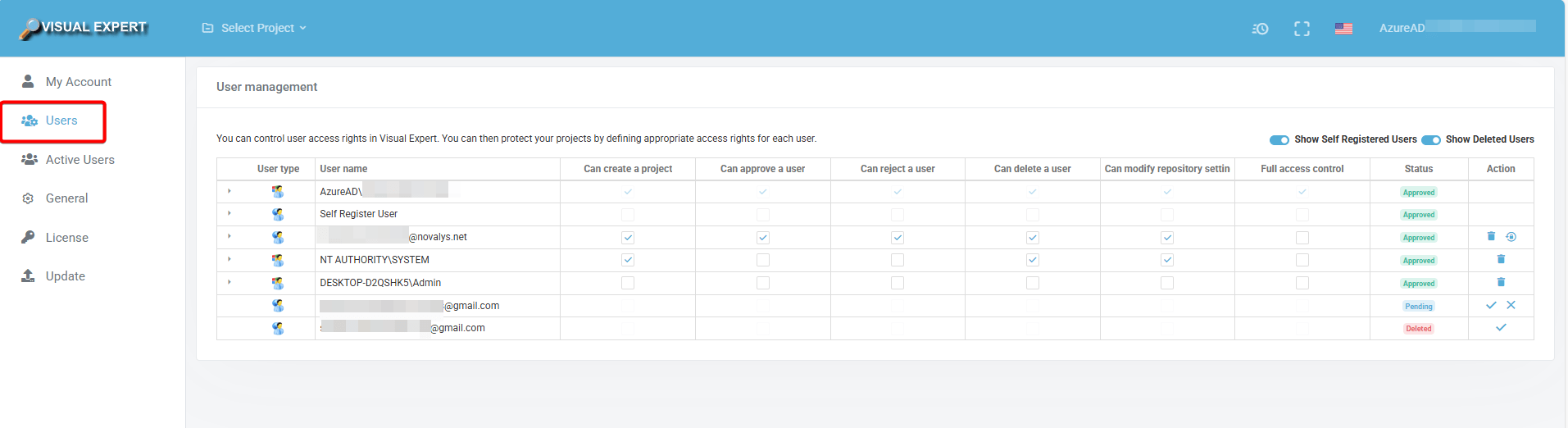
The Users screen provides two levels of permission management: User Based and Project Based.
User-Based Permissions
User-based permissions control access at the individual user level. Roles and access rights are configured per user.
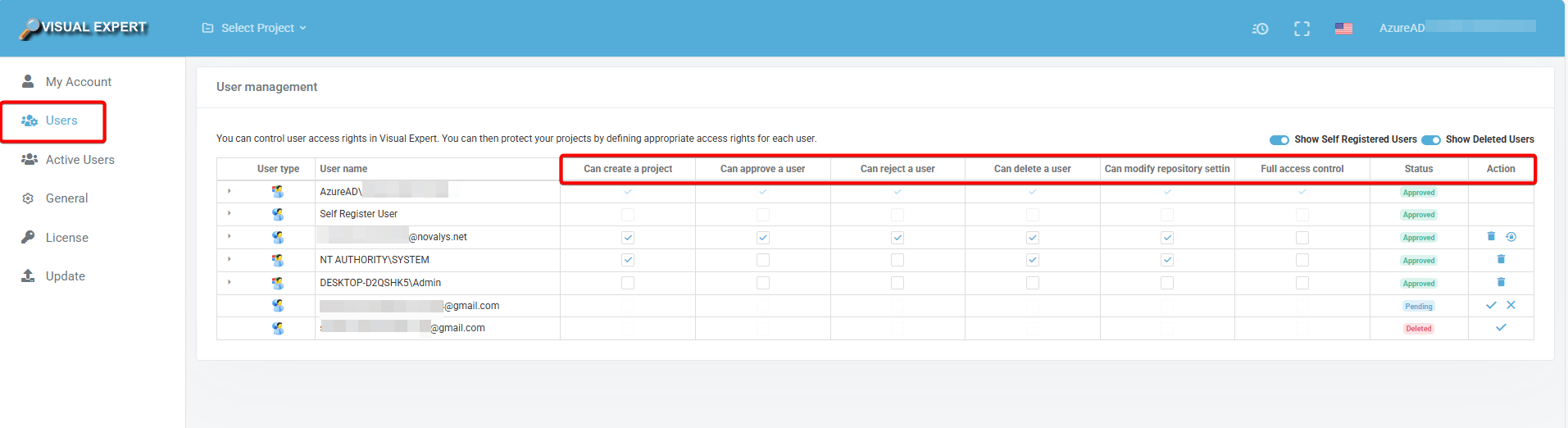
The following permissions can be configured per user:
Can Create a Project
Enables the user to create new projects within Visual Expert. Use this permission for team leads or developers who are responsible for setting up and organizing code analysis tasks.
Can Approve a User
Allows the user to approve new access requests from other users. This streamlines onboarding and ensures access is granted in a controlled manner.
Can Reject a User
Allows the user to reject new access requests. Use this alongside the Approve permission to ensure proper access control and security protocols are maintained.
Can Delete a User
Grants the ability to permanently remove user accounts from the system. This permission should be assigned only to administrators responsible for user lifecycle management.
Can Modify Repository Settings
Allows the user to modify repository settings. Assign this to users who need to customize or reconfigure repositories to meet specific project requirements.
Full Access Control
When a user is assigned Full Access Control, other users cannot modify that user's permissions - either at the user level or the project level. Permission changes are only allowed for users who do not have Full Access Control.
A user with Full Access Control automatically receives full permissions across all projects. Additionally, a Full Access Control user cannot modify the permissions of the Project Owner.
Changing Project Owner Permissions
If permission changes are required for a Project Owner, the project ownership must first be reassigned. Once the ownership is transferred, the permissions of the previous owner can then be modified.
Status
Displays the current status of each user account. Possible statuses include:
- Approved – The user has been granted access
- Pending – The user's access request is awaiting approval
- Deleted – The user account has been removed
Actions
Displays pending actions for each user. From this column, administrators can:
- Approve or reject pending access requests
- Reactivate or delete existing user accounts
- Reset user passwords
Project-Based Permissions
Project-based management controls which users can access specific projects.
By assigning users to particular projects, you ensure that project data, analysis results, and documents
are only accessible to the appropriate team members.
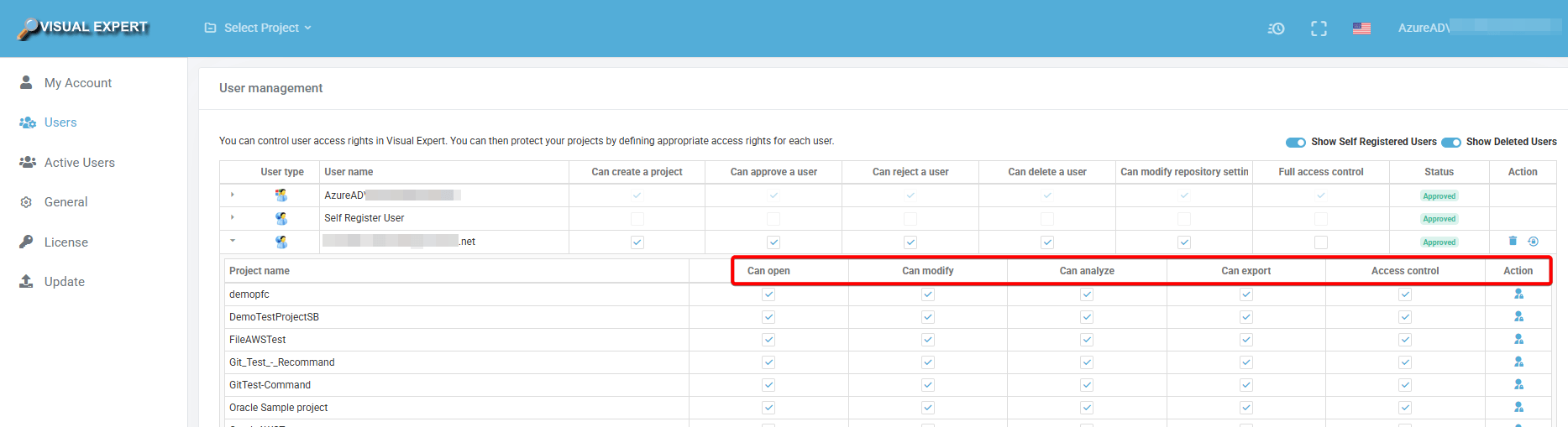
The following permissions can be configured per project, per user:
Can Open
Allows the user to access and view the project. Assign this to any team member who needs read-only visibility into the project.
Can Modify
Authorizes the user to edit project content. Use this for team members involved in ongoing development or refinement of project resources.
Can Analyse
Allows the user to run code analysis on the project. Assign this to developers or QA team members responsible for assessing code quality and identifying issues.
Can Export
Grants the ability to export project data and analysis results. This is useful for team members who need to generate reports, documentation, or share findings with stakeholders.
Access Control
If a user has Access Control for a project, they can grant permissions to other users for that specific project - regardless of whether they hold Full Access Control at the user level.
Action (Set Project Owner)
The Action column allows administrators to assign a Project Owner for each project. Click the figure icon against the project name to set or change the Project Owner.
User Types
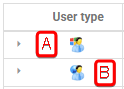
Visual Expert Web distinguishes between different user account types using visual indicators:
- Square (Red) icon – Type A: Users created with local or Windows accounts
- Blue Round icon – Type B: Users created with domain accounts
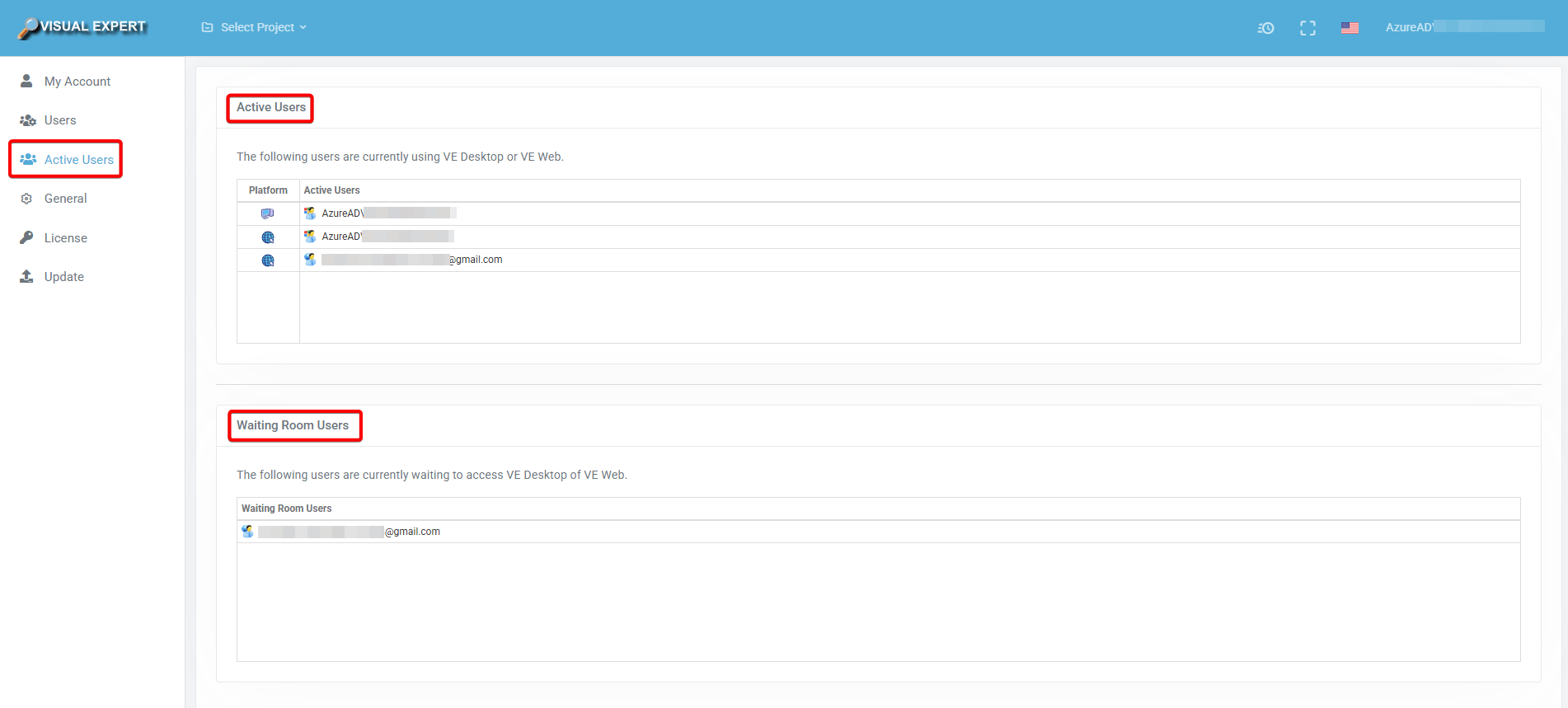
Active User Section
The Active Users section displays the users who are currently logged in to Visual Expert Web.
It also shows users in the Waiting Room, allowing them to view how many users are currently active and their position in the queue while they wait for access to become available.