
Task Dashboard
The Task Dashboard summarises the tasks created from defects. It shows the workload, priorities, statuses, due dates and how tasks are shared across the team.
In Visual Expert Web, click the Tasks tab. The dashboard opens.
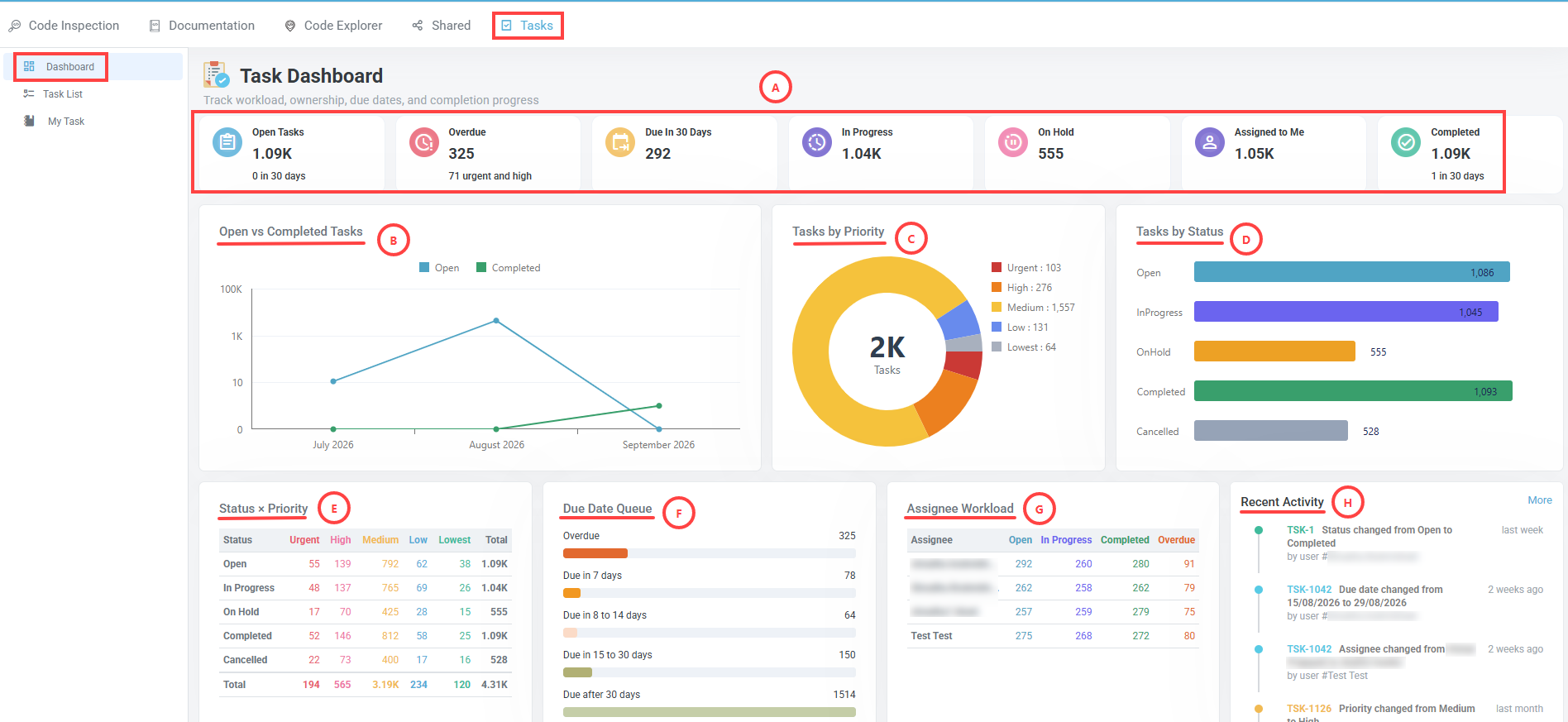
Summary Bar (A)
Each counter shows a number of tasks. Click a counter to open the task list filtered on those tasks.
- Open Tasks – Tasks with the status Open.
- Overdue – Tasks past their due date and not completed.
- Due In 30 Days – Tasks due within the next 30 days.
- In Progress – Tasks with the status In Progress.
- On Hold – Tasks with the status On Hold.
- Assigned to Me – Tasks assigned to you.
- Completed – Tasks with the status Completed.
Open vs Completed Tasks (B)
Number of open and completed tasks per month. Click a series in the legend to show or hide it.
Tasks by Priority (C)
Number of tasks per priority level, with the total in the centre. The priority is prefilled from the rule when the defect is assigned. You can change it at any time. See Task Details.
Tasks by Status (D)
Number of tasks per status.
Status × Priority (E)
Number of tasks for each combination of status and priority – for example, Urgent tasks that are still Open.
Due Date Queue (F)
Tasks grouped by due date, in five ranges: Overdue, Due in 7 days, Due in 8 to 14 days, Due in 15 to 30 days and Due after 30 days.
Assignee Workload (G)
Number of tasks per assignee, in the Open, In Progress, Completed and Overdue columns. Use it to spot assignees with many open or overdue tasks.
Recent Activity (H)
The latest changes made to tasks, each with its author and how long ago it happened. Click an entry to see its details. Click More to see the full history.
Related procedures
- Open the task dashboard – Following remediation progress
- Find overdue tasks – Following remediation progress
- Check the workload of each assignee – Following remediation progress
- Check progress by priority – Following remediation progress