
VE Web for Oracle - Self training guide
Purpose
This document allows you to use Visual Expert Web (“VE Web”) with a sample application.
- You will be able to test essential features for analyzing your code.
- You can try Visual Expert's AI services.
- You will experience the collaborative features of VE Web: Some links will allow you to directly view certain results, as if one of your colleagues had shared them with you.
You do not need to install anything to test these features.
A simple browser and an internet connection are all you need.
Contents
1. Access VE Web
To access the VE Web DEMO environment:
- Open this page: https://demo.visual-expert.com/
- The login window appears.
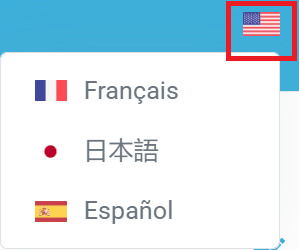
- Choose your preferred language by clicking on the flag.
- If you already have an account, enter your credentials to log in.
- If you don't already have an account:
- Enter your email address and a password.
- Send an email notification to your Novalys contact.
- He will activate your account, and you will then be able to access VE Web.
2. Quick tour
If this is your first time logging in to this browser, VE Web will display a Quick Tour:
A short animation will present the VE Web user interface in a few seconds.
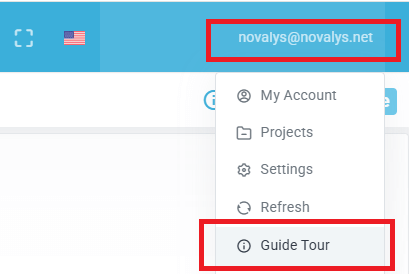
If needed, you can view it again by clicking on your email (top right) and selecting “guided tour”.
Similarly, when you open a VE Web module for the first time, an animation explains how to use it.
If needed, you can view it again by clicking on this button  (top right).
3. Use case : Understand the existing code
Visual Expert combines features to explain and understand code from multiple angles: technical, logical, functional, synthetic, and detailed.
3.1 Generate a CRUD matrix
Suppose we need to understand a feature that uses multiple tables.
We will generate a CRUD matrix to understand how this data is manipulated:
- Open the “code explorer” module.
- Double-click on the tables icon > the list of tables opens.
- Select the table “CUSTOMER”
- Press the [Shift] key
- Select the table “PRODUCT“ > several tables are selected.
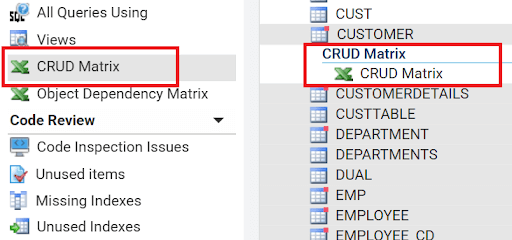
- In the navigation bar (on the left), click on “CRUD Matrix”.
- An element “CRUD Matrix" appears under the table "CUSTOMER” > Click on it.
3.2 See references in the code
The CRUD matrix provides a high-level view of the relationships between code and data.
You can get a more detailed view at the code level:
- Locate the line of the procedure “PRODUCT.ProductByCustomer”
- Click on the letter “R” in the column
“CUSTOMER”

- A new view (tab) opens in the explorer.
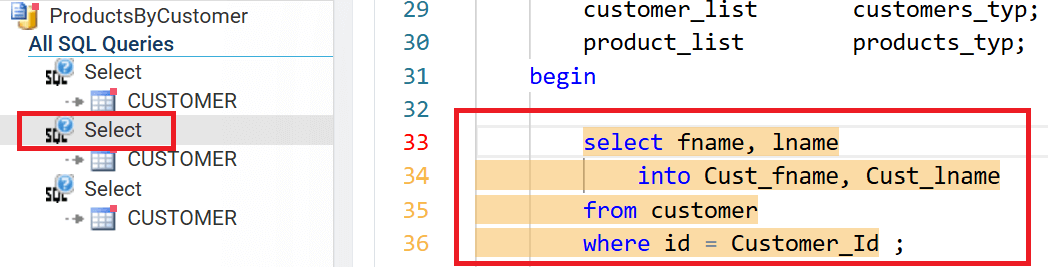
We can see that the “ProductByCustomer” procedure contains 3 select statements that reference the CUSTOMER table. - Click on each select statement > the query is highlighted in the code.
3.3 Functional explanations
Visual Expert's AI can explain an object from a business perspective. This allows a non-technical person, such as a business analyst, to understand its role in the application.
- Select the procedure “ProductByCustomer" in the central panel.
- In the navigation bar — section “AI Services“ — click on “Explain the business”
- The AI generates a functional explanation of this procedure.
3.4 Explain the logic of the code
Visual Expert can explain the logic and main technical features of an object.
This information helps a developer understand how the code was written.
- Select the procedure “ProductByCustomer" in the central panel.
- In the navigation bar — section “AI Services“ — click on “Explain the logic”
- The AI then generates a technical explanation of this procedure.
3.5 Add comments to the code
Visual Expert can generate comments and place them in the code.
This makes the code easier for developers to read and understand.
- Select the procedure “ProductByCustomer" in the central panel.
- In the navigation bar — section “AI Services“ — click on "Generate Comments”
- The AI generates a new version of the code including comments.
- Developers can copy it for use in their application using this button (top right):

3.6 Documenting the code
Visual Expert automatically generates technical documentation for the code. It explains the code structure and provides technical information about its components.
- Select the procedure “ProductByCustomer" in the tree (the central panel).
- In the navigation bar — section “Code Documentation“ — click on “Open Documentation”
- The documentation module opens to the page describing the procedure “ProductByCustomer”.
3.7 Share with your colleagues
You can share certain pages with other people. This facilitates collaboration when an action involves multiple people.
-
You can view the technical documentation for the ProductByCustomer procedure directly here:
Technical documentation for the “ProductByCustomer” procedure -
To share the matrix you generated, use this link to open the CRUD matrix results page:
View the CRUD matrix result
Note: To share a CRUD matrix, you need to:
- Generate it as we saw above
- Move it to a new browser window using this button

- Copy the URL of this new page to share it with colleagues.
4. Use case : Fix problems in the code
During code analysis, Visual Expert detects various types of problems: security, bugs, quality, readability, performance, etc. It then helps you review, prioritize, and correct them.
You can start by consulting the dashboard to get an overview. Then analyze a category of problems and gradually drill down to the code level to see the problematic instructions.
You can then fix each problem manually, or ask Visual Expert's AI to suggest a solution. Human intervention is required to decide on corrections. Neither Visual Expert nor its AI directly modifies your code.
4.1 Review the code inspection results
- Open the Code Inspection module.
- The dashboard displays a summary of the problems found.
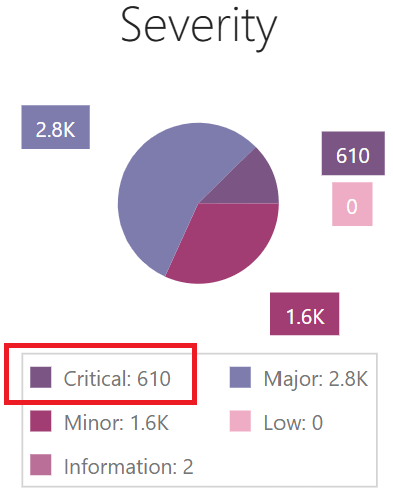
- You can review a priority category:
- For example, critical problems:
On the graph “Severity” click “Critical" to view them.
- For example, critical problems:
- A new page details the critical problems.
You can examine an example of a problem in this list:
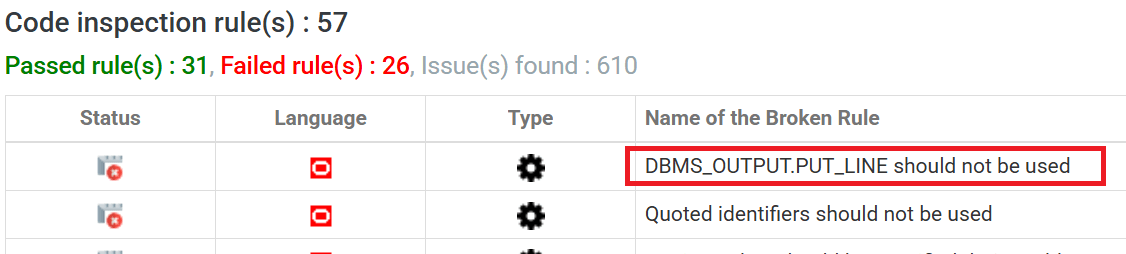
- For example, click on “DBMS_OUTPUT.PUT_LINE should not be used”.
- This rule identifies the use of a legacy Oracle feature that should be replaced to optimize performance.
- The page that opens lists all objects using this obsolete feature.
4.2 Locating a problem in the code
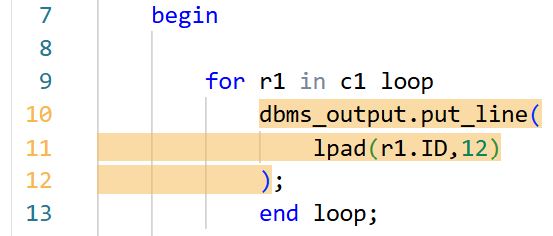
You can then examine one of these objects to see where the problem lies.
- For example, click on “GetAllOrders”
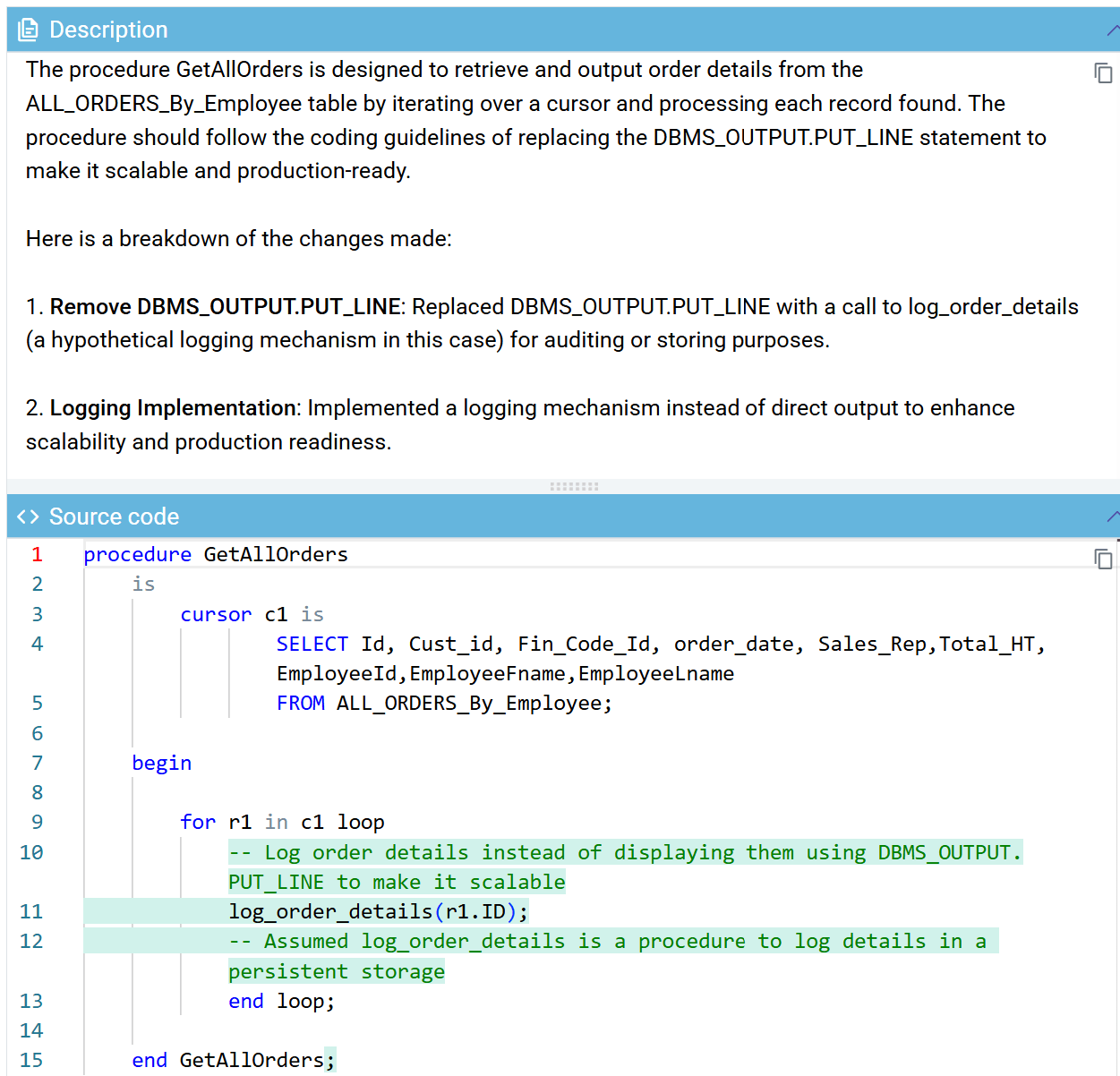
- A page displays the code for this object and highlights the problematic instructions.
- You can consult additional documentation by clicking on
‘More info”

4.3 Fix the problem
A developer can manually fix the identified problem, or ask Visual Expert's AI to suggest a solution:
- Click on

- A new view is created in the Code Explorer.
- It includes the original source code.
- The AI then generates a proposed solution.
- When available, click on “Potential Solution.”
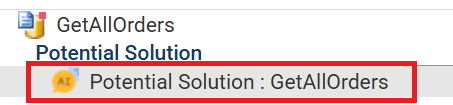
Two panels appear on the right:
- An explanation of the proposed changes
- A version of the code containing a solution highlighted in green
- Comments explaining the changes
Developers can copy and paste it into their application using this button (top right):
4.4 Collaborate with your colleagues
When multiple people contribute to improving the code, they can share certain results.
- A person analyzes the identified problems.
- She determines priorities and passes on issues to others.
Here are some examples of shareable links:
- View all critical code problems
- See objects using the obsolete “DBMS_OUTPUT.PUT_LINE” feature
- View this issue inside the “GetAllOrder” function
5. Use case : Improve performance
Visual Expert can identify portions of code that are slowing down your application.
You can then optimize them:
- By improving the code manually
- By asking Visual Expert's AI to suggest optimizations
In all cases, human intervention will be required to implement these optimizations. Neither Visual Expert nor its AI will directly modify your code.
5.1 Identify the slowest objects
You can, for example, list the slowest procedures.
For this, it uses statistical data automatically generated by Oracle.
- Open the VE Web Code Explorer module.
- Select the root of the procedures.
- In the navigation bar — section “Performance Analysis” — click on “Slowest code”.
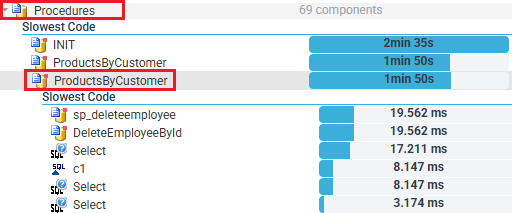
- The slowest procedures are listed according to their average execution time.
You can then break down the execution time of a procedure containing a lot of code to analyze it in more detail. For example:
- Select the 3rd procedure from the list (see screenshot below)
- Click on “Slowest code”.
- Visual Expert breaks down the procedure execution time into several elements.
5.2 Optimize the code
Visual Expert's AI can suggest code optimizations. For example:
- In the previous result, select the first Select order.
- In the navigation bar — section “AI Services” — click on “Optimize”.
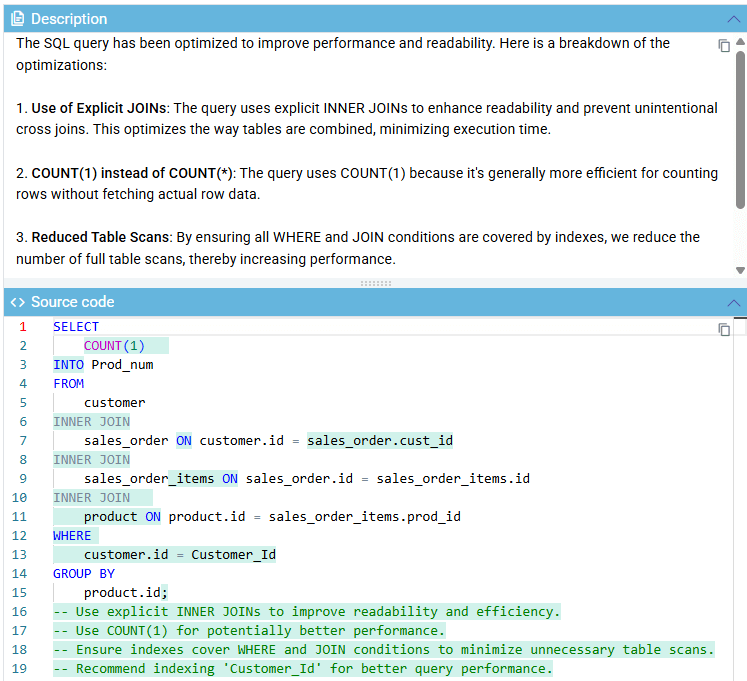
- Two panels then appear on the right:
- An explanation of the proposed optimizations
- A version of the code containing a solution, highlighted in green
- With comments explaining these changes

- Developers can copy and paste it into their application using this button (top right):
Visual Expert offers other features to improve performance. Here are two more examples you can test:
5.3 Detect missing indexes
Visual Expert can automatically find missing indexes in your database:
- It searches for columns used in WHERE, GROUP BY, HAVING, or ORDER BY clauses.
- It checks if these columns are already indexed.
- Otherwise, it adds them to the missing indexes to help you optimize performance.
You can generate this list using the following steps:
- Open the VE Web Code Explorer module.
- Double-click on the tables icon > the list of tables opens.
- Select the table “CUSTOMER”.
- In the navigation bar — section “Code Review” — click on “Missing Indexes”.
5.4 Automatic code inspection
Some inspection rules detect practices that affect performance.
- You can review an example of this rule here: View the performance-related inspection rule .
- It lists SQL commands that perform a join on too many tables.
- For example: See the SQL query that joins four tables .
- You can pass this link on to developers who optimize SQL.
-
They can request an AI solution by clicking on this button: