Explore, Analyze & Document your Code
Create a PowerBuilder Project Using a Solution Folder
Purpose
Use this approach when your PowerBuilder source code is organized in a Solution folder structure and you want Visual Expert to automatically detect and map PBLs from the filesystem.
How Visual Expert interprets PowerBuilder solution folders
When you create a project using a PowerBuilder Solution folder structure, Visual Expert
automatically detects any folder containing a .pbl file.
Each detected folder is treated as a PowerBuilder Library (PBL), and all files within that
folder are considered components of the corresponding PBL.
Procedure
-
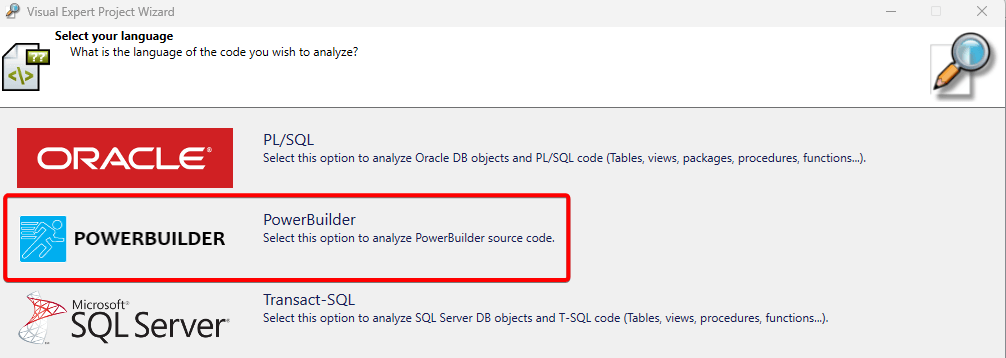
Select PowerBuilder as the language when creating the project.
-
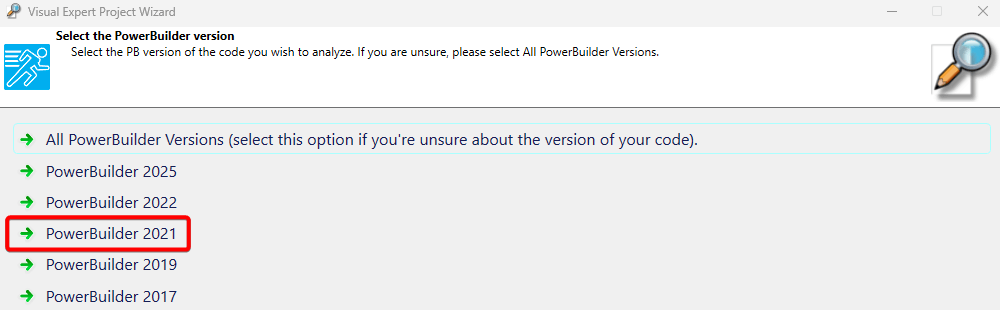
Select the required PowerBuilder version.
-
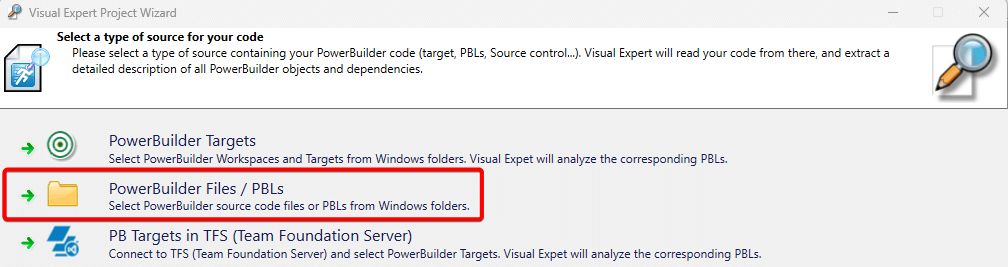
Choose PowerBuilder Files / PBLs as the source type for your code.
-
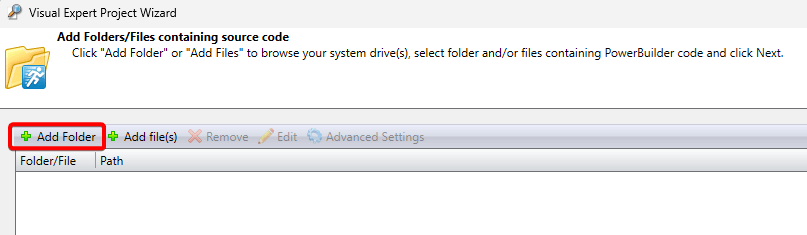
Select Add Folder, then click [Next].
-
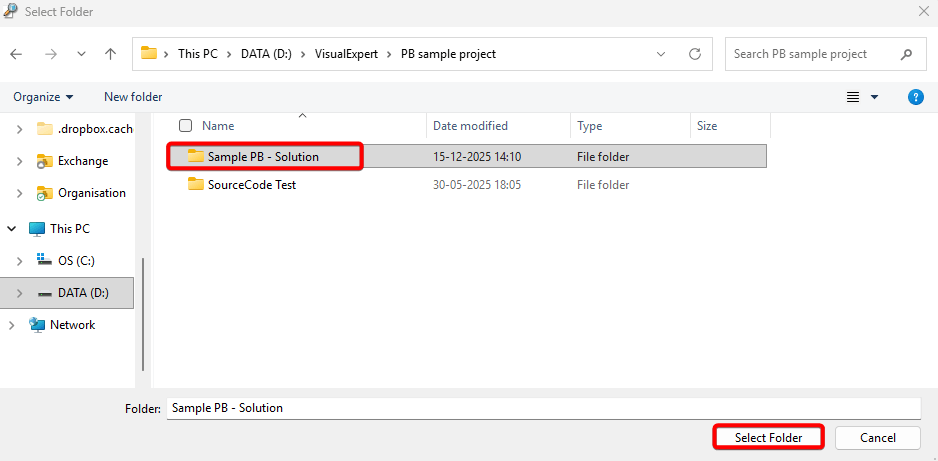
Choose the required folder and click [Select Folder].
-
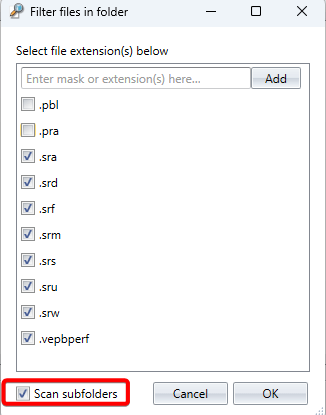
Enable Scan subfolders to detect all file extensions.
Review and select the extensions as required. Click [OK].
-
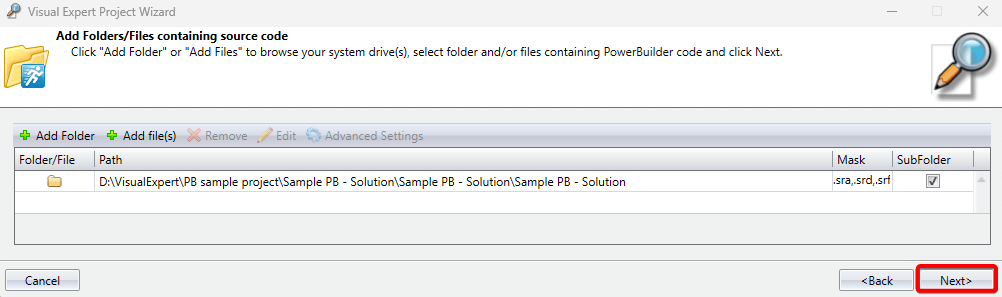
After the folder is uploaded, click [Next].
-
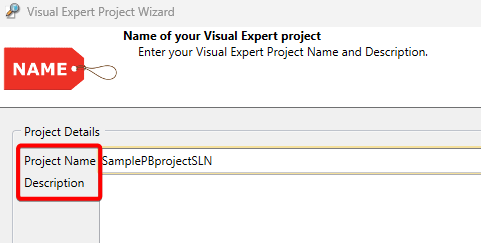
Enter the project name and description.
-
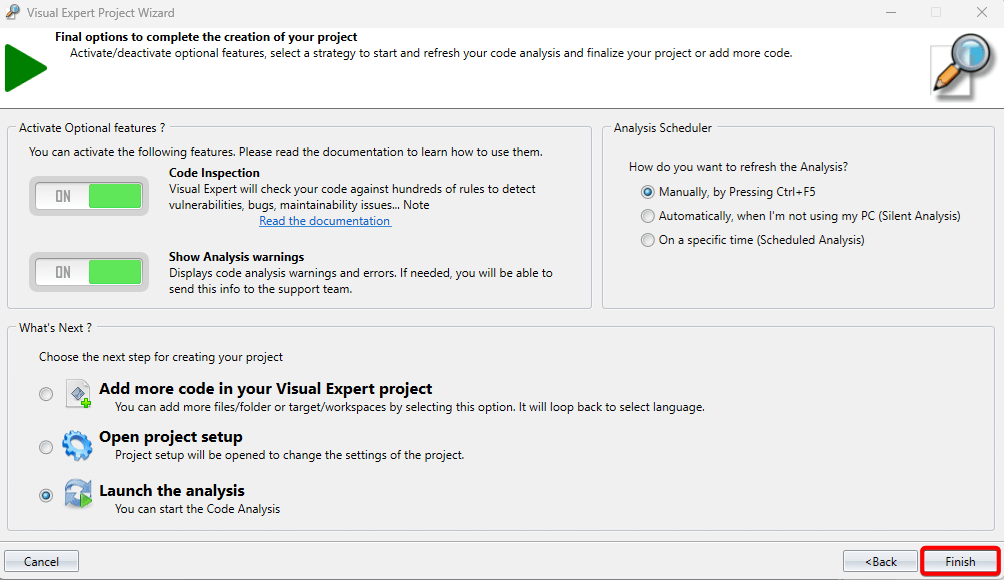
Review the final project options and settings, then click [Finish].
-
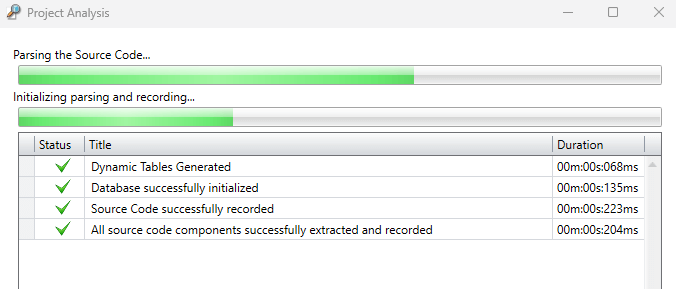
Visual Expert starts the project analysis.
-
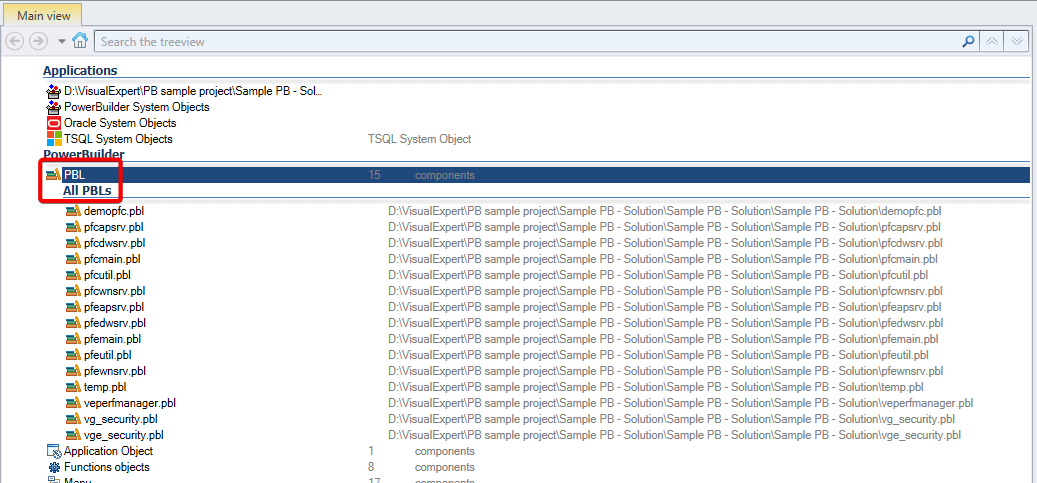
Once the analysis is complete, review the detected PBLs in the Main View.