
Explore, Analyze & Document your Code
Clearing Cache in Visual Expert
Purpose
Visual Expert uses caching to reduce database operations, improve data processing efficiency, and increase macro execution speed. If cached data becomes outdated or disk space is limited, you can clear or disable the cache at the project or application level.
When to Clear Cache
- Cached data does not display accurate results.
- Disk space needs to be freed.
- You want Visual Expert to retrieve data directly from the database.
Procedure
Open Cache Settings
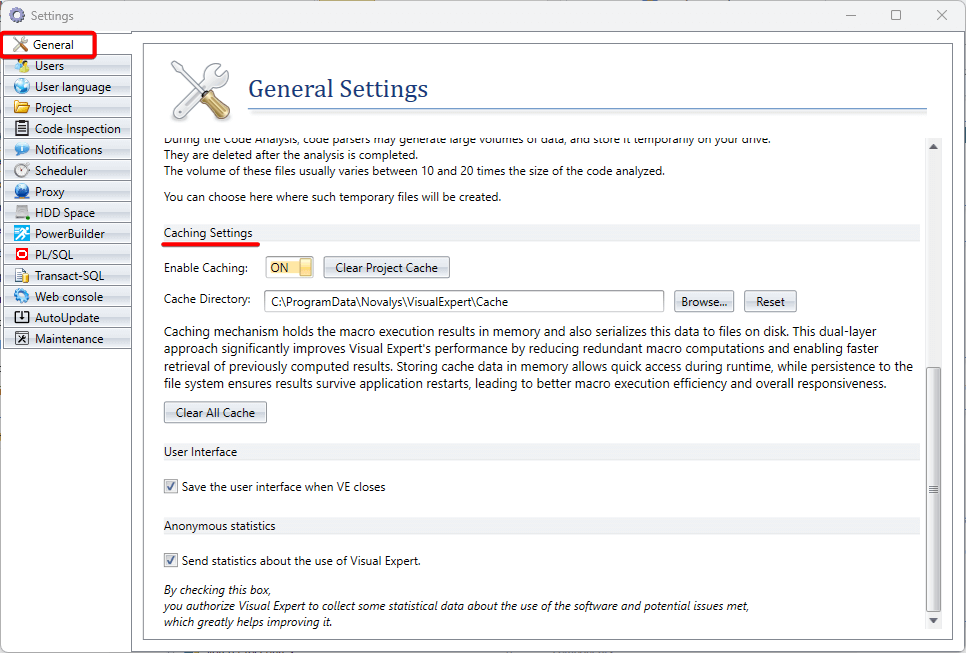
- Open Visual Expert → Go to General Settings.
- Scroll to the 'Caching Settings' section.
Clear Cache for a Project
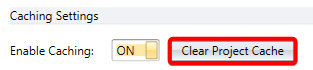
- In Caching Settings, click Clear Project Cache.
- This removes cached data only for the current project.
Clear Cache for the Entire Application
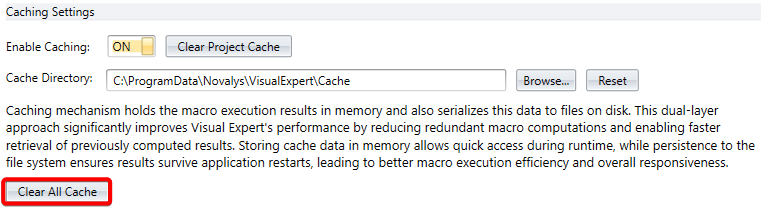
- In Caching Settings, click Clear All Cache.
- This removes all cached data stored by Visual Expert.
Disable Caching (Optional)
Caching is enabled by default. To check project results without cached data, turn caching OFF and re-run the analysis.
- Go to General Settings → Caching Settings.
- Set Caching to OFF. Run the analysis again.
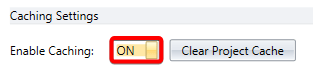
This forces Visual Expert to retrieve all data directly from the database.
Change Cache Storage Location (Optional)
- In Caching Settings, browse to the new Cache Directory. Apply the changes.
- Click Reset to restore the default cache location.

Notes
- Clearing the cache does not delete project or repository data.
- Disabling caching may increase analysis time.
- Use the default cache directory unless relocation is required.