Funcionalidades Claves de Visual Expert para PowerBuilder
Visual Expert es una solución imprescindible para el mantenimiento de su código PowerBuilder y de base de datos.
Visual Expert permite a los desarrolladores descubrir cualquiera aplicación ya existente y empezar trabajando de manera muy facil con ella.
Entender el código - Identificar las modificaciones - Evaluar el efecto de un cambio - Generar una matriz CRUD - Documentación - ¡y mucho más!
Referencias Cruzadas
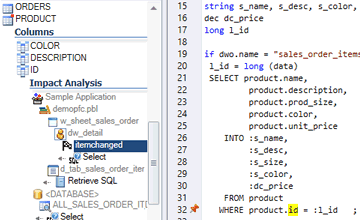
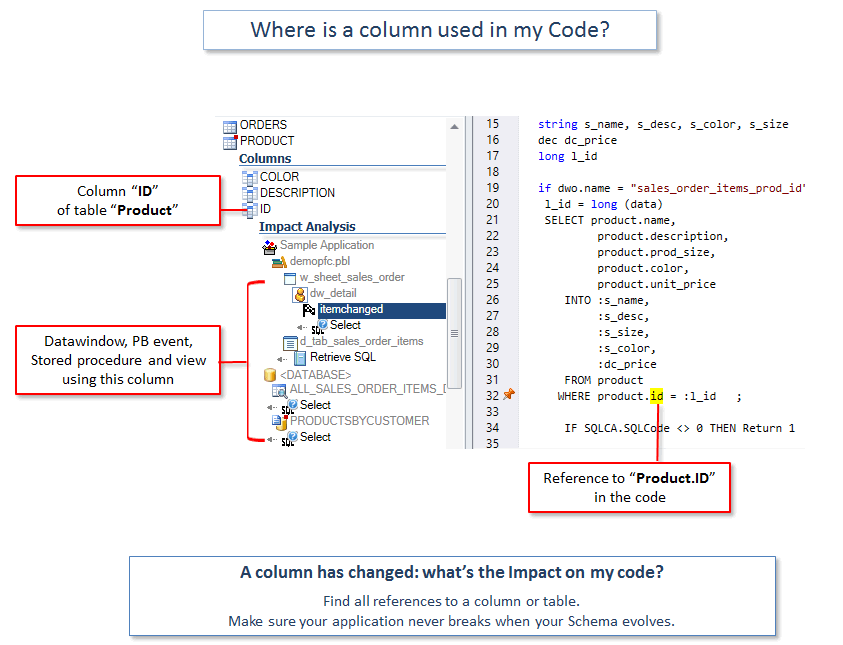
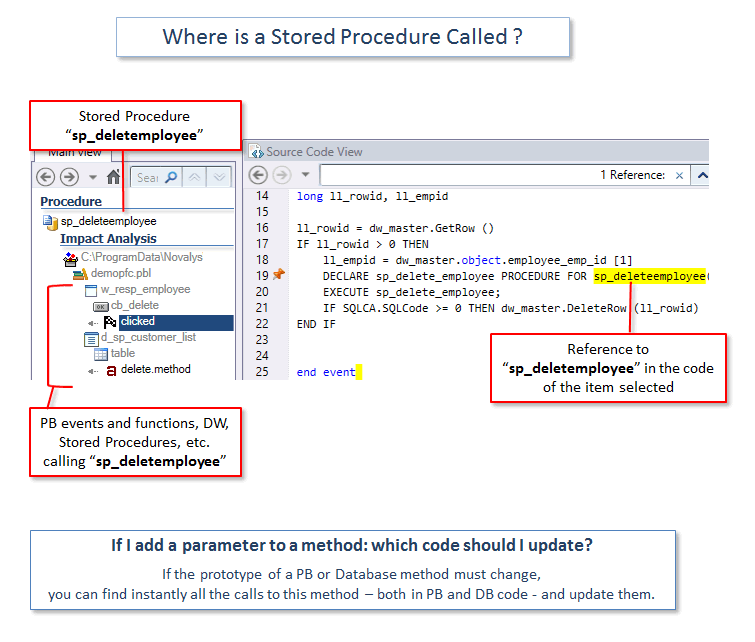
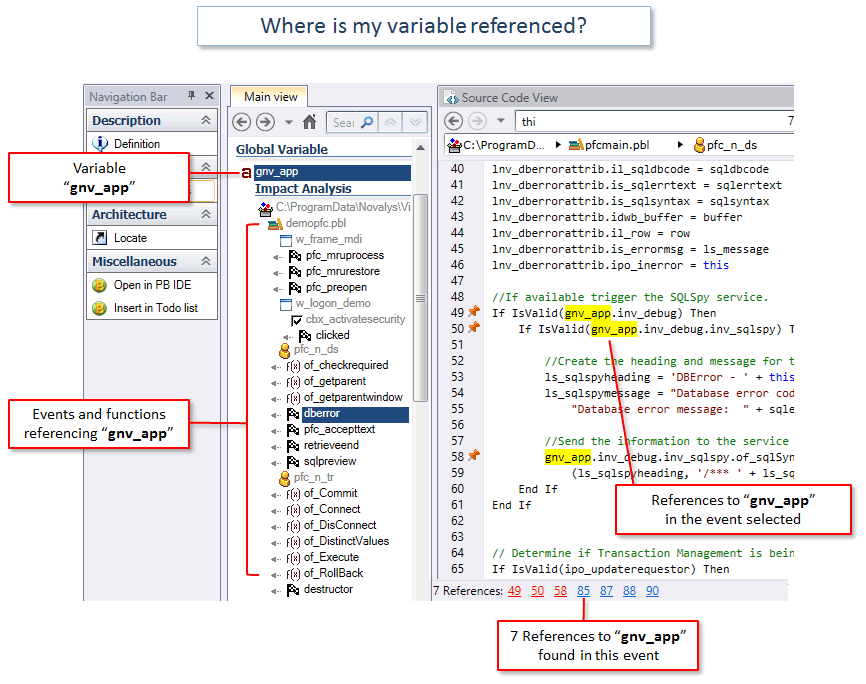
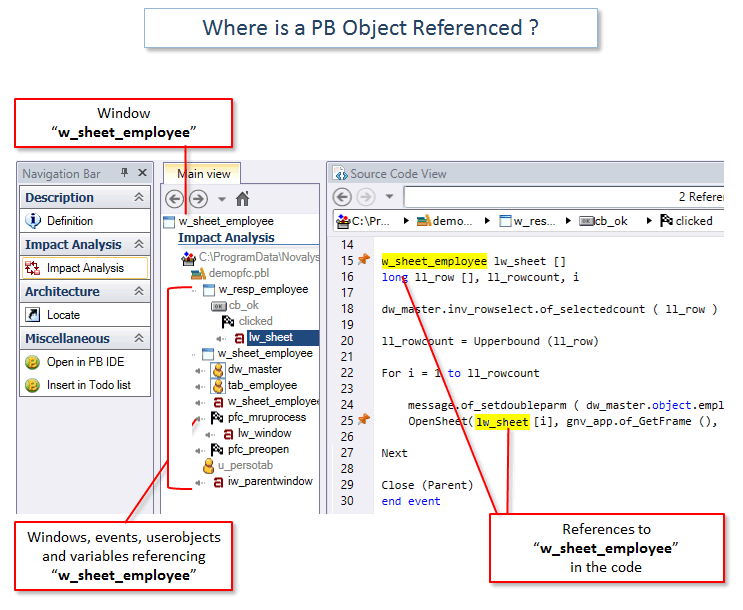
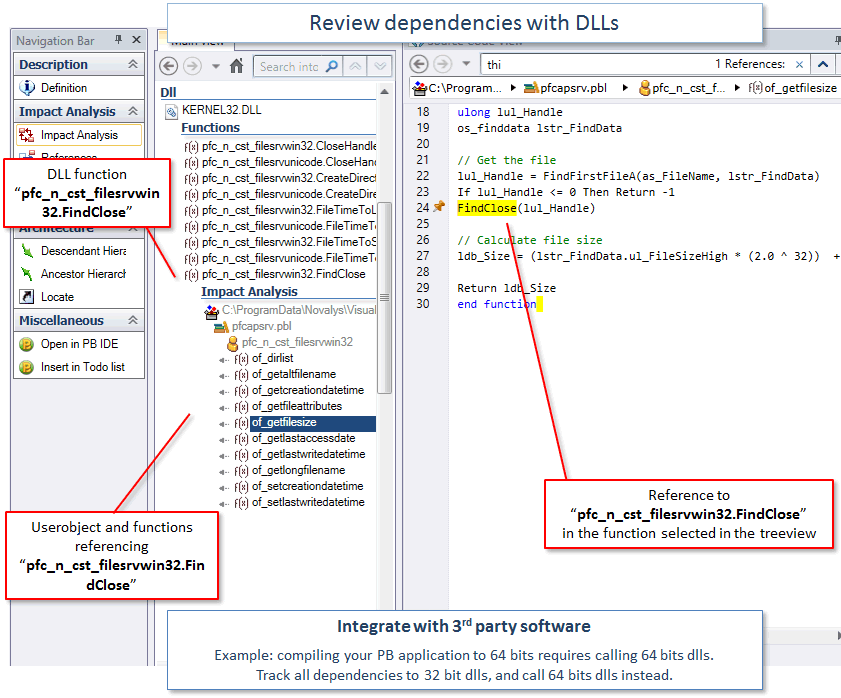
Analice el impacto de un cambio en su código
Evalúe lo que tendría que modificar para hacer un cambio.
No rompa su aplicación después de un cambio.
- Si cambio esta variable, ¿cuál es el efecto en mi código?
- Si añado un parámetro a una función, ¿qué más se ve afectado?
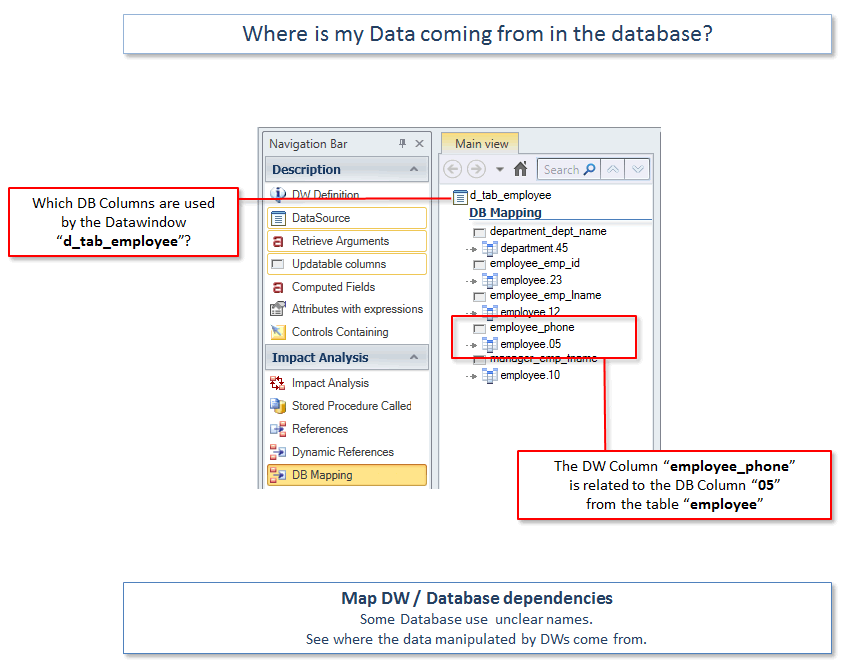
- Si se cambia una tabla o columna, ¿qué código debo actualizar?
Escanee el código y encuentre vulnerabilidades de seguridad
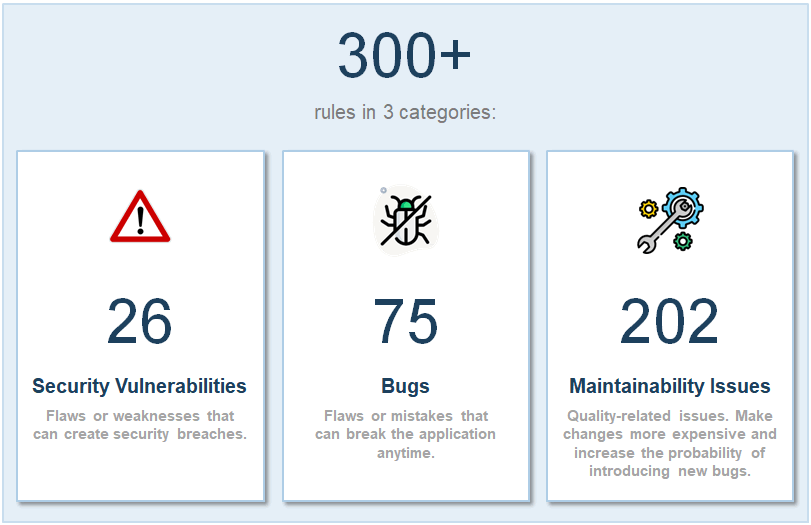
Identifique y arregle los problemas de seguridad en su código:
- Identificación de usuario y contraseñas escritas en el código.
- Direcciones IP codificadas.
- Vulnerabilidades a los ataques de Inyecciones
- Problemas de acceso/protección de los datos
- Uso inadecuado o inseguro de la encriptación
- y más...
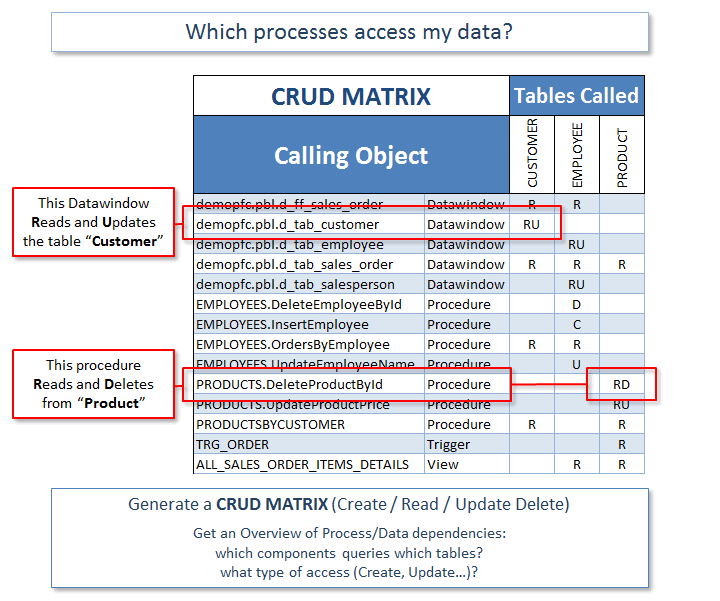
Revise las operaciones CRUD en su código PowerBuilder
(Create, Read, Update, Delete)
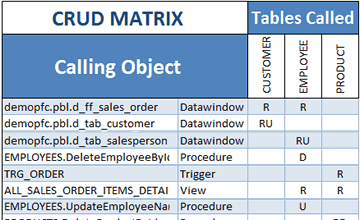
Genere una matriz CRUD que muestre qué objetos PowerBuilder acceden a sus datos y cómo. Por ejemplo, qué Procedimientos Create/Read/Update/Delete acceden a qué Tablas.
- Revise las dependencias entre su base de datos PowerBuilder y su código.
- Analice el impacto de la modificación de su esquema, por ejemplo, cambiando una definición de tabla o añadiendo un índice.
- Estime la complejidad del código y los esfuerzos de desarrollo.
- Descubra qué tablas no se actualizan nunca, etc.
- Asegúrese de que cada proceso tenga al menos una entrada (R) y una salida (CUD).
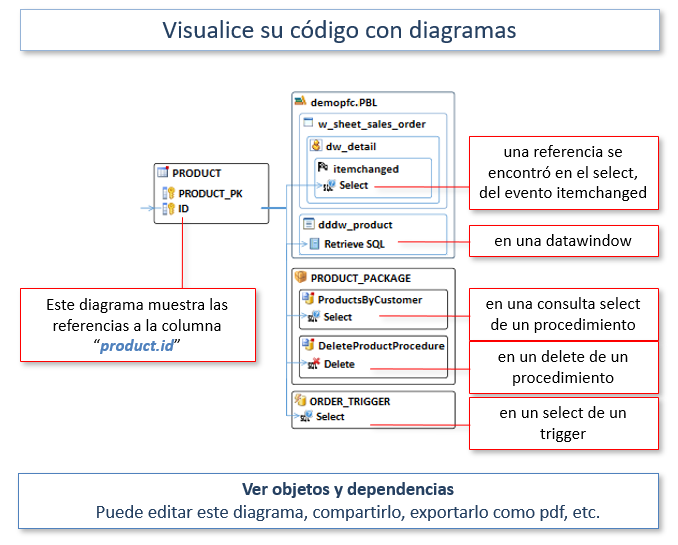
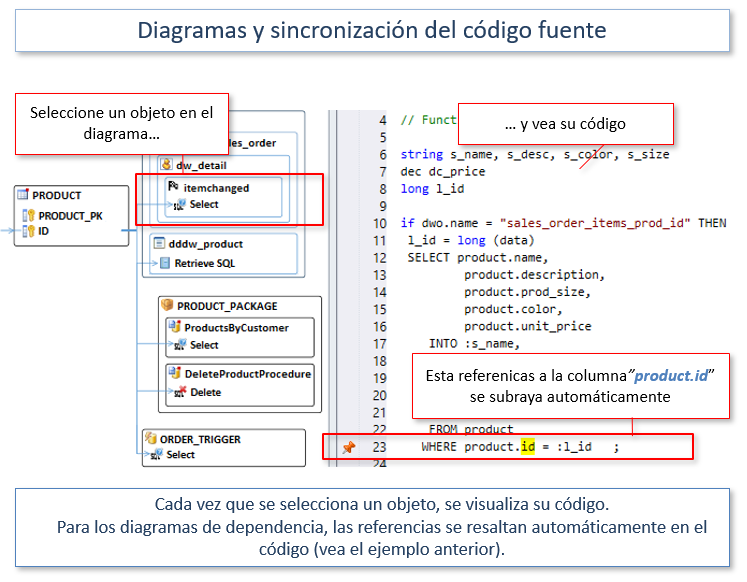
Genere diagramas a partir de su código
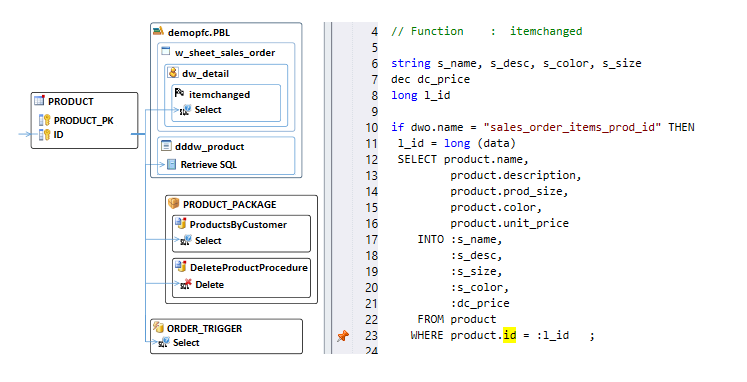
- Visualice los objetos y las relaciones.
- Los diagramas y el código fuente están sincronizados.
- Seleccione objetos para generar un diagrama
- Si es necesario, ajuste la posición de los objetos con un editor
- Guarde, exporte y comparta sus diagramas
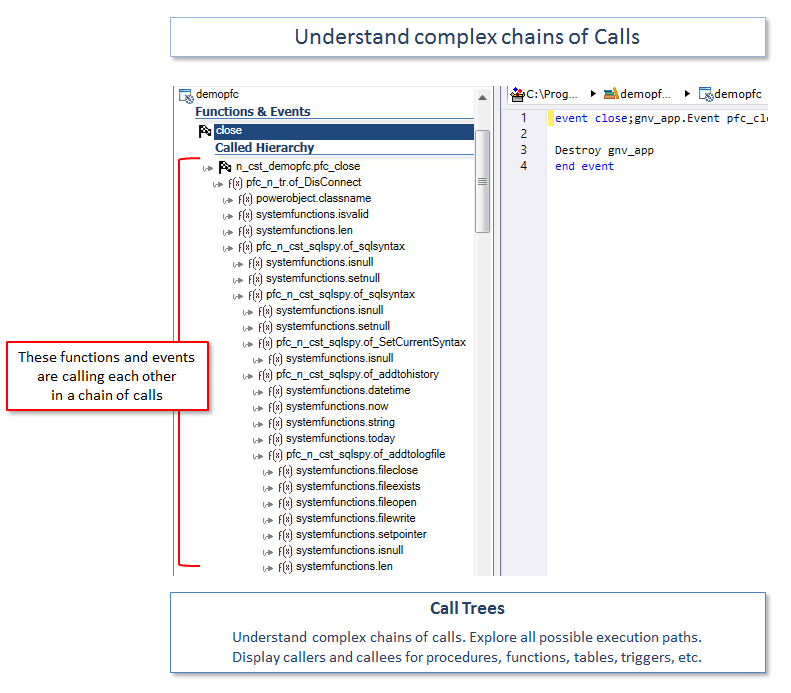
Explore cadenas complejos de llamadas
Muestre los Árboles de Llamadas: llamantes y llamados para funciones y eventos.
Explore todos los caminos de ejecución posibles.
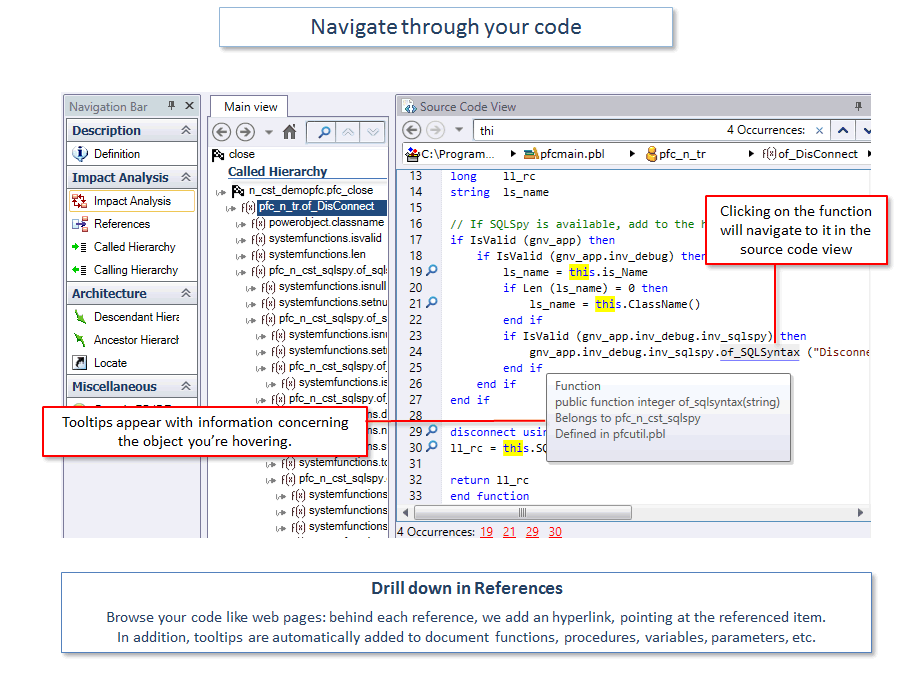
Navegue de manera vertical en el código, de un clic en los métodos referenciados o variables para ver sus definiciones.
Árboles de llamadas ayuda con la evaluación de los efectos de las modificaciones en su código.
Leer más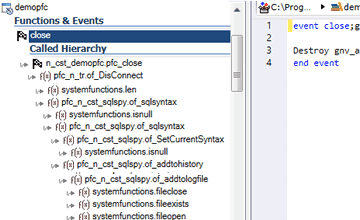
Documente su código
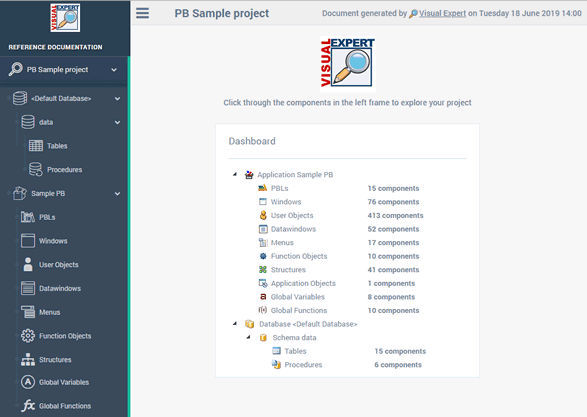
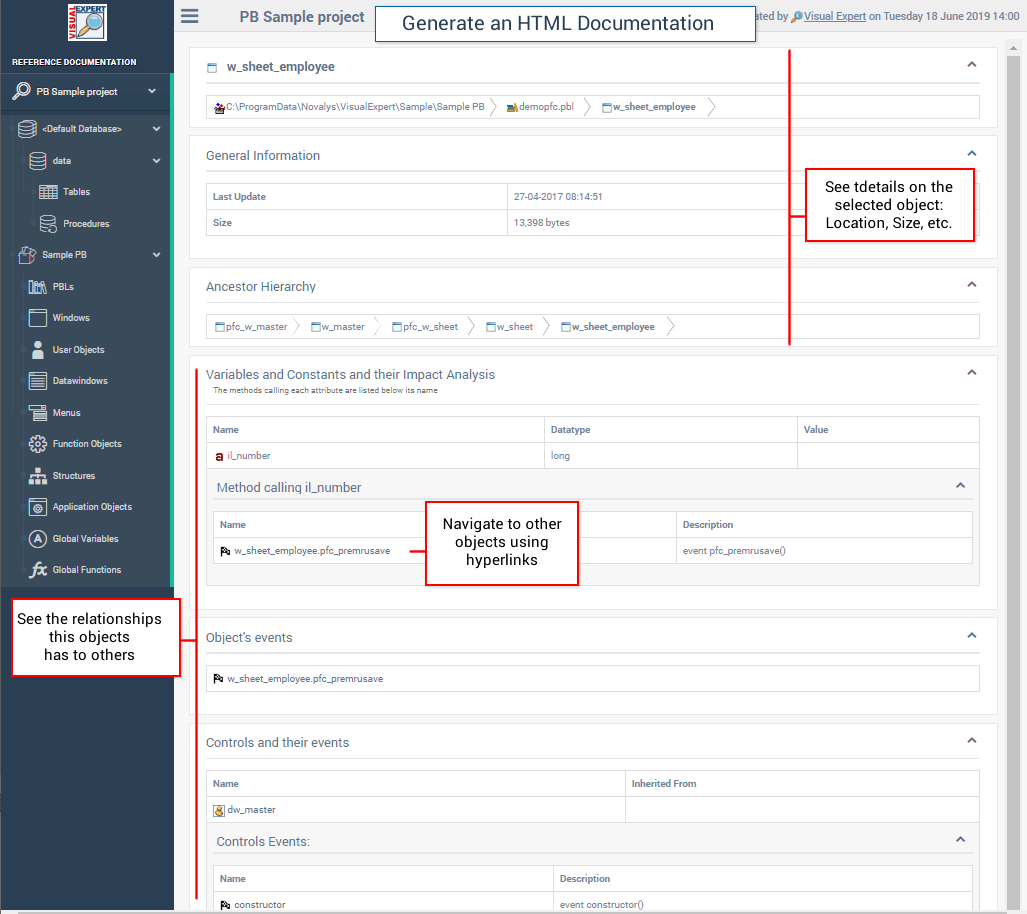
Genere documentación del código fuente y cree manuales de referencias en HTML.
Genere automáticamente los documentos de manera regular (tarea planificada).
Documente las referencias en su código.
Navegue de manera fácil entre ellas utilizando hiperenlaces.
Mantenga su documentación actualizada.
Comparte el conocimiento con sus compañeros.
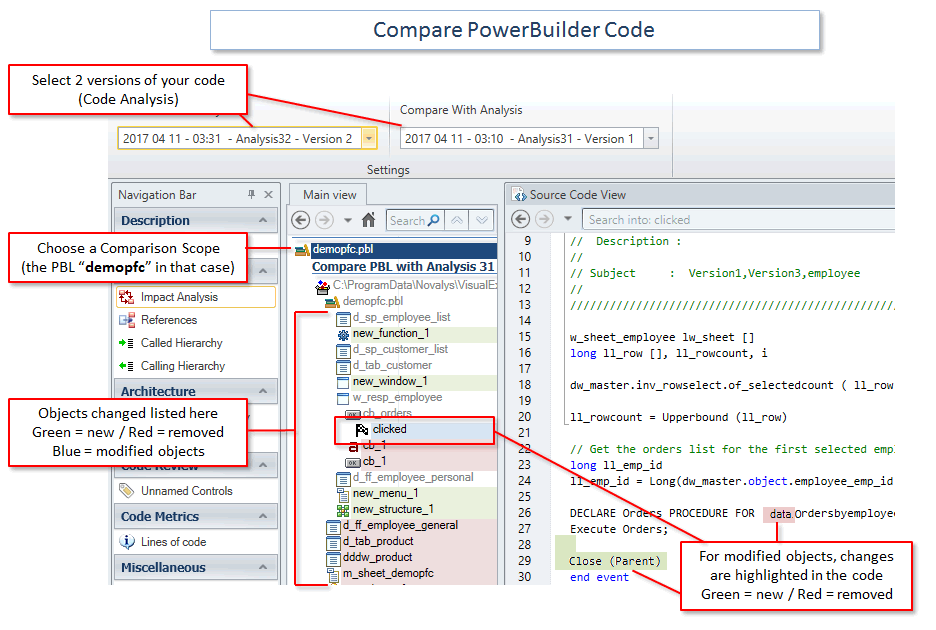
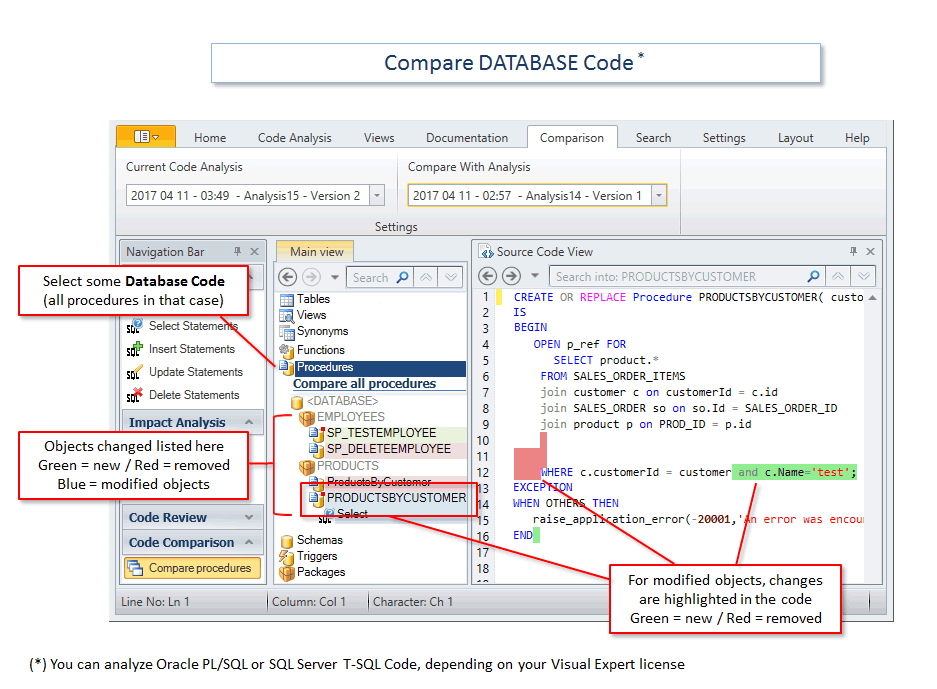
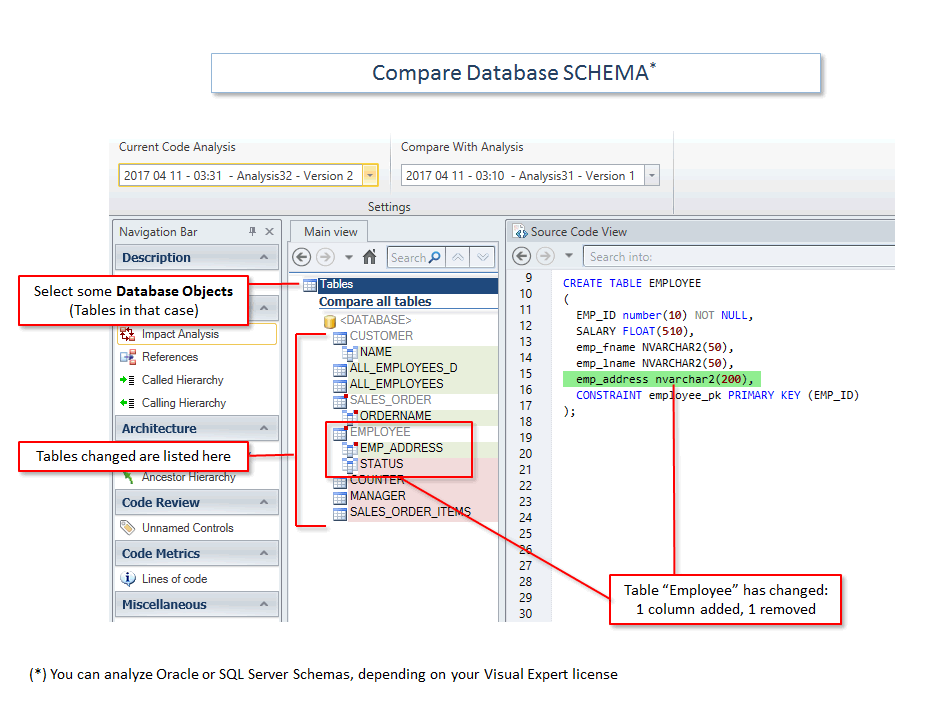
Compare las versiones de su código
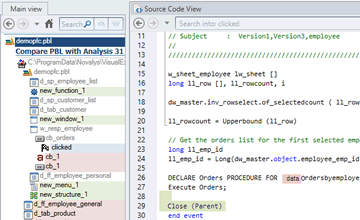
Compare 2 versiones de su aplicación
- Vea las diferencias en una jerarquía de contenedores. Navegue de manera vertical para encontrar los cambios pertinentes.
- Filtre los cambios para un objeto específico, o un tipo de objeto: Userobject, Tabla, Procedimiento…
- Filtre los cambios en una PBL dada.
- Guarde "pantallazos" de su código de manera regular, y compárelos cuando lo quiere.
- Y mucho más...
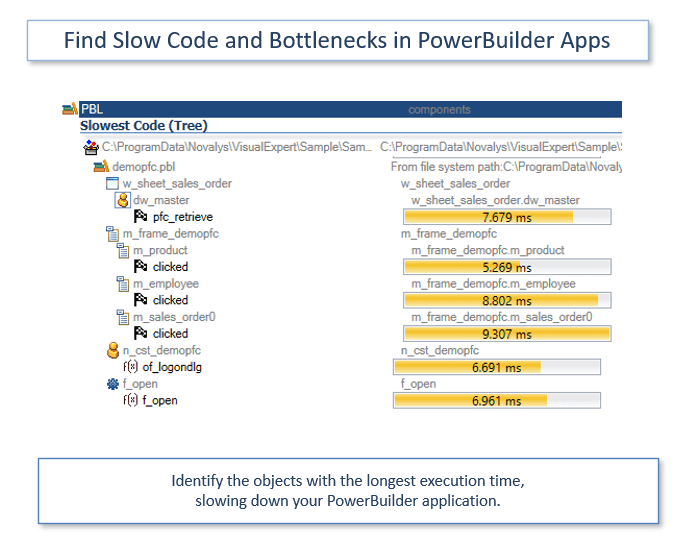
Mejore el rendimiento del código
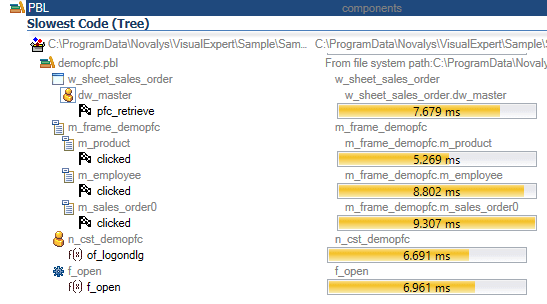
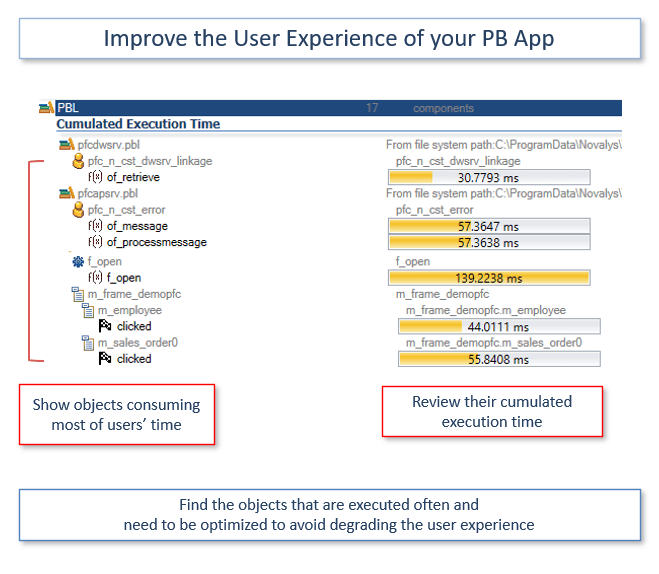
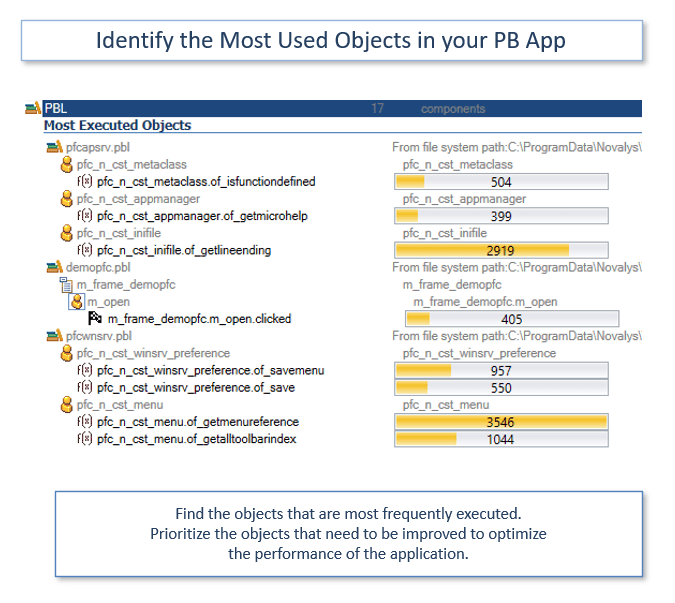
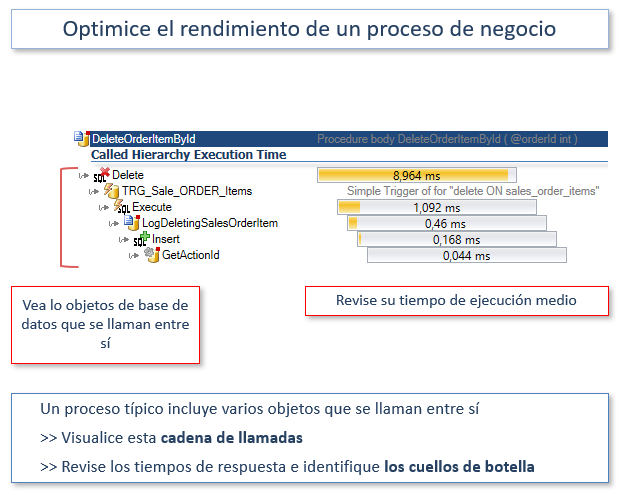
- Identifique los objetos y métodos que enlentecen su aplicación.
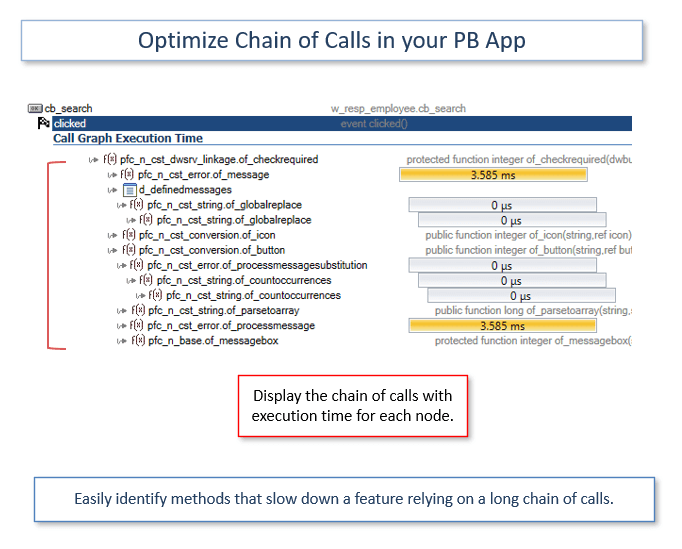
- Analice cadenas de llamadas complejas, para encontrar y eliminar cuellos de botella.
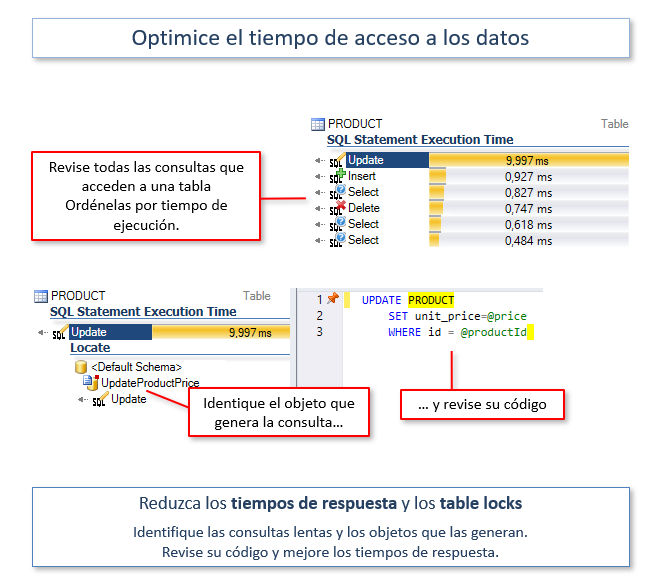
- Encuentre el código que genera SQLs que degradan el rendimiento de la base de datos.
Mejore la calidad del código
Limpie el código, reduzca los esfuerzos de mantenimiento. Evite los comportamientos inesperados.
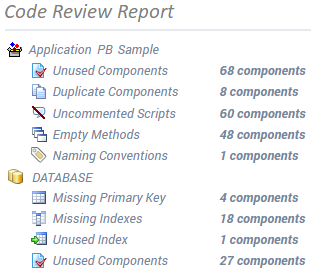
- Identifique los objetos no utilizados y elimine el código muerto.
- Encuentre métodos vacíos, objetos duplicados, scripts de gran tamaño o sin comentarios.
- Produzca métricas de su código: número de líneas de código, objetos, métodos, variables...
- Revise las políticas de asignación de nombres.
- Encuentre objetos que no se heredan de un ancestro, etc.
- Verifique su código de acuerdo a cientos de reglas...
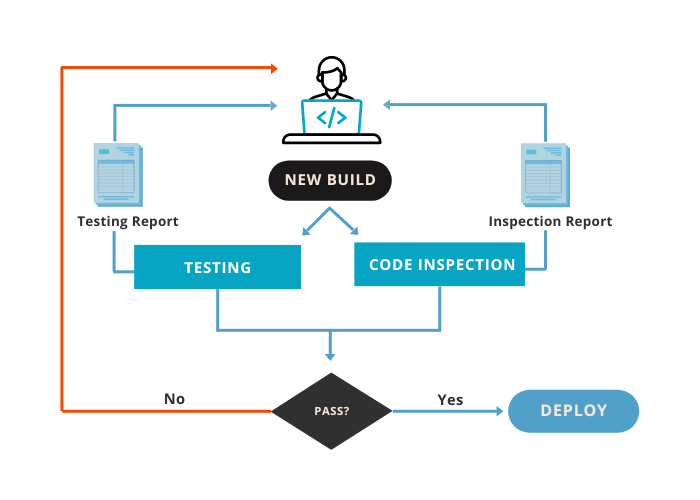
Inspección continua del Código
Aumente la calidad y la seguridad de su código.
Reduzca las deudas técnicas y los costos de mantenimiento.
Analice automáticamente su código PowerBuilder en busca de defectos, integrando la inspección continua en su pipeline CI/CD. Así se asegurará de que el código desarrollado por cada miembro de su equipo cumple los requisitos de calidad y seguridad antes de su despliegue.
Leer más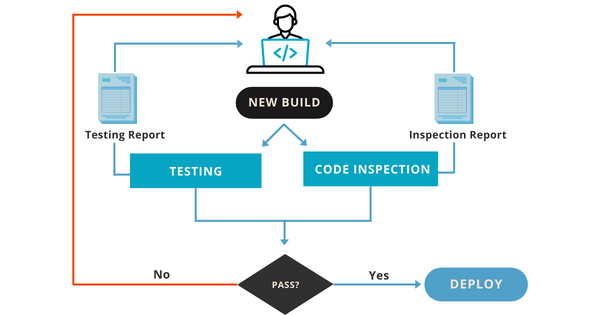
Entienda el código complejo
Cuando mantiene sus aplicaciones complejas, puede necesitar aprender más sobre su código.
Para esas situaciones, Visual Expert es el mejor compañero para PowerBuilder.
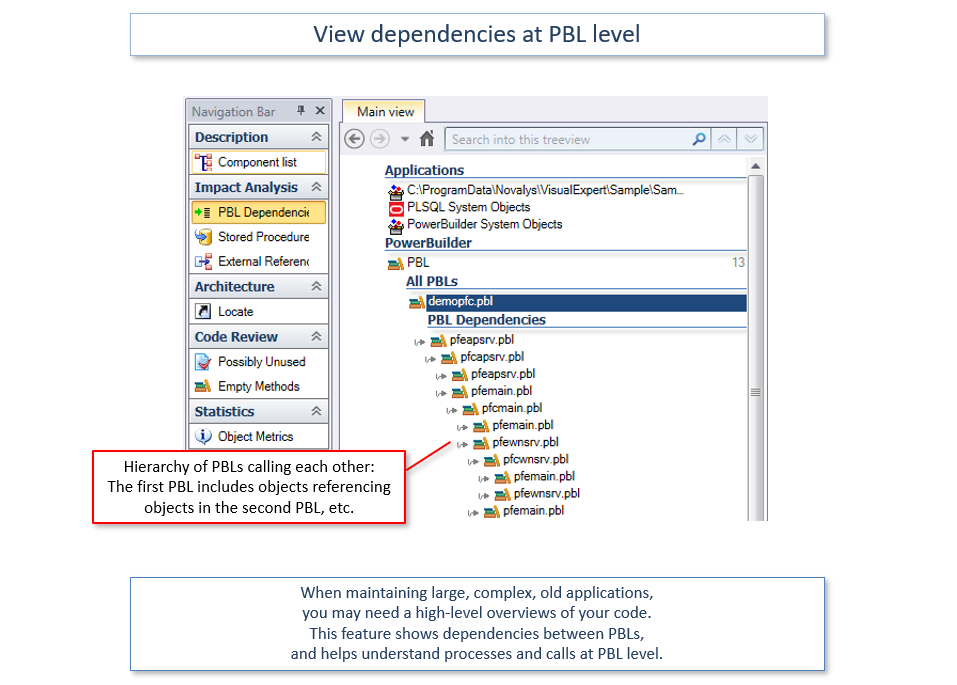
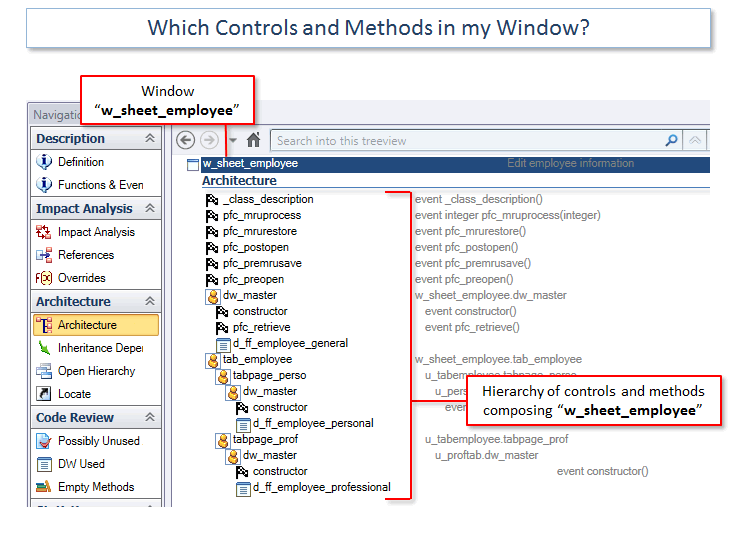
Explore la estructura de su aplicación. Entienda su funcionamiento.
Navegue en su código con hiperenlaces: cada referencia viene con un enlace que se refiere al elemento.
Tooltips proveen información muy útil acerca de los objetos, métodos y variables.
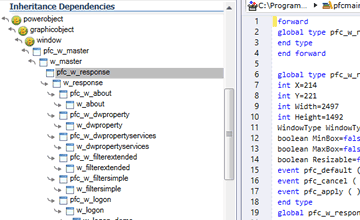
Explore las dependencias de herencia entre los objetos PB.
Muchas funcionalidades avanzadas van a proteger su código desde varios puntos de vista.
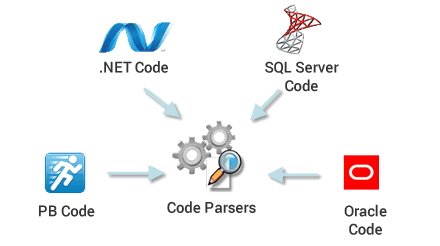
¿Cómo funciona?
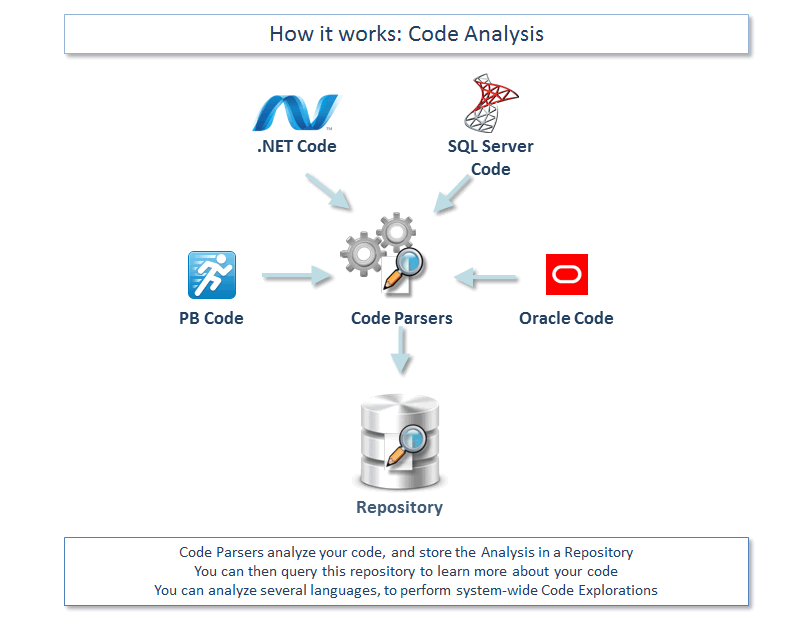
- Los Parsers de Código analizan su código, y almacenan el análisis en el Repositorio.
- Usted puede solicitar este repositorio para aprender más sobre su código.
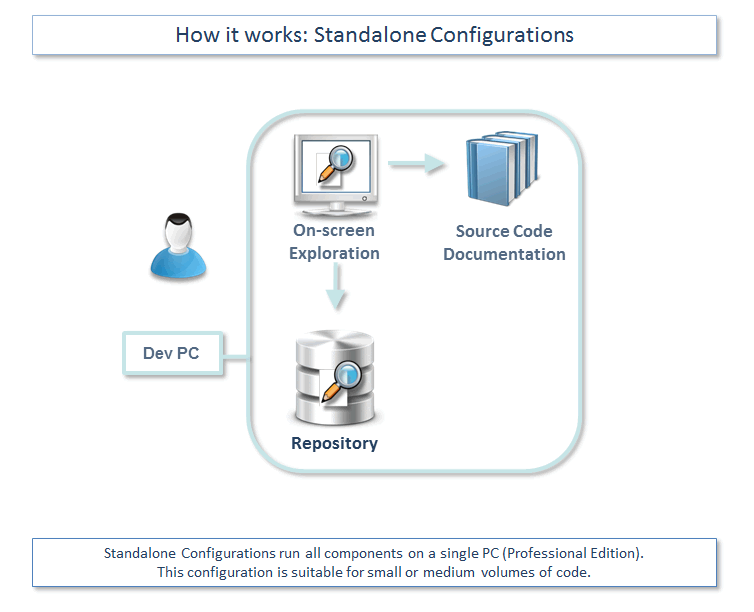
- Configuraciones Standalone (Edición Professional) ejecutan todos los componentes desde una máquina en local.
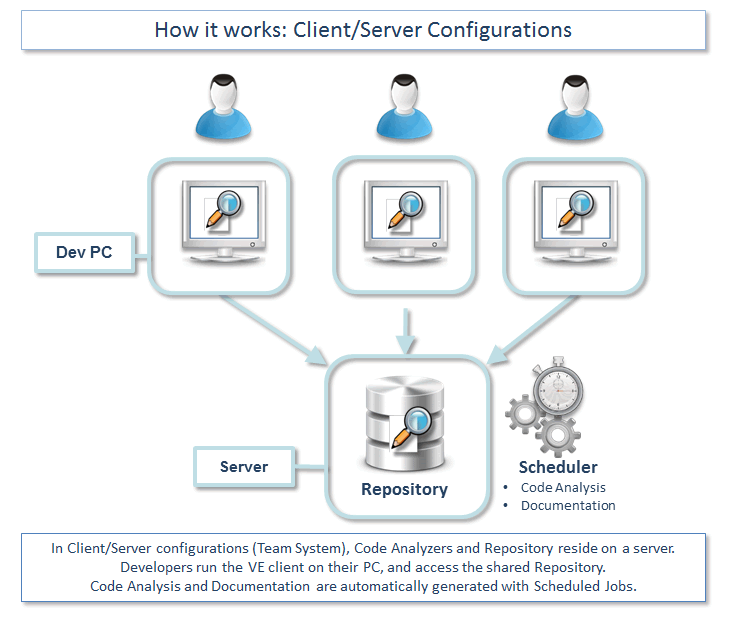
Eso se recomienda para volúmenes pequeños y medianos de código. - En configuraciones Cliente/Servidor (Team System), los analizadores de código y el repositorio se encuentran en un servidor. Los desarrolladores ejecutan una copia cliente de VE desde sus maquines y acceden a un repositorio compartido.
- El análisis de código y la documentación se generan automáticamente con el Programador.

Feedback from our clients

Reduces expenses
Using VE's features allows a much quicker turnaround, reduces expenses and frees up resources for more productive work.
Become familiar with a new application in literally a few hours
(The) More you work with Visual Expert - more you understand how convenient it is. (...) I cannot remember so powerful a tool that allows a user to become familiar with a new application in literally a few hours