Support
     
Support
 
Visual Expert 6.0 New Features

Introduction to Visual Expert 6.0 new features

You will find here after the details of the main enhancements and new features.


1. NEW NAVIGATION BAR
2. NEW MACROS
  2.1. LESS MACROS, MORE PARAMETERS
2.2. MACROS SHORTCUTS IN THE TREEVIEW MENU
2.3. MACROS EXTENSIONS
2.4. FILTERING OBJECTS IN THE TREEVIEW
2.5. FINDING SPECIAL DATAWINDOWS
2.6. MAPPING DATAWINDOWS / DBMS
2.7. POWERBUILDER <=>STORED PROCEDURES DEPENDENCIES
2.8. INHERITANCE HIERARCHY (WINDOWS/UO/MENUS)
3. NEW IMPACT ANALYSIS
  3.1. RESULT DISPLAYED AT INSTRUCTION-LEVEL
3.2. IMPACT ANALYSIS EXAMPLES
    3.2.1. Impact Analysis on a Table
3.2.2. Impact Analysis on a Database Column
3.2.3. Impact Analysis on a Stored Procedure
4. EXPLORING REFERENCES WITH VISUAL EXPERT 6.0
4.1. REFERENCES FOUND IN POWERBUILDER COMPONENTS
    4.1.1. Datawindow
4.1.2. PowerScript
4.1.3. RPC FUNC
4.2. REFERENCES BETWEEN PL/SQL AND T-SQL COMPONENTS
    4.2.1. Oracle Package
4.2.2. Stored Procedures
4.2.3. Other DB Code items
4.2.4. PL/SQL %TYPE references
4.2.5. Parameters & Local Variables
5. SOURCE CODE VIEW
  5.1. HYPERLINKS IN THE CODE
5.2. TITLE OF THE SOURCE CODE VIEW
5.3. SEARCH IN THE SOURCE CODE VIEW
6. DOCUMENTATION
  6.1. TECHNICAL DOCUMENTATION FOR ORACLE STORED PROCEDURES
7. MISCELLANEOUS
  7.1. OBJECT PREVIEWS
7.2. TOOLTIPS
7.3. "SHORT LIST" VIEW
7.4. TECHNICAL REQUIREMENTS

1. New navigation bar

With Visual Expert 6.0, some treeview macros include parameters. These parameters let you adjust the result expected from the Macro.

Top

2. New Macros

2.1. Less Macros, more parameters

All treeview macros have been redeveloped and reorganized

A few standard macros are now available for all languages (PB, PL/SQL, and T-SQL):

  • Same concept and same Macro name from one language to another
  • Each macro uses parameters to cover most needs
  • These parameters depend on the type of component selected in the treeview

2.2. Macros shortcuts in the Treeview Menu

The pop-menu in the treeview (right-click on an item in the treeview) now includes the main macros available for the selected item – no need to go to the navigation bar.

2.3. Macros Extensions

The system allowing the extension of macros is now available with a right-click on the Navigation bar.
Some extensions have already been released. The list of macros will evolve.

2.4. New Macros to list objects in the treeview

Objects can now be listed in the treeview with 2 macros:

  • The macro "All <Object>" lists all the objects of this type.
    This macro is executed by default with a double-click at the root of the treeview.
  • The macro "Filter <Object>" offers various parameters to filter each type of object.

Each filter macro offers a list of filter options.
By default, these options are not activated. You can activate them by checking the corresponding box:


2.5. New macros to identify specific DataWindows

Several new macros have been added with Version 6.0, available at the root of the DWs:


2.6. Mapping DataWindows / DBMS

Visual Expert 6.0 also includes a new “DB columns” macro for DataWindows.

This macro displays the DW- DBMS mapping: it shows which table.column in the DBMS corresponds to each DW column.

2.7. PowerBuilder <=> Stored Procedures dependencies

A new Macro called « SP dependencies » lists all stored procedures referenced by PB objects:

  • This macro is available at the root of the treeview for each type of PB components
  • It is also available for PB objects displayed in the treeview

2.8. Inheritance hierarchy (Windows/UO/Menus)

Visual Expert 5.x offered 2 different macros: Descendants + Ancestors


With Visual Expert 6.0, the same Macro displays both Ancestors and Descendants:


Top

3. New Impact Analysis

3.1. Result displayed at instruction-level

Visual Expert used to perform impact Analysis across the entire application and provide a component-level result in the treeview. Visual Expert 6.0 now provides a fine-grain result at instruction level!


3.2. Impact Analysis Examples

3.2.1. Impact Analysis on a Table

Exemple 1: Table « bonus » used in a PowerBuilder Script


Exemple 2: Table « bonus » used in a PowerBuilder Datawindow

Exemple 3: Table « bonus » used in a Stored Procedure

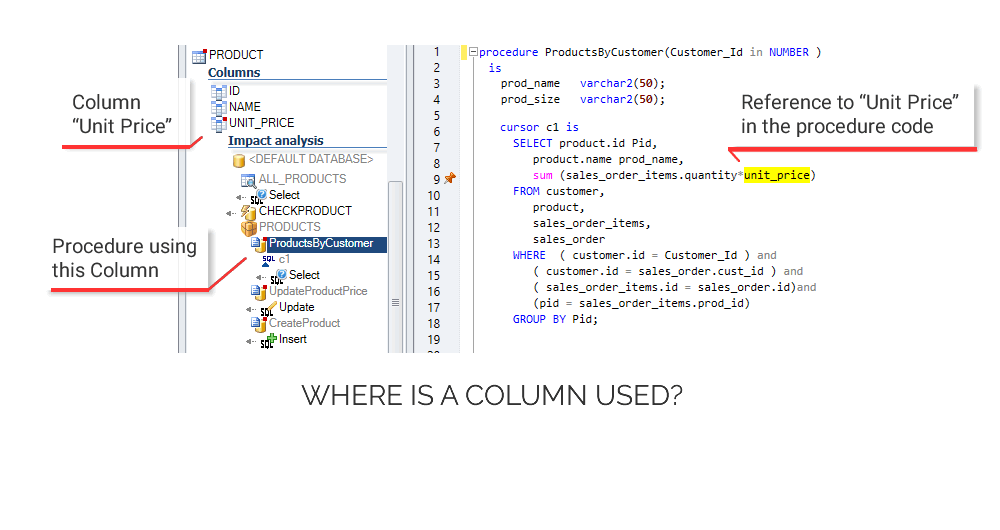
3.2.2. Impact Analysis on a DB COLUMN

Exemple 1: Column « bonus.bonus_date » used in a PowerBuilder Script

Exemple 2: Column « bonus.bonus_date » used in a PowerBuilder Datawindow

Exemple 3: Column « bonus.bonus_date » used in a Stored Procedure

3.2.3. Impact Analysis on a Stored Procedure

Exemple: Impact Analysis for the stored procedure « sp_deleteemployee »:

Visual Expert will find all references to stored procedures and display a result at instruction-level:


Top

4. Exploring references with Visual Expert 6.0

4.1. References found in PowerBuilder components

4.1.1. Datawindow

When a DataWindow in based on a SQL DataSource, the table and columns referenced are listed in the treeview and highlighted in the source:

Both « update » and « select » procedures are displayed as referenced by the DataWindow

4.1.2. PowerScripts

All items referenced by a Script are listed in the treeview and highlighted in the code.


4.1.3. RPC FUNC

An RPCFUNC declaration is another solution for PowerBuilder to use a stored procedure.

This declaration is similar to the declaration of an external dll function. The RPCFUNC keyword indicates that a stored procedure is called (and not a dll function).

Visual Expert considers RPCFUNC methods like any other method of the component:

When an RPCFUNC method or dll is selected, Visual Expert displays its declaration:


Visual Expert also displays the references to RPCFUNC or dll functions when they are selected:


Top

4.2. References between PL/SQL and T-SQL Components

4.2.1. Oracle Package

A Package is related to any item referenced by the package itself or its procedures, types, etc…
As a result, a Package may reference lots of items. You can list all referenced items in the treeview and select one of them: the source code will automatically highlight the references to this item.


4.2.2. Stored Procedures

Visual Expert can list the items referenced by a stored procedure.
This is the same concept as the Oracle Packages, with a scope limited to a stored procedure:


4.2.3. Other DB Code items

Visual Expert also analyses Views, Types and Cursors.
It supports references to tables and columns with on the instruction %Type

4.2.4. PL/SQL %TYPE references

Visual Expert supports all %TYPE references. Parent items (Views, Types, and Cursors) and the table/column referenced. For instance:


4.2.5. Parameters & Local Variables

Variables & Parameters are referenced as any other DB Item. Each reference will be highlighted in the source code.

Top

5. New source code view

5.1. Hyperlinks in the code

Hyperlinks are now available in the source code, both for methods and variables:

A click on a referenced method will display its source code (Go to definition):

A click on a referenced variable will display its declaration (Go to declaration):

5.2. Title of the source code view

The title of the source code view now displays the containers of the current code. After clicking on a hyperlink in the code, it helps to understand where is located the current code.

  • For instance: //{PBL}/{composant}/{contrôle}/{méthode}
  • Or //{text file}/{Package}/{Procedure}

5.3. Search in the source code view

The search feature in the source code view has been redeveloped:

  • When entering a string in the “find” field, the code automatically scrolls down to display the first occurrence found.
  • The number of occurrences found in this code is automatically displayed.
  • Each line containing a reference is marked with a bullet
  • You can type [enter]/[Shift Enter] to navigate up/down in the list of occurrences, or click on the up/down button.
  • An Index shows the number of all lines containing an occurrence of the string.


Top

6. Technical documentation

6.1 Technical documentationfor Oracle Stored procedures

The technical documentation is now available for PL/SQL code: Packages, Stored procedures, Triggers, Types, Views (image de newsletter)

7. Miscellaneous

7.1. Object Previews

While exploring your application, you can use the Macro “Preview” to display a graphical preview of PowerBuilder Windows, Datawindows or Visual UserObjects:

7.2. Tooltips

When you move the mouse over code item, Visual Expert displays ToolTips:
They provide additional information about this item (object, method, variable, table…).

Such tooltips are available:

  • For the items listed in the treeview
  • For the items referenced in the source code view
  • For the controls displayed in a preview (see the section Object Preview)


Tooltips examples:


7.3. “Short List” View

You can now select items in the treeview and in the source code and group them in a specific treeview tabpage called “ShortList”:


7.4. Technical requirements

  • Polymorphism is now supported: it required Visual Expert exceptions to be declared
  • Visual Expert GUI has been migrated to PB11 for future integration of .NET controls in VE
  • PB11 Pre-processing supported: C# code is identified and ignored for now.
  • PB 11.5 is now supported (syntax analysis, integration with PB 11.5 IDE…)

Top

    For Oracle click here
  For SQL Server click here
  For Sybase ASE click here
  For PowerBuilder click here


Download this document in .PDF