Support
     
Support
 
Visual Expert 6.0 beta1


This document focuses on Visual Expert 6.0 new features regarding references and Impact Analysis.

The examples presented below use mainly Database Objects (tables, columns, stored procedures…).
Of course, these features are also available with any other component in your applications.

Visual Expert 6.0 beta1 (temporarily named 5.8) analyses PowerBuilder & PL/SQL code.
T-SQL (for SQL Server and Sybase ASE) will be taken into account in the beta 2 release.

1. Treeview Macros

2. Exploring References with Visual Expert 6.0
    2.1. References from PB to the DBMS
        2.1.1. Datawindow DataSource
        2.1.2. Tables and Columns referenced by a DataWindow DataSource.
        2.1.3. Procedures referenced by a DataWindow DataSource
        2.1.4. Tables and Columns referenced by a PowerScript
        2.1.5. Other PowerBuilder References
        2.1.5.1. Cursors and Procedures declared as members of a Component
        2.1.5.2. Cursors and Procedures declared in a PowerScript
        2.1.5.3. RPC FUNC
    2.2. References Between PL/SQL components
        2.2.1. Package
        2.2.2. Stored Procedures
        2.2.3. Other PL/SQL items
        2.2.4. %TYPE references
        2.2.5. Parameters & Local Variables

3. Performing impact analysis with Visual Expert 6.0
    3.1. Presentation of the result
    3.2. Scope of the impact analysis
    3.3. Impact Analysis examples
        3.3.1. Impact Analysis on a Table
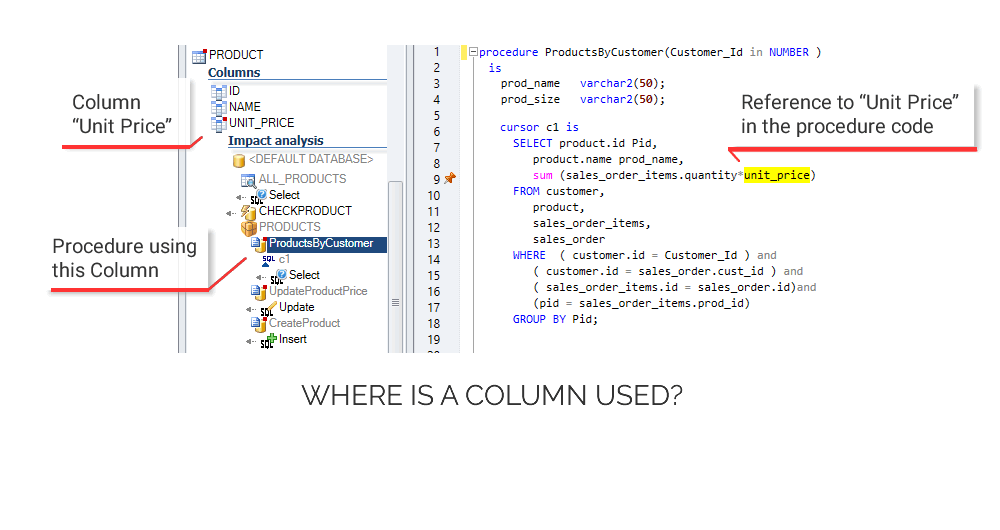
        3.3.2. Impact Analysis on a Database Column
        3.3.3. Impact Analysis on a Stored Procedure


1. Treeview Macros

With Visual Expert 6.0, some treeview macros include parameters. These parameters let you adjust the expected results of the Macro.

Top


2. Exploring references with Visual Expert 6.0

2.1. References from PB to the DBMS

2.1.1. Datawindow DataSource

Visual Expert treeview now displays Datawindows « DataSources ».


A “DataSource” is displayed when the DW has a data source (SQL Query or Stored Procedure).

The “DataSource” will reference all the items composing the data source (including Update procedures): When the “DataSource” is selected, the macro “reference” displays the type and name of the corresponding Database Objects.


If the DataSource is an SQL Query, this query is displayed in the source code view:


In case of a Stored Procedure, the DataSource references this procedure:


The source code view shows where the procedure is declared in the DW code (export):

Top

2.1.2. Tables and Columns referenced by a DataWindow DataSource.

In the case of a SQL DataSource, the table or column selected in the treeview is highlighted in the Source code:

2.1.3. Procedures referenced by a DataWindow DataSource

Both « update » and « select » procedures are referenced by the DataSource:

When a procedure is selected, its declaration is displayed in the DW Source code:

Top

2.1.4. Tables and Columns referenced by a PowerScript

It is now possible to list all DB Objects referenced by a PowerScript

For example, this event includes 3 SQL Queries:

You can display the DB Objects referenced by this event…

…and when you select a DB Object , its references are highlighted in the source code:

Please Note:
• Visual Expert localizes a SQL Query at the first keyword of the Query.
• Visual Expert also highlights references to variables (local, instance, global) in PowerScripts, as well as in SQL Queries.

Top

2.1.5. Other PowerBuilder References

PowerBuilder can also reference DB Objects with « Logical cursor », « Logical procedure » and « RPCFunc » declarations. (tables, columns and stored procedures)

3 possibilities:

  1. Declaration of a member of a PowerBuilder component (DECLARE CURSOR or DECLARE PROCEDURE)
  2. Declaration in PowerScript (DECLARE CURSOR or DECLARE PROCEDURE)
  3. Declaration of a PowerBuilder method with the instruction RPCFUNC

2.1.5.1. Cursors and Procedures declared as members of a Component

In this case, Visual Expert creates « LogicalCursor » and « LogicalProcedure » items.
« LogicalCursor » and « LogicalProcedure » are contained in the component (like its controls).
As for a DW DataSource, they directly reference DB Objects.

For example, this window includes 2 logicalCursors and 3 LogicalProcedures:

When a « LogicalCursor » or a « LogicalProcedure » is selected, its definition is highlighted in the source code view:

Visual Expert displays the DB Objects referenced by LogicalCursors and LogicalProcedures.
The corresponding reference is highlighted in the source code:

2.1.5.2. Cursors and Procedures declared in PowerScript

The macro “references” displays the logical cursors and procedures declared in PowerScript.
For example:

Again, the declaration is highlighted in the source code:

Visual Expert can display the DB Objects references by logical cursors and procedures:
The corresponding references are highlighted in the source code:

2.1.5.3. RPC FUNC

An RPCFUNC declaration is another solution for PowerBuilder to use a stored procedure.
This declaration is similar to the declaration of an external dll function. The RPCFUNC keyword indicates that a stored procedure is called (and not a dll function).
Visual Expert considers RPCFUNC methods like any other method of the component:

When a PowerBuilder event or function is selected, its source code is displayed.
When an RPCFUNC method or dll is selected, Visual Expert displays its declaration:

Visual Expert also displays the references to RPCFUNC or dll functions when they are selected:

Top

2.2. References between PL/SQL Components

For PL/SQL code, Visual Expert does not display SQL items anymore. DB Objects are directly related to PL/SQL items (packages, procedures, triggers, views, types, blocks…).

PL/SQL blocks (BEGIN … END) are now related to the DB Objects they reference, as well as the DB Objects referenced in the blocks they include.

Visual Expert can explore a chain of containers to list references at different levels: you can find references in Blocks, Stored Procedures, Packages or PL/SQL files.

Consequently, you can select a file, a package or a procedure, display the items it references and highlight the corresponding references in the source code.

As shown below, references are accessible at every level of the PL/SQL Code:

2.2.1. Package

A Package is now related to all items it references, as well as all items referenced by its stored procedures, types, etc…

As a result, a Package may reference lots of items. You can list all referenced items in the treeview and select one of them: the source code will automatically highlight the references to this item.

For instance:


When a source code contains several references, the line number of each reference is listed below the source code (see screenshot).

If you click on a line number, the view scrolls down to display the corresponding reference. This feature helps navigating through references in a large piece of code.

Some line numbers are highlighted in red: they are visible in the source code view. In the above example, there are 2 references not visible at lines 48 and 54.

Top

2.2.2. Stored Procedures

Visual Expert can list the items referenced by a stored procedure.
This is the same concept as the Packages, with a scope limited to the stored procedure:

2.2.3. Other PL/SQL items

Visual Expert also analyses Views, Types and Cursors.
It supports references to tables and columns with the instruction %Type

2.2.4. %TYPE references

Visual Expert supports all %TYPE references. Parent items (Views, Types, and Cursors) and the table/column referenced. For instance:

2.2.5. Parameters & Local Variables

Variables & Parameters are referenced as any other DB Item. Each reference will be highlighted in the source code.

Top


3. Performing Impact Analysis with Visual Expert 6.0

3.1. Presentation of the result

Impact Analysis has been redeveloped to be easier to use.

The macro "impact analysis" now provides its results in a single treeview.

Each node in this treeview is either:
• One of the searched items (part of the result of the impact analysis)
• A parent of a searched item

Each searched item comes with a "pin" icon on the left, and a symbol of its dependency with its parent. A parent does not have either this icon or symbol.

Note: a node may be both Searched item and Parent

Example: Impact Analysis on the table « bonus »

3.2. Scope of the Impact Analysis

As for references, the result of the Impact Analysis is displayed in the source code, depending on the item selected in the treeview.

For instance, if a PL/SQL Package is selected in the treeview, all the instructions in this Package corresponding to the Impact Analysis will be highlighted.

The line numbers of these instructions are listed below the source code.

If you click on a line number, the source code view will scroll down to this line.

Top

3.3. Impact Analysis Examples

3.3.1. Impact Analysis on a Table

Impact Analysis on the table "bonus"

Top

3.3.2. Impact Analysis on a Database Column

Impact Analysis on the column "bonus.bonus_date"

Impact Analysis on the column "table1.column1"

Top

3.3.3. Impact Analysis on a Stored Procedure

Impact Analysis on the stored procedure "proc1"

Top