Améliorer la qualité et la sécurité
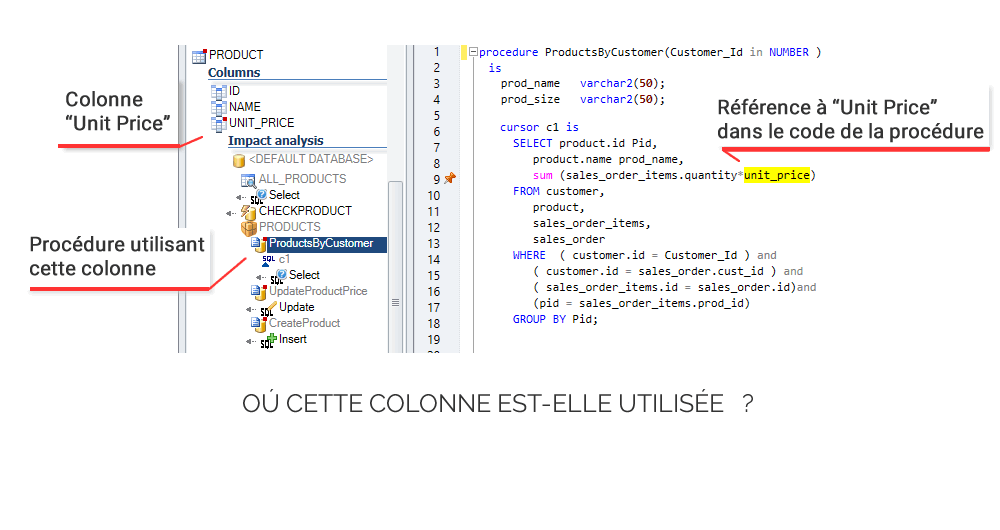
Références Croisées
Analysez l'impact d'une modification dans votre code.
Estimez ce que vous devez modifier pour effectuer un changement sans casser votre application.
Documenter et
Comprendre le code
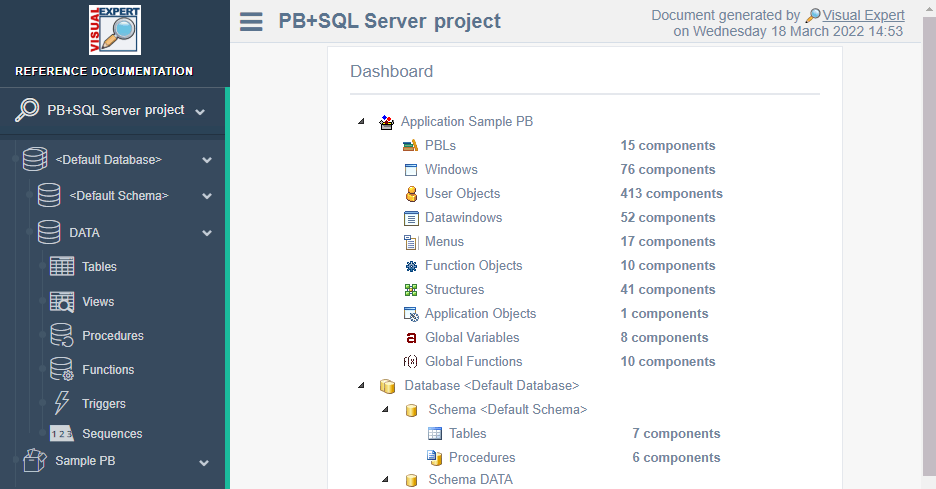
Documentez le fonctionnement interne de votre code. Partagez les connaissances avec votre équipe :
Planifiez et générez automatiquement une documentation détaillée.
Sécurité du Code
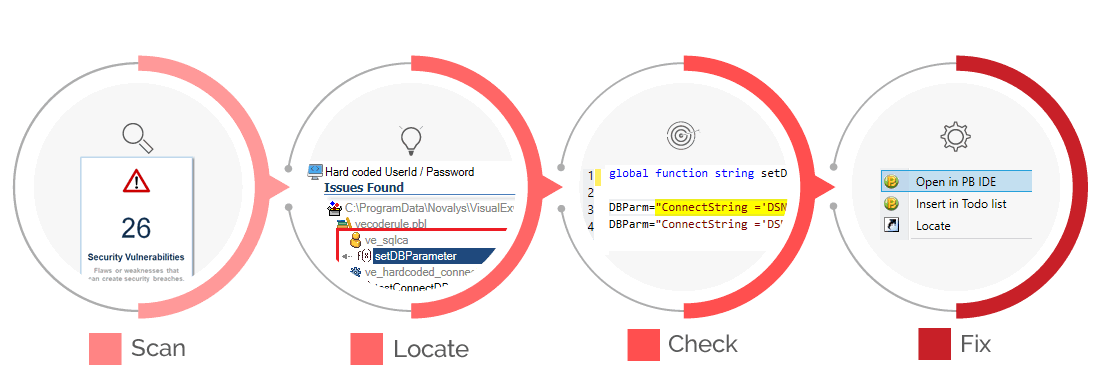
Scannez votre code pour détecter les failles ou les faiblesses
susceptibles de créer des brèches dans la sécurité.
Qualité du Code
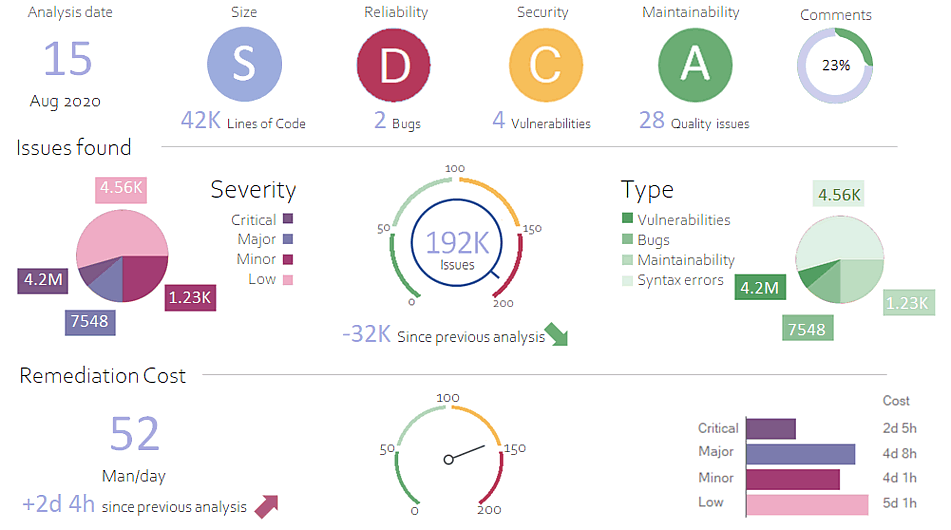
Vérifiez automatiquement votre code par rapport à des centaines de règles,
pour améliorer la qualité, maintenabilité et la sécurité de votre code.
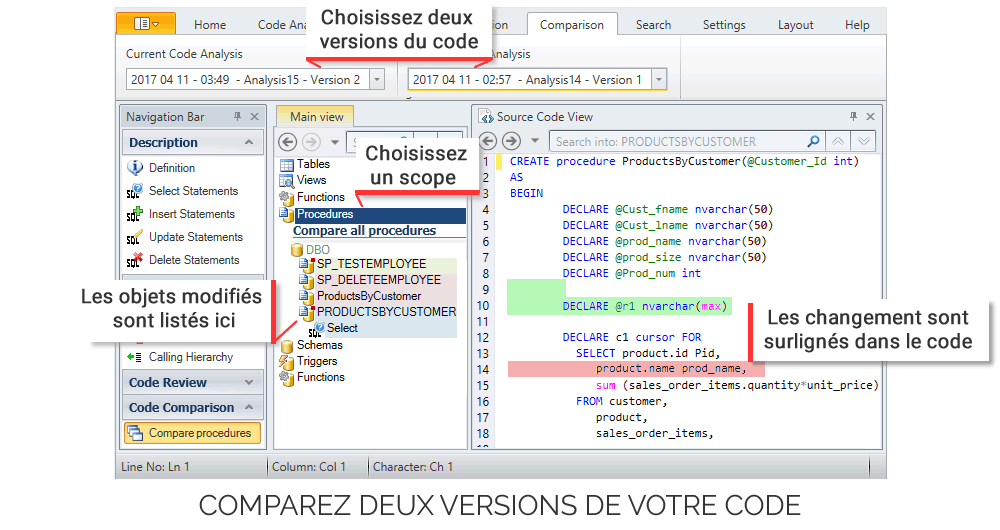
Comparaison de Code
Visual Expert offre 2 façons de comparer votre code :
analysez deux versions d'un même code ou deux ensembles de code distincts.
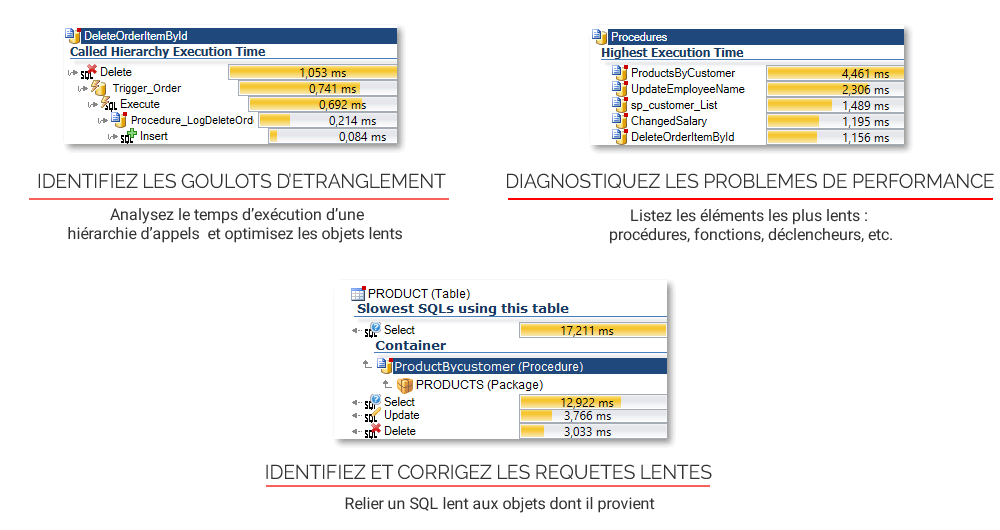
Performance
Visual Expert combine les statistiques de la base de données générées pendant l'exécution
de votre application, avec une analyse approfondie de votre code.
Identifiez les dépendances dans le code.
Ne cassez pas votre application en la modifiant.
Générez des graphs d'appels, de Modèles de Données, la documentation techique, etc.
Scannez votre code et corrigez les failles de sécurité.
Améliorez la maintenabilité. Néttoyez le code.
Respectez les normes de développement
Comparez du code, des applications ou des bases de données pour identifiez les différences.
Trouvez le code qui ralentit votre application. Analysez les processus. Supprimez les goulots d'étranglement
Références
Documentation
Sécurité
Qualité
Comparaison
Performance
L'intelligence artificielle au service de l'analyse du code
Visual Expert intègre des capacités d'IA dans quatre domaines clés pour révolutionner la maintenance du code
Prêt à explorer les capacités de Visual Expert AI ?
Participez au programme beta ou découvrez les possibilités offertes par Visual Expert AI.
Sélectionnez votre Langage



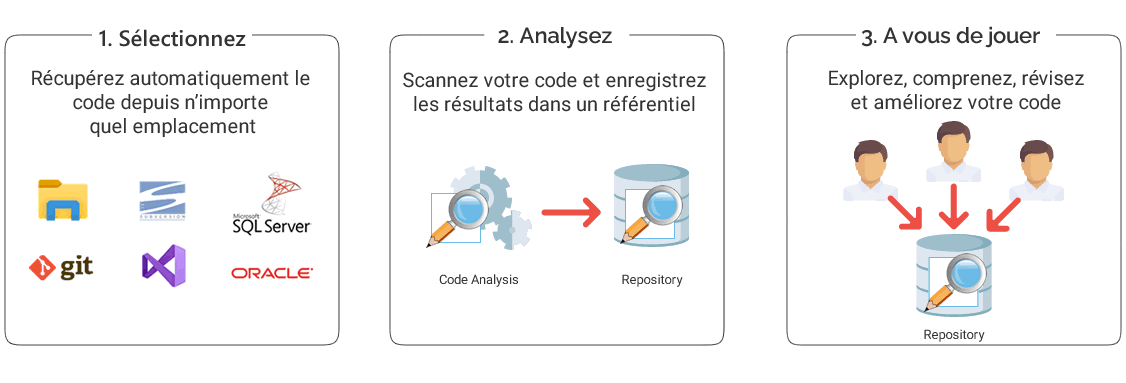
Comment ça marche
Sélectionnez votre Langage
Témoignages des clients Visual Expert

Réduction des coûts
Visual Expert permet de trouver des solutions beaucoup plus rapidement réduisant ainsi les coûts et liberant des ressources pour des tâches plus productives.

Devenir familier avec une nouvelle application en seulement quelques heures
Plus vous utilisez Visual Expert, plus vous comprenez à quel point il est pratique. Je ne me souviens pas d'un outil aussi puissant qui permette à un développeur de se familiariser avec une application en seulement quelques heures.